





burgess22
Members
-
Joined
-
Last visited
Everything posted by burgess22
-
is the mnemonic.txt file just plain no punctuation or anything like just the 24 words. cat dog mouse farm chia and so on and so forth?
-
@adminmat there is a docker coming with plotman in itwhat ever value you put in for the value of -n it will queue so this command will use 4gb ram 2 threads and queue it once so change the -n to 999 if you like and it will run that command 999 times before stopping docker exec -it chia venv/bin/chia plots create -b 4000 -r 2 -n 1 -t /plotting/plot2 -d /plots just adjust your command accordingly as that was for mine so the path might be different@guy.davis can you give us a quick screenshot of your template so I can get it working i'm a 🥔 this morning 🤣I'm trying to find the same thing...haven't had any luck yet must be in the docker it self I reckon...your not looking for the chia.exe here that's windows you want the chia CLI locationYeah I've seen that haven't used it...I've been trying to get swar plot manager to work I have to working on my windows machine is perfect I assume plotman would be the sameYeah if you leave it off will get latest and then you can put other versions like :1.1.14 in if you don't want docker to update like my mariadb they are changing to alpine or something soon so I'll leave it locked on the version running ATM until I can work out how to update without breaking stuff 😂I've got this running on my win pc pumping out plots https://pythonawesome.com/a-cross-platform-plot-manager-for-chia-plotting/ don't even have chia running on win 10 it's just installed...and I have the docker running on unraid as a full node plotting and farming so...not U dont have to keep the windows one open if unraid one is going so long as they are both using the same key I followed this for setupHas anyone tried to set up this on unraid? https://pythonawesome.com/a-cross-platform-plot-manager-for-chia-plotting/ i have it running on my windows PC and if i could get it to work on unraid even better... i just cant find where the python CLI is stored to point the script to the CLII have got this running on windows...i reckon if i can just find the python CLI for chia in unraid i can get it to work but i cant find it yet any one else found all i need to finish is the config.yaml in the Swar-Chia-Plot-Manager need to point the scrypt to the python CLIas you can see im rich as sin =D but it shows u how much u have how much you have plotted and what not
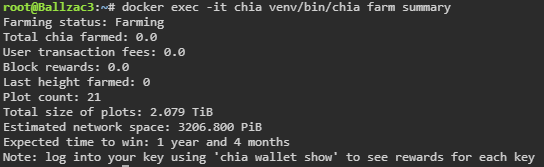 you can also use this command once you are in sync and farming docker exec -it chia venv/bin/chia farm summaryNice work boss...I nutted out how to build the docker from reddit the other day and then fix common problems popped up tonight and found an issue because you have put a template up...winning now I can plot away happily and and get auto updates in CA 🍻 one thing you might want to add is a how to start plotting once docker is up and running I assume from the console it will be venv/bin/chia plots create -b 5000 -r 2 -n 1 -t /plotting/plot1 -d /plots I've always started my from the terminal window using docker exec -it chia venv/bin/chia plots create -b 5000 -r 2 -n 1 -t /plotting/plot1 -d /plots -b is amount of ram you want to give -r is the amount of threads -n is the number of plots you want to queue -t is temp dir -d is the completed directory and if you want to run in Parallel just run the command in another terminal window as many times as your rig will allowi put /unlock after the port seemed to bring up the password area?Finalise If you've completed configuring your YouTransfer instance, it is recommended to finalise the settings. This will remove the 'Settings' link from the bottom-right corner. Access to the Settings pages are restricted. Once the settings have been finalised, changes must be done directly in the 'settings.json' file located in the root of the installation directory. You can also unlock the settings, which will require you to provide an unlock code.Has anyone been able to set the speed throttle doesn't seem to matter what I put it just seems to upload at max speed



