Al Asghar
Members
-
Joined
-
Last visited
-
Hello & Thank you everyone. I also got invidious working thanks to everyone's help and great info here. I have it working with both inv-sig-helper & the companion. I also have a question on SERVER_SECRET_KEY & invidious_companion_key meant to be the same . ( I have the invidious companion created via the docker UI) I know hmack_key needs to be created with "openssl rand -hex 20" I think SERVER_SECRET_KEY & invidious_companion_key need to be created with "openssl rand -hex 8" ? is that correct ? Are we meant to use the same key for both of these or 2 separate random keys. The inv-sig_helper plays almost everything with no issues. I expected the companion to be better or at least as good, but with it, it does not seem to play some of video that sig_helper plays . ( I would say - it plays maybe 50% of the videos). The same video plays using in-sig-helper; but not with inv_companion. Is this expected behaviour ? or is there something wrong with my setup. here is my YML file for invidious cat docker-compose.yml services: invidious: container_name: invidious image: quay.io/invidious/invidious:master restart: unless-stopped ports: - "4000:3000" environment: # Please read the following file for a comprehensive list of all available # configuration options and their associated syntax: # https://github.com/iv-org/invidious/blob/master/config/config.example.yml INVIDIOUS_CONFIG: | db: dbname: invidious user: kemal password: kemal host: xxx.xx.xx.xx port: 5432 check_tables: true # signature_server: xxx.xx.xx.xx:12999 # visitor_data: "xxxxxxxxxxxxxxxxxxxxxxxxxxxxxxxxxxxxxxxxxxxxxxxxxx" # po_token: "xxxxxxxxxxxxxxxxxxxxxxxxxxxxxxxxxxxxxxxxxxxxxxxxxxxxxxxxxxxxxxxxxxxxxxxxxxxxxxxxxxxxxxxxxxxxxxxxxxxxxxxxxxxxxxxxxxxxxxx" external_port: 400 hmac_key: "xxxxxxxxxxxxxxxxxxxxxxxxxxxxxxxxxxxxxxxxxxxxx" # These environment variables configure invidious to communicate with invidious-companion # They are separate from INVIDIOUS_CONFIG as they often control the companion itself. INVIDIOUS_COMPANION_PRIVATE_URL: "http://xxx.xx.xx.xx:8282" INVIDIOUS_COMPANION_PUBLIC_URL: "http://1xxx.xx.xx.xx:8282" INVIDIOUS_COMPANION_KEY: "qazwsxedcrfvtgb" # IT is NOT recommended to use the same key as HMAC KEY. Generate a new key! healthcheck: test: wget -nv --tries=1 --spider http://127.0.0.1:4000/api/v1/trending || exit 1 interval: 30s timeout: 5s retries: 2 logging: options: max-size: "1G" max-file: "4" networks: - inv networks: inv: external: true root@xerxes:/mnt/user/appdata/invidious/config# and here is the invidious-companion docker run -d --name='invidious-companion' --net='inv' --ip='xxx.xx.xx.xx' --pids-limit 2048 -e TZ="America/New_York" -e HOST_OS="Unraid" -e HOST_HOSTNAME="xxxxxx" -e HOST_CONTAINERNAME="invidious-companion" -e 'SERVER_SECRET_KEY'='mjunhybgtvfrcdes' -l net.unraid.docker.managed=dockerman -l net.unraid.docker.icon='https://cdn-1.webcatalog.io/catalog/invidious/invidious-icon-filled.png' -p '8282:8282/tcp' -v '/mnt/user/appdata/invidious/data/':'/var/tmp/youtubei.js/Config':'rw' 'quay.io/invidious/invidious-companion:latest' 82702d9ab122049ed0b1afe17fcabb97f838a32b654c81d14777254a8bee2ef3 The command finished successfully!
-
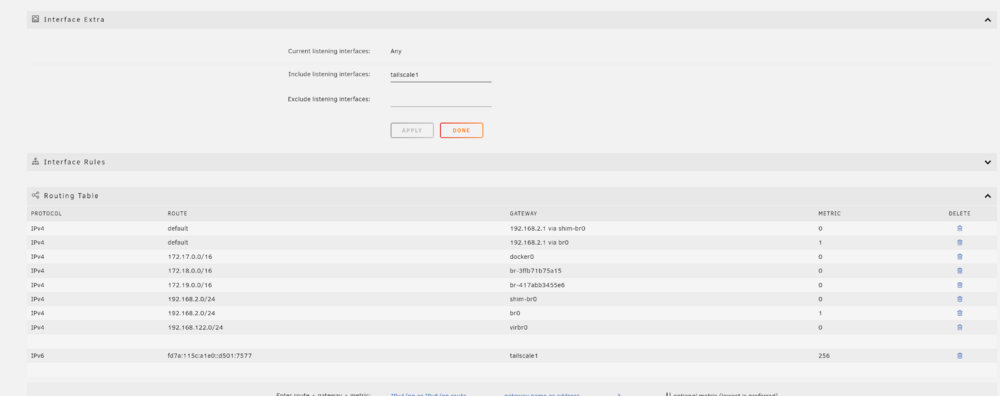
Hello I have installed the plugin using SpaceInvaderOne Video and instruction; I can access the Webgui locally and can access the main unraid box using my internal and external IP address, but remotely using a web browser or my phone I either get "Not secure" or " Connection refused" or just a blank screen. I suspect it maybe something to with my network setup, and looking for the subject matter experts here for some help & assistance. Any suggestions. Thanks Tower-tailscale-diag-20240827-174943.zip