





timmyx
Members
-
Joined
-
Last visited
Everything posted by timmyx
-
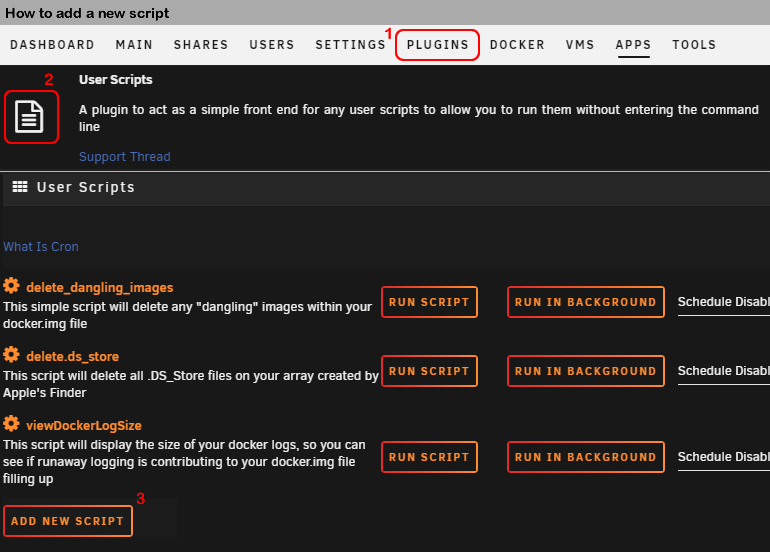
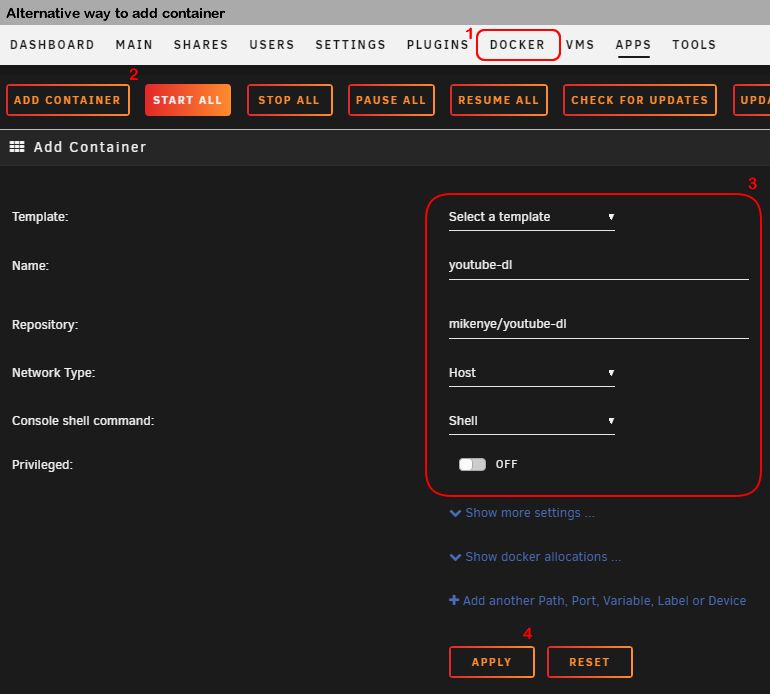
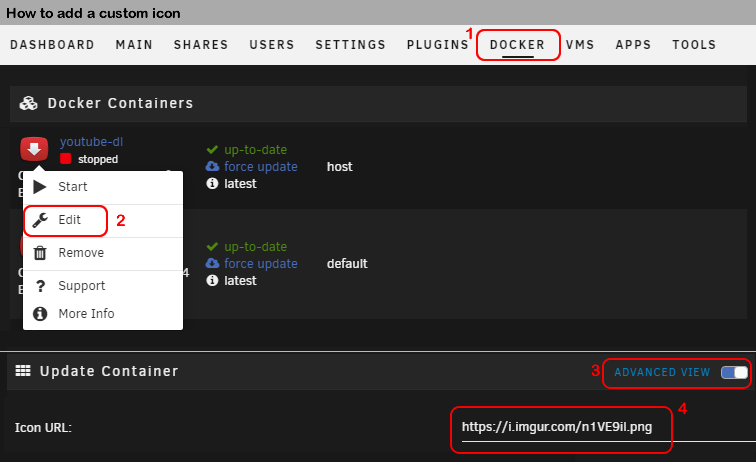
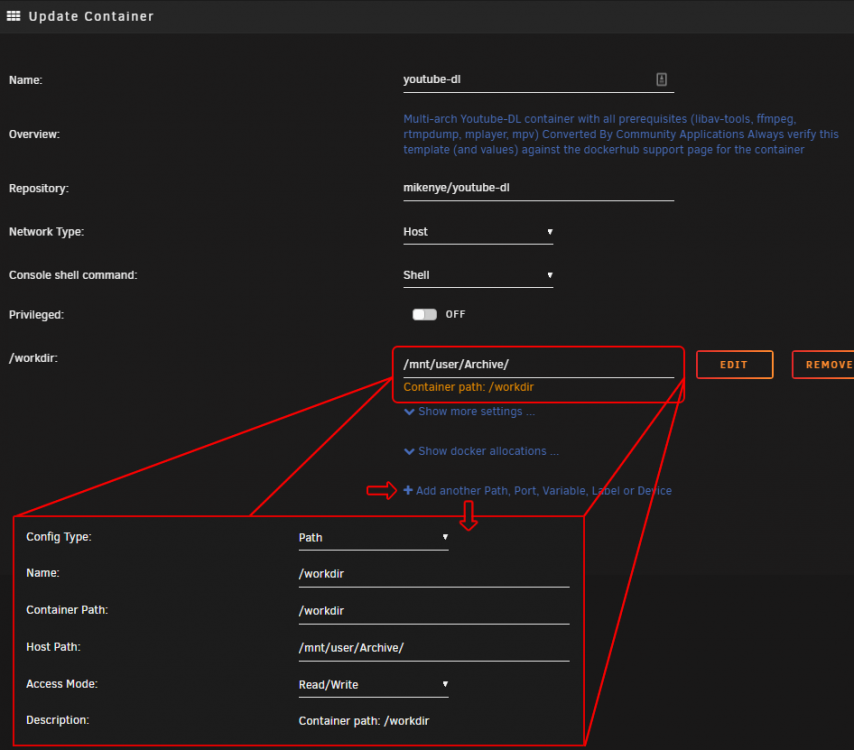
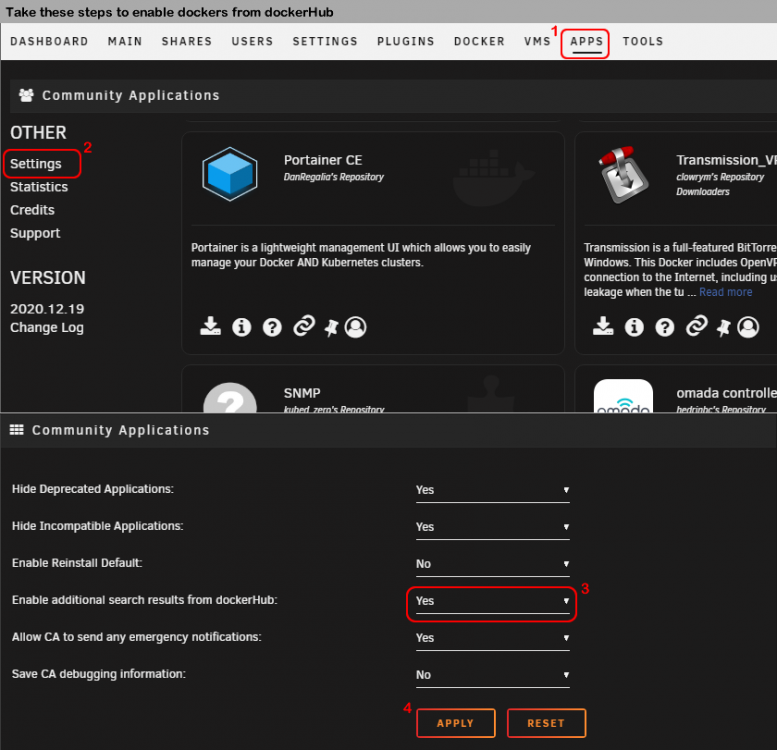
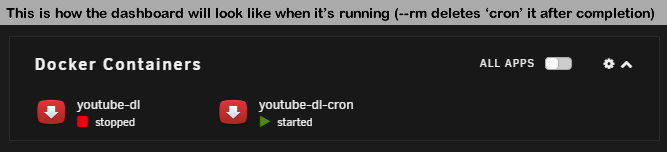
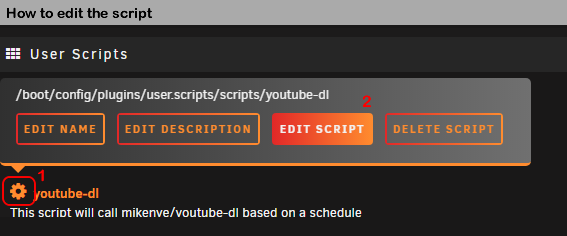
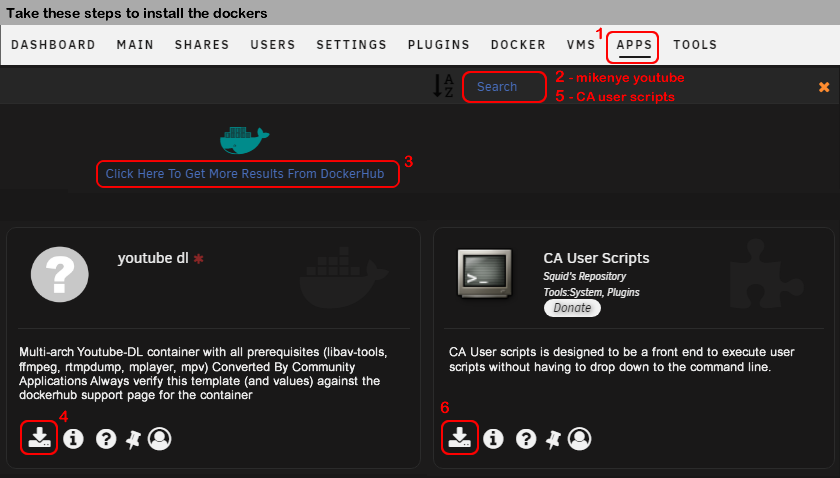
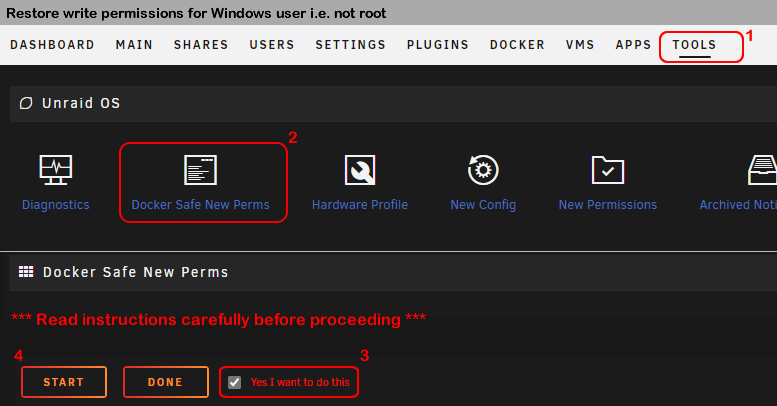
I'd like to thank everyone for the replies, I finally have it running (almost) seamlessly. Here are the steps for anyone who wants to setup youtube-dl in unraid using mikenye's docker – shout out to mikenye for his support! ––––––––––––––––––––––––––––––––––––––––––––––––––––––––––––––––––––––––––––––––––––––––––––––––––––––––––––––––––––––––––––––––––––– How to add youtube-dl and run it your way Background None of the docker containers available in unRaid's repository from Community Applications worked for me the way I wanted (see first post) Repurposed first porst tl;dr - I wanted to be able to set a 'template' of commands that I already use with youtube-dl on Windows to check, download and write a list of downloaded videos from a list of channels, on a schedule and in unRaid instead I found plenty of other youtube-dl dockers in dockerHub but mikenye's was the one with the most information available and it's maintained quite regularly, so it was my choice While this how-to may be applicable to other youtube-dl docker containers, it is focused on mikenye's, so some steps and some arguments in the code may vary Resources mikenye/youtube-dl - Docker Hub youtube-dl - GitHub (reference) custom icon First things first This how-to assumes that you already have unRaid up and running with users and shares set You will need to install the official apps repository called Community Applications Check this video from Spaceinvader One until the 3 min mark and this post for the installation url Note that you will need unRaid 6.8.3 or newer to be able to use CA Once you have CA installed, you will need to also enable results from dockerHub: Then install mikenye/youtube-dl (dockerHub) and User Scripts (CA): Alternatively, you can install mikenye's docker from the Add Container option: Once you've completed the steps above, you will have most that is needed to get youtube-dl running Adding the script to run in unRaid Now we will set up the script to start youtube-dl automatically i.e. run the docker from unraid Follow these steps to add a new script: Now choose to edit the script: This is my script: Arguments in details Red: used to add dates to the log files e.g. youtube-dl_2020-12-23.log Blue: are covered and explained by mikenye's documentation Orange: I added as reference to be used by ytdl.conf Note: change /mnt/user/timmyx/Settings/youtube-dl/ and /mnt/user/Archive to your desired folders Note: I tried to add /settings and /workdir through the docker options (see below) but they wouldn't work, so I forced them in the script If you want unRaid to run the script every so often, choose one of the preset schedules or use cron Configuring ytdl.conf The config file is used as your standard settings using youtube-dl's own arguments Note: all videos you download through the docker and through the user script from previous section will always use the options in this config file This is my config file: Note: I will not go through details of each option but they are thoroughly explained in youtube-dl's documentation Note: For some reason, using --format "best[height<=?1080]" did not always download videos available in 1080p, so I had to force additional options Configuring channels.txt Used to easily add/remove channels to be downloaded from by the script/config file. This is what it should look like: Or simply one channel per line Post-download folder permissions Note: before you do anything here know what this does here and here If you use Windows like I do, chances are you won't be able to modify any of the files downloaded by the docker due to folder permission issues (provided you are not logged in with root credentials in Windows of course) As a workaround, there is an option in unRaid that tweaks the settings and grants you write access again: You might need to go through this workaround again when new folders/channels are downloaded Wrapping things up This should be it. You now have mikenye's docker installed and running through custom settings and on a schedule (at least mine is :)) I used this image as icon to the docker container just so it looks pretty (I hope you won't mind mikenye!) Additional options How to create nfo files for the downloaded content (this helps emby show correct Title and Description of downloaded videos) Follow this link to the walkthrough (tks hczv)

-
Thanks for the replies. I found a docker that's very promising to my use case mikenye/youtube-dl - Docker Hub All I need now is to figure out how to get it running
-
Hello, I'm fairly new to unraid and definitely new to docker containers and linux scripts But I use youtube-dl on my pc to regularly download new videos from channels I follow (just as safety measure that my inner /r/datahoarder tells me to do in case these channels ever go byebye 😆) What I do now is call a .bat file on a schedule basis with all my arguments, naming structures, archives, etc. So it's fairly automated except that I would have to download a newer youtube-dl version manually I've been setting up my first unraid server for the past couple of weeks now and this is something I'd like to move over to an unraid process. But I've tried a few different docker containers that I didn't have luck with: youtube-dl-server: runs ok for but for single downloads, it can't handle customized output parameters nor can it listen to a playlist/channel for updates and automatically downloads youtube-dl material: promising, had an option to write archives automatically but I couldn't get the output parameters to work go auto yt: says from info that it can handle output options and archive writing, but I kept getting a 'There was an error getting channel metadata: From c.GetMetadata():' so I just ditched it Alternatively, I've come around this and this but I wouldn't know how to setup or if it could manage to handle my script. So I was thinking... is there a way that I could have unraid read my batch files on a regular basis and run youtube-dl? Much like I do right now on windows My batch file contains several commands like this: youtube-dl --ignore-errors --no-continue --write-description --write-sub --download-archive "downloadsfolder/archive.txt" -f "(mp4)[height <=? 1080]" -o "downloadsfolder/%%(uploader)s - %%(upload_date)s - %%(title)s.%%(ext)s" https://www.youtube.com/channel/UCVI66VMGYg0dLPEkWPrCkBw for /R "downloadsfolder" %%f in (*.description) do ren "%%f" *.txt tl;dr youtube-dl docker containers I tested can't handle some or all my output arguments for channels I regularly download to archive. is there a way to make unraid call a batch file (or similar) on a schedule basis and run youtube-dl to download newly added videos that are not listed in its output archive? any help is really appreciated! 😊



