Jakob Garde
Members
-
Joined
-
Last visited
-
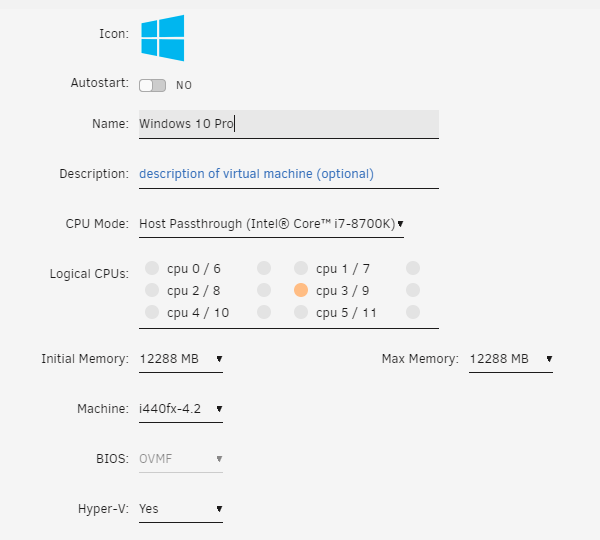
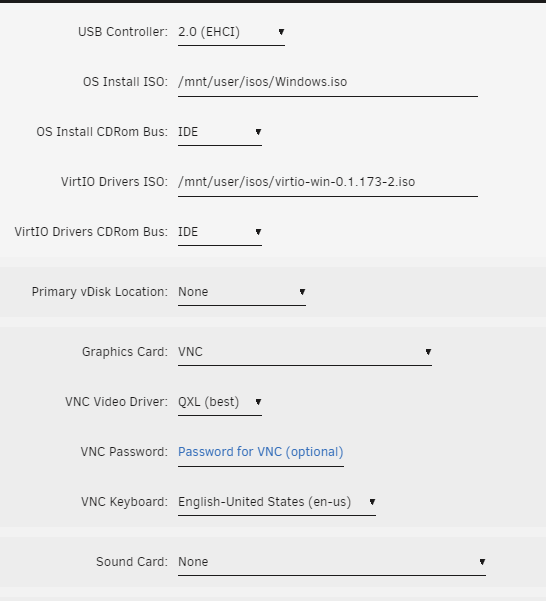
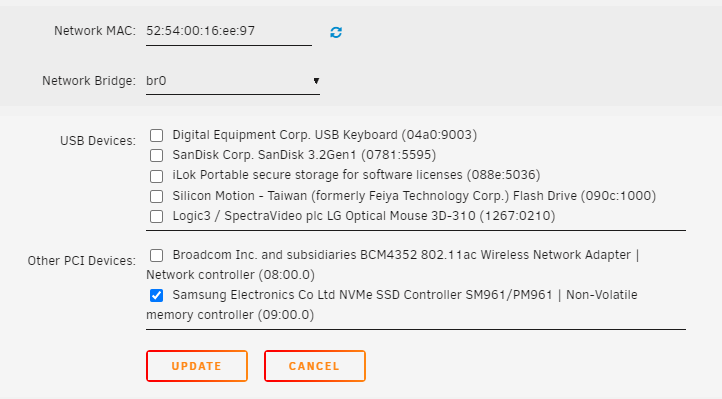
Hi, I set up my first Unraid some weeks ago and followed many of Spaceinvader's videos. I think I understand the different concepts. How to correctly choose the right CPU-threads, how to pass-through your graphics-card - and yes my system is IOMMU-ready - but still I have had soooo many issues setting up my first VM - it always results in a black screen. However, it seems like my monitor detects when the VM is supposed to start. Anyway, some people suggested that you start setting up your VM with the VNC GPU instead. Thankfully, I can now see that something is happening but know I have a whole new issue. I type in the product key, install the files to the primary disk, and then Windows 10 tells me it will have to restart itself to finish the installation. The problem is that it restarts the whole process - then I have to type in my product key again, install etc. - and it seems to be an infinite loop as of now. Ideally, I would like to install the Windows OS onto my NVME. Therefore, you see, I have passed through this drive in the VM setup. I also tried to use a vDisk instead, and that didn't solve the issue. You see that I also tried to assign a single CPU-thread on these screen-shots since Spaceinvader suggested this could solve an installation problem, but that didn't help either. Thanks, Jakob