





Defq0n
Members
-
Joined
-
Last visited
-
No worries. Glad you got it all going!
-
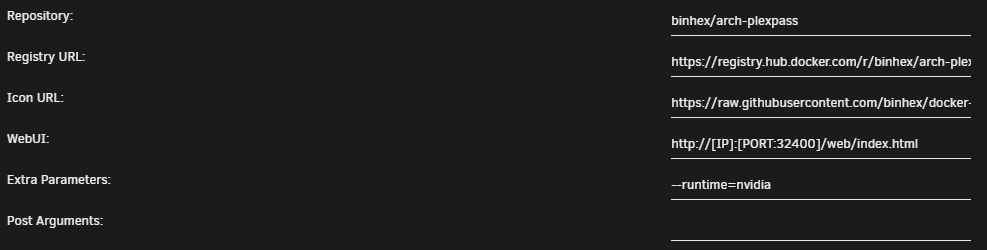
The current nvidia drivers work fine with this. But be sure to read the notes when installing. You will need to stop and then start the docker service after the nvidia installer finishes. This allows docker to be able to use the gpu with the UUID of your card. Also, when configuring plex, be sure to open the advanced view in the top right corner when creating the container. In the extra parameters section, be sure to add "--runtime=nvidia" as shown in the first screenshot. Lastly, make sure you pass the extra variables in the plex container as well, or any other container you wish to use the gpu with. These are shown in the second screenshot. The variable names are NVIDIA_DRIVER_CAPABILITIES and NVIDIA_VISIBLE_DEVICES. The last variable is where you will copy the UUID in the nvidia driver module. If you run into any problems, just let me know.

-
was this built only with nvenc support in ffmpeg? setting up video for memories doesnt seem to be able to talk properly to qsv when checking vaapi
-
Apologies for reviving a semi-old topic, but did you ever manage to have this happen at boot? udev rules are not persistant unless you add things to the go file on startup and still then, are iffy.
-
Did you find anyway to get rid of those log entries? I have had this same issue for the past year or so. I can symlink my datasets into a regular folder that already exists as a share and be fine. but all datasets would be grouped into one folder. I map different datasets to different sharepoints on different machines with different permissions. Would like to go back to being able to use individual folders for shares though.
-
Any new updates on this? Haven't seen anything updated on github in awhile

