mstrhakr
Members
-
Joined
-
Last visited
Everything posted by mstrhakr
-
I took a closer look at this and confirmed regression from the 09.13 update (#149 change made rebuilds opt-in, so local-only images hit a registry pull). Fixed in the next beta now: if the pull fails, buildable services are skipped and rebuilt from source automatically. The per-stack "Rebuild Images on Update" save bug is also fixed. With pull_policy: never, enable that per-stack toggle (or use pull_policy: build) to force a rebuild.
-
We are working on Git based stacks which may include a webhook based deployment. We just started (by we I mean a contributor) so the beta only includes CLI based git stacks right now, no UI. Keep an eye out though. Beyond that, if you only want it to poll regularly, I would probably get it down to 15 minutes, I will look into this.
-
This is interesting, one thing I am always thinking though is, 'Is this worth doing considering Unraid 8 will have a whole new base OS, layout, and built in compose support.' In this case, I'm not sure because I don't use secrets like that. With that said, I love contributions and would be happy to have you submit a PR for this if you think its worth tackling. I did just add credential management in dev to support private github repos and such so you may have some scaffolding available to reuse now.
-
To be honest, I wish this was versioned like a normal program. Just forcing an update to latest with out much choice and no way to roll back is not fun for me or the users. Hopefully they rethink this as part of the rebuild they are doing for Unraid 8.
-
Updates 9/3 and took care of these issues.
-
Yes, it populates the list by scanning the projects folder. Deleting the old one is perfectly safe.
-
Was this after an update to anything relavent? There was an issue I had with websockets dropping due to a Chrome update enforcing HTTP/2 standards but this seems different. Please open a bug report on GitHub and I can take a closer look.
-
I'll have a beta out soon that removes the docker.manager update checking as it seems to be a bit unreliable, there is a post here about it. I copied that and fixed a couple things and it is now owned by compose manager so updates that dont exist should be completely fixed going forward. (Once the beta and then the next stable are released)
-
Do you just want to update it to the latest? This needs done by me when the plugin is packaged it grabs whatever version is in there. Its not something you can change at runtime. I'll test updating it to the latest 5.4.0, though I usually like to wait for at least a x.x.1 before updating. AND I've been awol for a bit dealing with life so I haven't had a change to do any updates.
-
You mounted the docker socket so it's showing all the dockers running on your server. It's using unraids install of docker, not its own docker in docker setup or something.
-
Not sure why that's happening, try doing a hard refresh in your browser. [CTRL]+[SHIFT]+[R] If that doesn't fix it please provide the unraid version you are on and I'll see what I can figure out.
-
Yes, this is fixed in dev, I'll be releasing into beta soon.
-
Exactly that, but the beta branch only builds when I'm preparing to merge so I can get some feedback on the update before it's live. Specifically the beta branch builds when there is a PR from dev to main with a "release" tag added, while main builds on any push.
-
Interesting, I only use GitHub raw png links. I clearly need more test stacks to flex all these things. I'm already at 45 though lol. I'll check this out tonight also.
-
Should not be so slow. Where are you viewing the compose page, on the Docker tab or its own Tab. I haven't updated to 7.3.2 yet so maybe there is something there. I'll be doing some work this weekend on this plugin so hopefully I can find the issue.
-
Thanks for the report, I'll see if I can reproduce this and find out where I went wrong.
-
I forgot to update you, but this should be resolved with some mobile specific layout work. It should be completely usable on mobile now.
-
Can you share your compose file? The container names are chosen by compose, not by Compose Manager. You can use container_name: to manually set the container name, or if you don't care and just need the hostname to be something specific you can use hostname:.
-
Thanks, this has been a pain point, I'll take another look into getting this perfected.
-
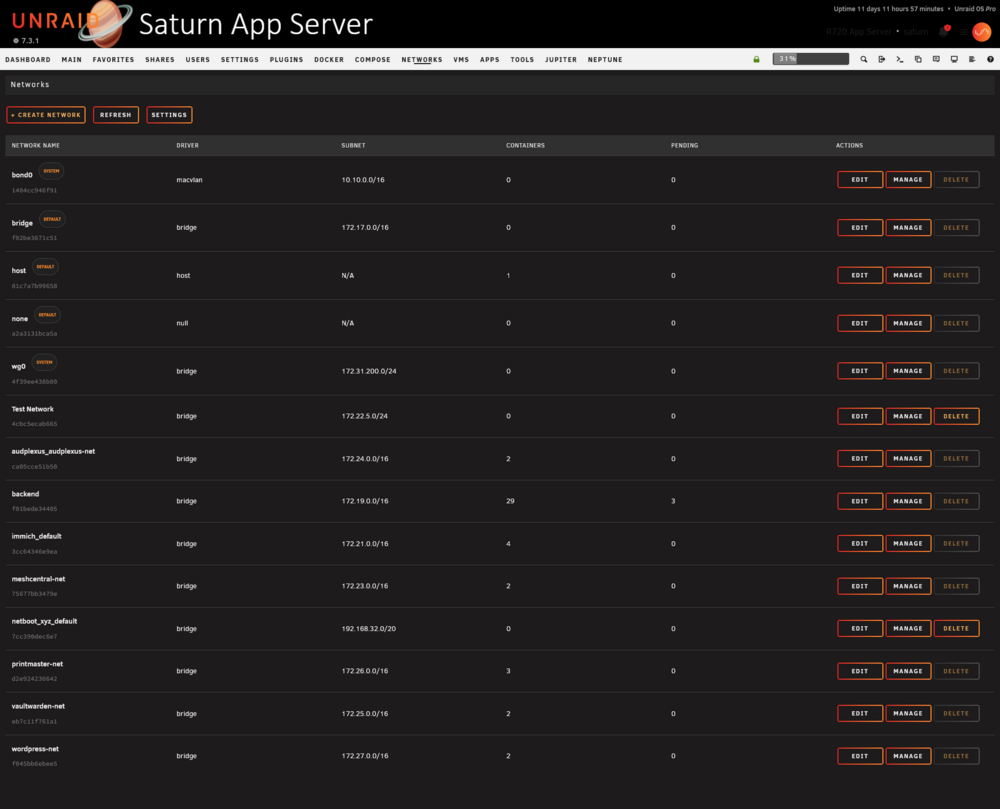
They tell me i need to test at multiple window sizes lmao. But there are two more buttons there, manage which allows adding and removing containers from each network, and delete which allows you to delete a network with no connections. I will get this fixed, sorry about that, for now you can zoom out with `[CTRL]+[-]` to see the buttons.
-
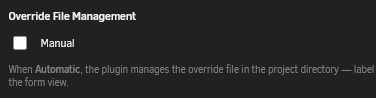
This is due an issue with how I was cleaning up orphaned services from the override (labels) file. A quick fix is to go to the stack settings, uncheck the box for Override File Management (set it to manual) Once you save and then reopen the editor, you will be able to manually remove the sabnzbd entry from the override file. Your other option is to update to the beta which includes the fixes for this as well as the ability to edit the override file manually more easily.
-
Yes, its basically doing docker network list and getting all the networks available on the system. It also currently shows system networks also but I'll be adding an option to hide those if that is preferred.
-
FYI This is pending some kind of manual verification for plugins before it will be listed in the CA app store. I've submitted the request an hour or two ago and now we are waiting. Of course manually installing and updating via the Plugins tab is always an option. This is now available in CA.
-
Docker Network ManagerManage Docker networks directly from the Unraid web UI. InstallUnraid Community ApplicationsIn Unraid, go to Apps and search for: docker networksUnraid Plugin ManagerIn Unraid, go to Plugins → Install Plugin and paste: https://raw.githubusercontent.com/mstrhakr/docker.networks/main/docker.networks.plg Basic UsageOpen Docker → Networks. Click Refresh to load current networks. Click + Create Network to add a new network. Use Edit to update network description/metadata. Use Manage to connect or disconnect containers. Use Delete to remove custom networks. TroubleshootingIf the UI looks stale after an update, do a hard refresh: Ctrl+Shift+R. If network actions fail, ensure Docker is running on Unraid. SupportIssues: GitHub Issues
-
OMG you are right, i will have to change it to (Beta) Compose Manager Plus or something. Thanks for pointing this out! It does have the big beta flag but still...