Skip to content
View in the app

A better way to browse. Learn more.

Unraid

A full-screen app on your home screen with push notifications, badges and more.

To install this app on iOS and iPadOS
  1. Tap the Share icon in Safari
  2. Scroll the menu and tap Add to Home Screen.
  3. Tap Add in the top-right corner.
To install this app on Android
  1. Tap the 3-dot menu (⋮) in the top-right corner of the browser.
  2. Tap Add to Home screen or Install app.
  3. Confirm by tapping Install.

rogman

Members
  • Joined

  1. dashboard plugin is released in the App Store and in its final form (unless I can get pause/start) button to work. Must use API with read and read:files permissions to show the current file Day 15 and I'm almost done, would have been another 200+ days without these amazing patches from Foz! You're a lifesaver!
  2. I will check and follow up but quick question... This sounds like a great feature to add to the web GUI if possible. It could be a fourth tab "Skipped Files" and list them with the reasons. Not sure without looking if it's easily doable or something that could be integrated into the API also? Update: === reasons === 1 # SkippedFilesReportStarted: 2026-08-15 04:07:29 === files === # SkippedFilesReportStarted: 2026-08-15 04:07:29 Update: checked today, and current stats are Ran the terminal script and still get the exact same output as above === reasons === 1 1 # SkippedFilesReportStarted: 2026-08-16 13:26:37 === files === # SkippedFilesReportStarted: 2026-08-16 13:26:37 opened the txt file directly in file browser
  3. Submitted the plugin for app store listing, I think I did it all right, never done it before and had to review some guides. @foz I have no issues with handing this repository or code over to you when you get around to your plug-in so you can use it as a building block. You can fork it and I can decommission the current one, I don't need to be the author but I think it has a pretty good foundation and I spent a lot of time on the settings part of it to make it look nice and work in a hopefully very user friendly way. Every day I have some failed uploads but never anything under failed files, I'm curious if these are different things. Are failed uploads simply chunks that failed and then re upload and clear or am I missing something? This could explain why the failed files tab never shows anything if it's not the actual file failing. I'm stumped on this one. Overall big thanks for this container, I'm on Day 10 and at almost 60% of 17TB. This would have taken months without your fixes! Note I'm up to 650MB files and getting burst of 60MB/s but whole file average of 31MB/s with 67 threads. The one thing I cannot get to work is a button that pauses or starts the backup, it just returns an error. I've tried troubleshooting it but have gotten no where. This is using an API key with read and control options.
  4. Github link Backblaze64 Monitor: An Unraid dashboard tile for the upload monitor built into the Backblaze64 container (iamfoz/backblaze-64-personal-wine-container). Adds a native Unraid Dashboard tile displaying upload speed, backup progress, memory usage, active threads, connection latency and more without needing to open a separate browser tab. Auto-refreshing, collapsible to a one-line summary, with color-coded progress bars. A dedicated settings page lets you choose which fields appear and how they're arranged across the tile's two columns. This plugin does not gather any data itself; it uses the container's own API. You need to open the Backblaze64 web GUI, click on the API tab and generate an API key. Then paste that key in the plugin settings on the Connection tab. Requires a Backblaze64 container reachable from the Unraid server. Configure the address, port, and API settings. Settings -> Utilities -> Backblaze64 Monitor after installing. CreditThe Backblaze64 Monitor is only possible because of the amazing work put into Backblaze 64 by@iamfoz Without it, this plugin would not exist
  5. @gandalf15 plugin has been updated to API version now; it should show the update if you just run the check for updates. Make sure to create and plug your key in. https://raw.githubusercontent.com/rogleete/backblaze64-unraid-dash-monitor/main/backblaze64-monitor.plg
  6. @foz I was curious where you find out which files failed/skipped. Mine shows 5 failed, but on the desktop > settings > issues tab, it never lists anything there. beta+132
  7. This is awesome, I will convert the plug-in to full API access tomorrow and add in some of these new fields. I really love the compact view on the monitor too instead of seeing 40 chunks listed per file it's one nice line with blocks. I'm not some wizard programmer like you either so feel free to take what I've started with on the plugin and run with it. The home assistant alerts is brilliant and that will be setup tomorrow also. Maybe a report on how many new files were created each week and how many backed up, did any fail. A monitor itself in HA, the sky's the limit now with this update! Update: got the plugin working with the API, and everything is butter smooth. Really liking the possibilities with having API access. It's still in beta as I iron out some of the settings panel, but here is a peek I've abandoned my custom web monitor as the packaged one is far superior, and there's no point in having both.
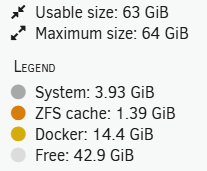
  8. I'm up to 350MB files right now. I also set threads to 75 in settings (not on auto) I also noticed my setup has never used a swap drive; it all runs in RAM. I don't know if that's just because of the amount of free RAM available and if that factors into threads at all.
  9. Got this up and running. The only issue is that it hooks into bb-monitor-web.py to get the data, not the native container. I'm trying to fix that so it works for everyone. Now working on the native Beta install; no extra files or anything needed. Here is the collapsed style Settings panels You can install this by going to Plugins > Install Plugin > Enter URL: https://raw.githubusercontent.com/rogleete/backblaze64-unraid-dash-monitor/main/backblaze64-monitor.plg --Click Install This is not published in the app store, so you have to install manually via the URL. If I can get it working with the untouched container and figure out how to make it auto-refresh, it may be worth publishing.
  10. You would only need them to send you 32 hdd's at $300 a pop to full restore
  11. Got bored, started messing around with layouts for use with Homarr Cards Trader Ascii Hud Newspaper
  12. There's probably only one or two of you out there, but if you had installed my web-based viewer before Foz published the baked-in web viewer, it would break his. I updated the files so that it uses a different port and updated the instructions in case there is any use case for it, but I think what is packaged in now is the right approach. If you do use it, it will now utilize the container's existing HTTPS certificates instead of creating new ones and includes all the fixes and extra features Foz rolled out, like RTT ping time, GB/TB/PB sizing, and mobile browser formatting.
  13. @foz I should have seen that but didn't check. It was the port. I just changed my custom one to 8098, and the built-in fired right up! Thanks for pointing me in the right direction! You didn't have to shout me out in the about; all the props go to you and the immeasurable hard work you have poured into this project to help the community out! You are a legend!! @gandalf15 Man, I thought my 17TB was a lot....holy smokes :)
  14. @foz My monitor tab just stays stuck on this / beta+107, SECURE_CONNECTION: 1, VNC_PASSWORD: Blank (if these matter) small request, I was reviewing your bb-web code and could you please update the "dark" theme to these colors if possible (I had changed them because it wasn't truly dark, it was grey and it's my favorite theme) html[data-theme="dark"]{ --bg:#000000; --panel:#1e1e1e; --border:#6a9fd8; --title:#7fb2e5; --text:#d7e6ff; --hi-bg:#d4d4d4; --hi-fg:#161616; --good:#3ddc6b; --warn:#ffd23d; --bad:#ff5a5a; --track-bg:#0c0c0c; --track-border:#3a3a3a; --scanline:0;
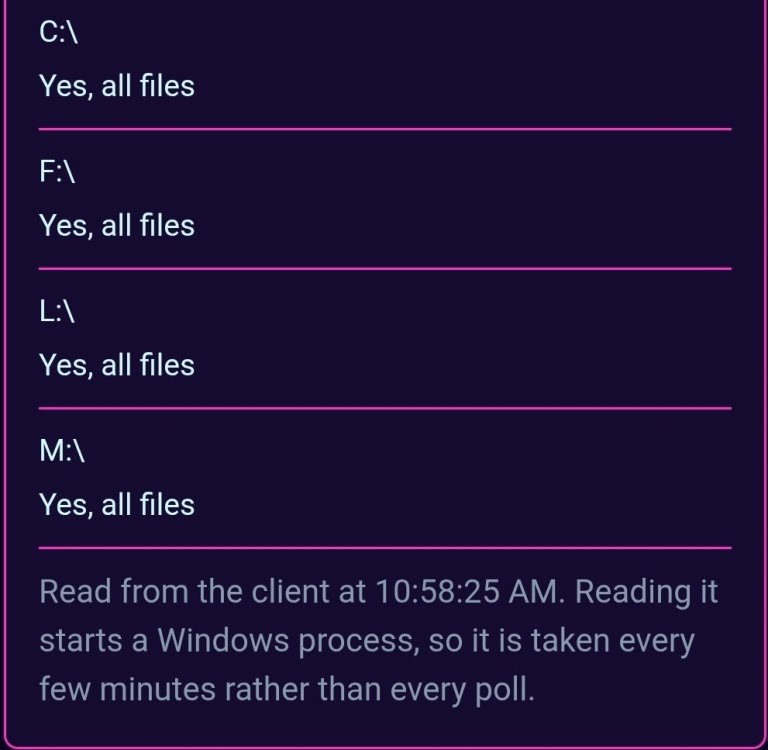
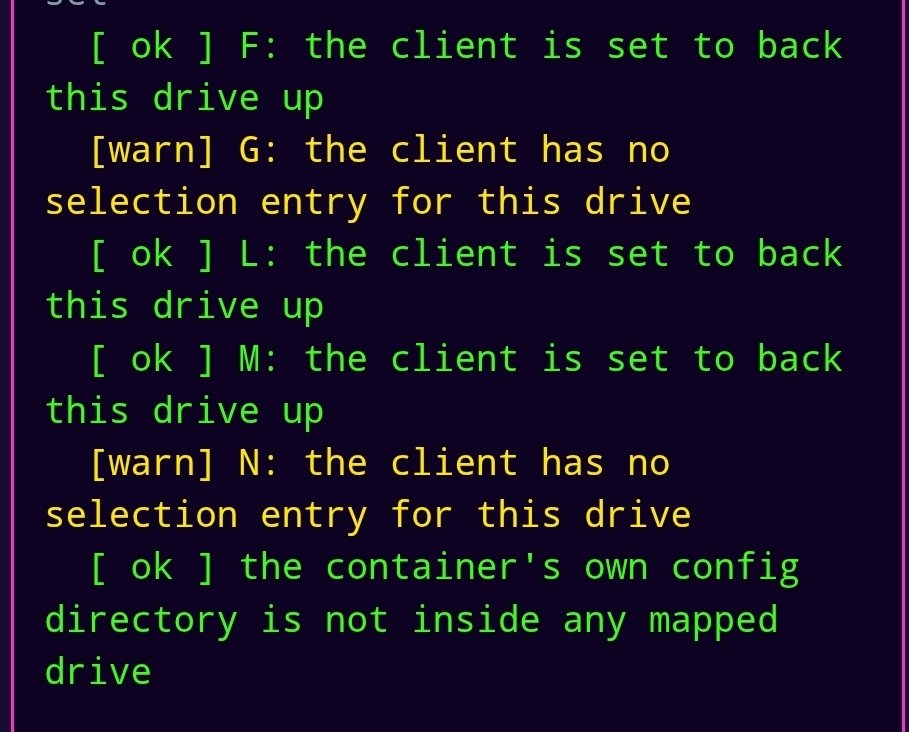
  15. Ok, this is probably the final version I will make, but it has a lot of improvements. Now only viewed over HTTPS with an auto-generated self-signed cert. Prompts for a password on first view, which stores the password via a salted PBKDF2-SHA256 hash. Here are the details and full instructions to set up, since it's a few posts up. - - - - - - - - - Backblaze 64 Upload MonitorA live web dashboard for Backblaze64's own bb-monitor console tool. What it doesLive upload stats every 2 seconds — threads, transfer rate, chunk rate, session total, and connection state Overall backup progress (bytes and files done vs. total selected), with an ETA smoothed over your last 10 completed transfers Per-file progress bars for uploads currently in flight, and a log of recently completed transfers Memory and swap usage gauges, dashboard uptime, and a files-remaining counter Experimental TCP-connect latency check, preferring your live upload connection over DNS when one's active 13 color themes, remembered across visits, plus a compact view (?compact=1) for embedding in a dashboard tile SecurityYour password is never stored — only a salted PBKDF2-SHA256 hash, checked with a constant-time comparison All traffic is served over HTTPS via a self-signed certificate, generated once and reused across restarts Every page and the API require that password once one has been set Filenames and other displayed data are HTML-escaped before rendering, preventing injected content via unusual filenames Forgot the password? Run in terminaldocker exec Backblaze64 python3 /config/bb-monitor-web.py --reset-password - - - - - - - - - - Setup: Download the two files and place them in your root /Backblaze64/ appdata folder Create two entries in the docker template #1 is a Port: 8098 for the host and 8098 for the container #2 is a Path: /etc/cont-init.d/95-start-bb-monitor-web.sh for the container value and /mnt/cache/appdata/Backblaze64/95-start-bb-monitor-web.sh for the host value The first one opens the port on which the web-based monitor is viewed. The second runs the script, which turns on the web monitor when the container starts When you run it the first time, it creates a folder /appdata/Backblaze64/bb-mon-cred/ that stores the salted password and the self-signed HTTPS cert and a readme file Here is what the readme file says: # bb-monitor-web -- credentials & security notes This folder holds everything the dashboard's login and HTTPS depend on. It lives under /config specifically so it survives container restarts and recreates -- don't move it outside /config, or you'll lose the password and cert on every restart and have to redo setup each time. ## What's in here - creds.txt -- password hash (see "How the password is protected" below) - cert.pem -- the self-signed HTTPS certificate (public) - key.pem -- the private key for that certificate (chmod 600) - README.md -- this file ## How the password is protected - The password itself is never written to disk anywhere, in any form. - Only a salted PBKDF2-SHA256 hash (200,000 iterations) is stored in creds.txt, as "salt:hash" -- both hex-encoded. - Checking a login attempt uses a constant-time comparison (hmac.compare_digest), so the check can't be timing-attacked to guess the password one byte at a time. - creds.txt and key.pem are both saved chmod 600 -- readable only by the user the dashboard runs as. ## How access is gated - Every page and the /api/status endpoint require HTTP Basic Auth once a password has been set. The username you enter is ignored -- only the password is checked. - Before any password is set, every request redirects to /setup, which is the only reachable page. Once a password is set, /setup refuses to run again (403) -- it can't be used to reset or hijack an already-configured install. Use the reset command below instead. - All traffic is HTTPS-only, using the self-signed certificate in this folder. It's generated once and reused across restarts, so your browser only needs to click through the "not trusted" warning the first time, not on every visit -- it's not a fresh untrusted cert each boot. - Filenames and other Backblaze-derived data shown on the dashboard are HTML-escaped before being displayed, so a file with an unusual name can't inject a live tag into the page. ## If you forget the password Run this from an Unraid host terminal (no need to stop the running dashboard first -- it re-checks for credentials on every request): docker exec Backblaze64 python3 /config/bb-monitor-web.py --reset-password That deletes creds.txt. The very next page load will show the /setup form again to create a new password. The HTTPS certificate is untouched by this -- you won't get a fresh browser trust warning. Hopefully some of you find this useful; it was fun to help create and again undoable without working with what @foz had already created! 95-start-bb-monitor-web.sh bb-monitor-web.py

Account

Navigation

Search

Search

Configure browser push notifications

Chrome (Android)
  1. Tap the lock icon next to the address bar.
  2. Tap Permissions → Notifications.
  3. Adjust your preference.
Chrome (Desktop)
  1. Click the padlock icon in the address bar.
  2. Select Site settings.
  3. Find Notifications and adjust your preference.