





Tornic
Members
-
Joined
-
Last visited
-
I don't wanna hijack this post. but I had the exact same question. One follow up question though. You're talking about the following Do you mean the "Permit exclusive shares" Setting in Global Share Settings? I have no Global Pool Settings.
-
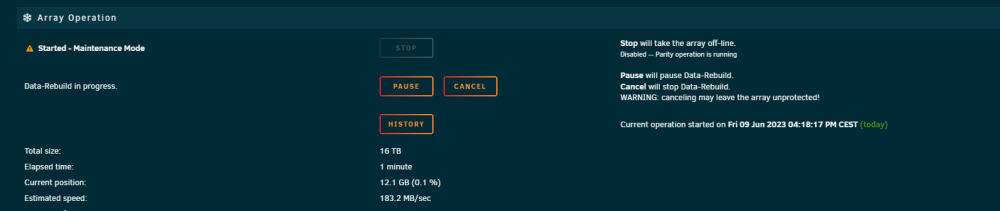
The rebuild has succesfully completed! Is it now smart to do a seperate parity check? Or was that done during the rebuild?
-
It's rebuilding now. I'll give an update tomorrow when it's done. Many thanks for the great help!
-
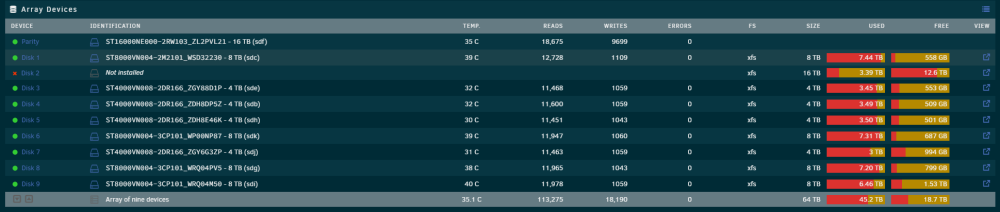
Would the next step be assigning the new disk2?
-
Looks like it's back. There doesn't seem to be a lost+found folder on disk2 tho.
-
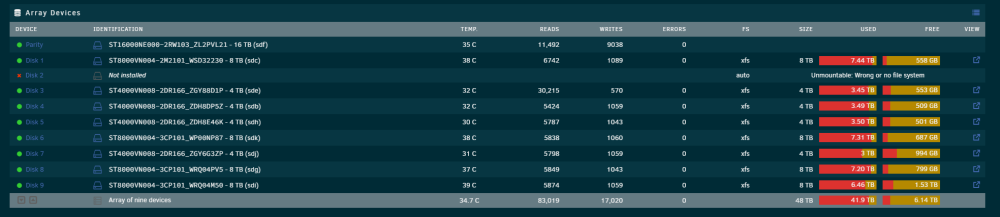
This is the check filesystem for disk2.
-
For disk2, I guess I can just preclear it as normal. Assign it and rebuild right? What is your opinion about preclear, it's a brand new disk?
-
Yes!
-
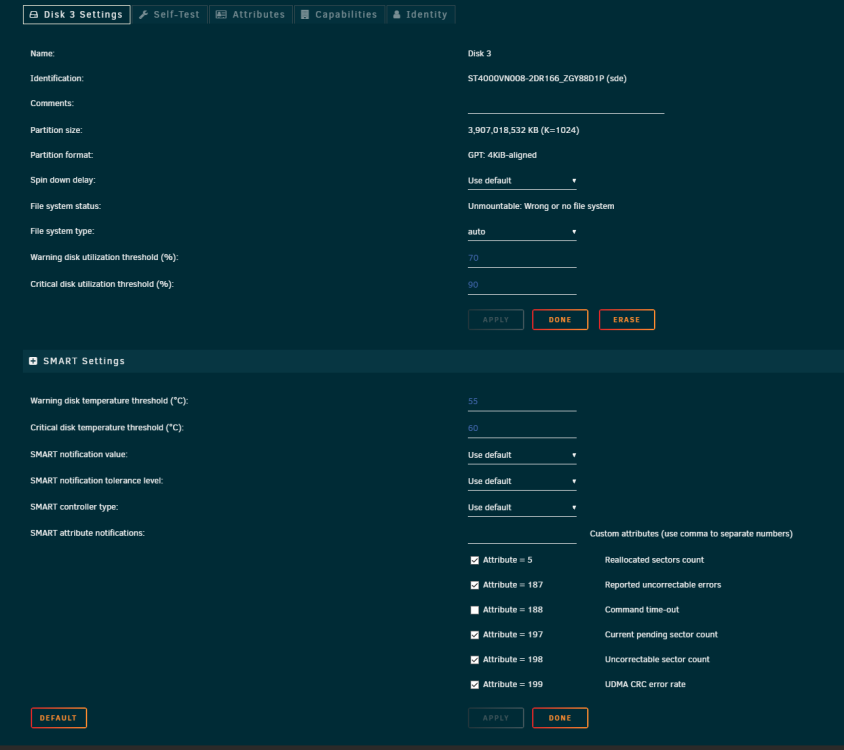
I get the following.In the link you provided it states the text I quoted here above. When I click the name of the disk what I want to test or repair. I don't see the "Check Filesystem Status" option. What am I doing wrong?
 It now says the following. Please advise. tornic-diagnostics-20230609-1250.zip
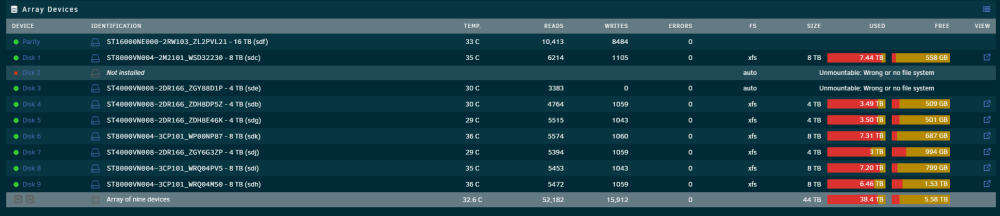 My replacement disk is coming tomorrow. Why would you stop the array and unassign disk2? Can't I just let it rebuild if it works?Not to my knowledge, is there way to check to make sure?A few followup questions. It's now doing a Read-Check, is it usefull to just let it finish? Or can i cancel it because I'm going to replace it anyway? And regarding the new config method it would invole the following steps. Replace new disk3 with old disk3 Replace disk2 Start new config Rebuild disk2 Is the above correct?




