MooseOnTheLoose
Members
-
Joined
-
Last visited
-
After updating to the latest stable release (7.3.0), my docker containers that have extra parameters set to use my vpn (--net=container:GluetunVPN) and network set to None, no longer startup. After some troubleshooting by removing the extra parameter, starting the docker container, re-adding the extra parameter and then starting back up the container, it is back up and working. Is there a better way to set the network container that should be used? Or do I need to remove the extra parameter and re-add it every time I stop the array from now on?
-
When installing this plugin and after reboot, this somehow causes the displayed processor speed to change on my particular setup. See my other post here about troubleshooting to narrow this down to the plugin.
-
Thank you.
-
When I removed the plugin File Activity v2 and restarted, the speed changed to 3200. I reinstall the plugin and restart and its back to 4900. Should I report this anywhere @JorgeB ?
-
I guess I will just try to add plugins/containers until the Venus drops from 4900 to 3200. That is all I can think of to try. If it really is impacting speed of the processor, I dont want whatever it is to throttle.
-
They look the same to me other than current speed. root@Mercury:~# dmidecode -t 4 # dmidecode 3.6 Getting SMBIOS data from sysfs. SMBIOS 3.5.0 present. Handle 0x0025, DMI type 4, 48 bytes Processor Information Socket Designation: LGA1700 Type: Central Processor Family: Core i9 Manufacturer: Intel(R) Corporation ID: 72 06 09 00 FF FB EB BF Signature: Type 0, Family 6, Model 151, Stepping 2 Flags: FPU (Floating-point unit on-chip) VME (Virtual mode extension) DE (Debugging extension) PSE (Page size extension) TSC (Time stamp counter) MSR (Model specific registers) PAE (Physical address extension) MCE (Machine check exception) CX8 (CMPXCHG8 instruction supported) APIC (On-chip APIC hardware supported) SEP (Fast system call) MTRR (Memory type range registers) PGE (Page global enable) MCA (Machine check architecture) CMOV (Conditional move instruction supported) PAT (Page attribute table) PSE-36 (36-bit page size extension) CLFSH (CLFLUSH instruction supported) DS (Debug store) ACPI (ACPI supported) MMX (MMX technology supported) FXSR (FXSAVE and FXSTOR instructions supported) SSE (Streaming SIMD extensions) SSE2 (Streaming SIMD extensions 2) SS (Self-snoop) HTT (Multi-threading) TM (Thermal monitor supported) PBE (Pending break enabled) Version: 12th Gen Intel(R) Core(TM) i9-12900K Voltage: 1.2 V External Clock: 100 MHz Max Speed: 8500 MHz Current Speed: 3200 MHz Status: Populated, Enabled Upgrade: Socket LGA1700 L1 Cache Handle: 0x0022 L2 Cache Handle: 0x0023 L3 Cache Handle: 0x0024 Serial Number: To Be Filled By O.E.M. Asset Tag: To Be Filled By O.E.M. Part Number: To Be Filled By O.E.M. Core Count: 16 Core Enabled: 16 Thread Count: 24 Characteristics: 64-bit capable Multi-Core Hardware Thread Execute Protection Enhanced Virtualization Power/Performance Control root@Venus:~# dmidecode -t 4 # dmidecode 3.6 Getting SMBIOS data from sysfs. SMBIOS 3.5.0 present. Handle 0x0025, DMI type 4, 48 bytes Processor Information Socket Designation: LGA1700 Type: Central Processor Family: Core i9 Manufacturer: Intel(R) Corporation ID: 72 06 09 00 FF FB EB BF Signature: Type 0, Family 6, Model 151, Stepping 2 Flags: FPU (Floating-point unit on-chip) VME (Virtual mode extension) DE (Debugging extension) PSE (Page size extension) TSC (Time stamp counter) MSR (Model specific registers) PAE (Physical address extension) MCE (Machine check exception) CX8 (CMPXCHG8 instruction supported) APIC (On-chip APIC hardware supported) SEP (Fast system call) MTRR (Memory type range registers) PGE (Page global enable) MCA (Machine check architecture) CMOV (Conditional move instruction supported) PAT (Page attribute table) PSE-36 (36-bit page size extension) CLFSH (CLFLUSH instruction supported) DS (Debug store) ACPI (ACPI supported) MMX (MMX technology supported) FXSR (FXSAVE and FXSTOR instructions supported) SSE (Streaming SIMD extensions) SSE2 (Streaming SIMD extensions 2) SS (Self-snoop) HTT (Multi-threading) TM (Thermal monitor supported) PBE (Pending break enabled) Version: 12th Gen Intel(R) Core(TM) i9-12900K Voltage: 1.2 V External Clock: 100 MHz Max Speed: 8500 MHz Current Speed: 4900 MHz Status: Populated, Enabled Upgrade: Socket LGA1700 L1 Cache Handle: 0x0022 L2 Cache Handle: 0x0023 L3 Cache Handle: 0x0024 Serial Number: To Be Filled By O.E.M. Asset Tag: To Be Filled By O.E.M. Part Number: To Be Filled By O.E.M. Core Count: 16 Core Enabled: 16 Thread Count: 24 Characteristics: 64-bit capable Multi-Core Hardware Thread Execute Protection Enhanced Virtualization Power/Performance Control
-
Here are the outputs. Mercury is main and Venus is dev. root@Mercury:~# dmidecode -t 4 | grep Version Version: 12th Gen Intel(R) Core(TM) i9-12900K root@Venus:~# dmidecode -t 4 | grep Version Version: 12th Gen Intel(R) Core(TM) i9-12900K
-
I have two identical servers with the same bios and settings. One of the servers is my main and the other is my development where I try new things out before pushing the changes over to the main. When I stood both servers up at the same time, they matched processor speed on the dashboard of 4900 MHz, but after getting all the dockers/plugins setup on the main and restarting, it changed to 3200. This was a few years ago, but I figured the latest update would have addressed why there is a discrepancy here. Is the dashboard published speed truth? And does anyone have a recommendation on how to track down what is causing the mismatch other than installing 1 plugin/docker at a time on the development server? Thanks yall. This has been bugging me for a long time, but I figured it would get worked out in time.

-
Running the command ps auxf > processes.txt and then grepping for node using cat processes.txt | grep node -n to show the line number helped track down the possible culprits. EDIT: The problem ended up being easier to find than I thought. The syslog lists the docker container id that caused the memory problem. Thank you @Michael_P for helping track this down.
-
This might be a rookie question, but I'm a rookie 🤣 Is there a way to determine which docker container likely caused this? My VM has been shut down since I rebooted. The machine has 64 GB of memory and typically idles around 8GB so there is a lot of headroom there.
-
Good morning! I had this error show up a few months ago, but the server seemed to be running smoothly. I rebooted it after the webgui stopped responding and it has been up for 17 days. Woke up this morning to another notification about out of memory and would like to fix it if possible. Could someone help me troubleshoot? Attached is the diagnostics zip. To help me do this on my own next time, could you share what exactly you are looking for in the zip? Thank you.mercury-diagnostics-20250930-0843.zip
-
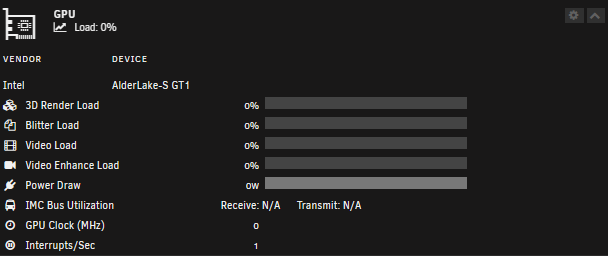
I have been searching through the thread for anyone missing IMC transmit/receive, but have not found anything. I just upgraded from a 10600K to a 12900K processor and I no longer have these stats. They both just show N/A. Any solutions to get these back working?