Dr. Nerf
Members
-
Joined
-
Last visited
Everything posted by Dr. Nerf
-
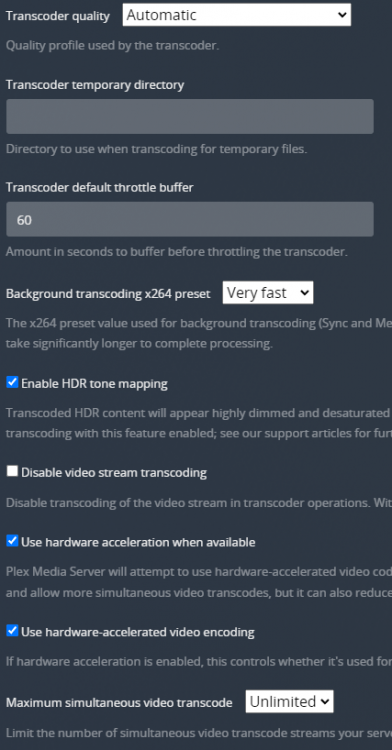
Hi Guys, I'm having quite an annoying pickle here. I've setup my self a plex server using binhex-plex from the app store all went smooth. Then I installed the nvidia driver plugin and set the needed arguments as specified by the instructions. The gpu(1050ti) is seen in the container and data is being reported by nvidia-smi. Now, when I play a video with Convert(Maximum) quality it's the default setting its all fine and the dashboard signals it's a hardware transcode with (hw). However, when I drop the quality intentionally the video just drops out and there is a black screen. I am attaching all my logs from plex. I don't see anything really suspicious except these couple of lines: DEBUG - [Transcode] Transcoder: Cleaning old transcode directory: "/config/Plex Media Server/Cache/Transcode/Sessions/plex-transcode-decess6le80q4d7uc7d3jqxu-834ade1e-64f5-4ed6-abf7-d9f1bf34b7d1" DEBUG - [Transcode] Whacked session decess6le80q4d7uc7d3jqxu, 0 remaining. DEBUG - Jobs: '/usr/lib/plexmediaserver/Plex Transcoder' exit code for process 2274 is -9 (signal: Killed) WARN - [Transcode/decess6le80q4d7uc7d3jqxu] Transcode runner appears to have died. DEBUG - [Transcode/decess6le80q4d7uc7d3jqxu] Session was stopped. WARN - [Transcode/decess6le80q4d7uc7d3jqxu] Transcode runner appears to have died. Something interesting: On my android device its all working fine, even when changing the quality. Here are my transcode settings: Do you guys have any ideas? Plex Media Server Logs_2022-01-21_12-50-37.zip