





FakeWimmer
Members
-
Joined
-
Last visited
Everything posted by FakeWimmer
-
I just wanted to reply to this to say reinstalling the drivers in the nvidia plug in resolved this issue.
-
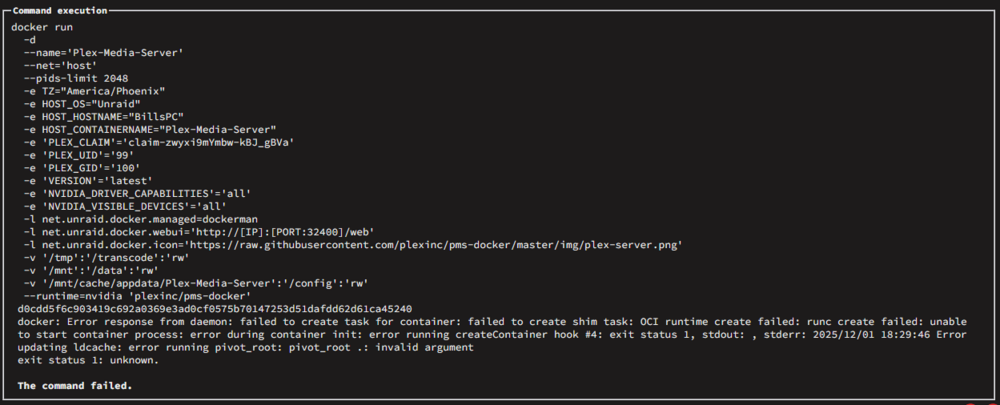
I'm running into a similar issue, except the container is fine with adding the extra parameters. It's when I add the GPU ID to the container variable that it throws the same error.
-
I performed a clean system restart after updating the Nvidia driver. The system booted successfully with the only error that appeared being the UPS daemon lost communication. But no Docker applications are appearing on the Dashboard or in the Docker tab. The applications folders are still present in the appdata folder and the docker.img is still present in the system folder. I presume I'll have to follow https://docs.unraid.net/unraid-os/manual/docker-management/#re-create-the-docker-image-file and https://docs.unraid.net/unraid-os/manual/docker-management/#re-installing-docker-applications, but I wanted to first figure out if there is another solution before rebuilding the docker image or if rebuilding the docker image is the only solution, and why this happened if I performed a clean system restart and my cache drive is not full, like the guide suggests. Also, if nothing was physically disconnected or changed, why did the UPS daemon lose connection? billspc-diagnostics-20250502-1559.zip
-
I try to just stick with the most stable current version just out of fear of data loss. Although, 6.10 sounds like it is a pretty robust update. I pressed the Update DNS button as instructed and it says "Your local IP address has been updated for unraid.net." It changed the url to https://yourpersonalhash.unraid.net. I changed the SSL/TLS: to Auto and was able to reconnect to the server.
-
I would like to access the server with an unraid.net certificate, if I could.
-
I am able to access the webgui now after entering the command you described above. Here is the diagnostics.zip file. gringotts-diagnostics-20220519-1051.zip
-
Typing in the command code worked! Any ideas on what happened? Or how I can avoid causing that problem again? And can I re-enable SSL again?
-
So I'm a sucker for pain and decided after reading an article about how to better secure your network, I decided to change the DHCP rules on my router. To best get around issues with relocating my Unraid server (or any static IP computer on my network), I changed the DHCP rules to automatically configure its network rules and figured I'd re-find my server after it was given a new IP address. Well unfortunately I can't seem to log into the web UI to interact with Unraid. I know the network protocols are working correctly because I can access the shares, Plex, etc, and I can see it live on the Unraid website, I just physically can't log into the UI, either through the link the Unraid website provides or with the IP address my router has assigned. Anytime I try, the browser refuses to load. It just says "Problem loading page" regardless of the browser. I thought it was potentially an issue with the SSL certificate, so I shut down the server and edited the files on the USB to not use SSL when logging in and...still nothing. I'm really at a loss on this one and can't see any issue with why I couldn't log into the web UI. If anyone can provide any help it would be greatly appreciated!
