





Romcik077
Members
-
Joined
-
Last visited
-
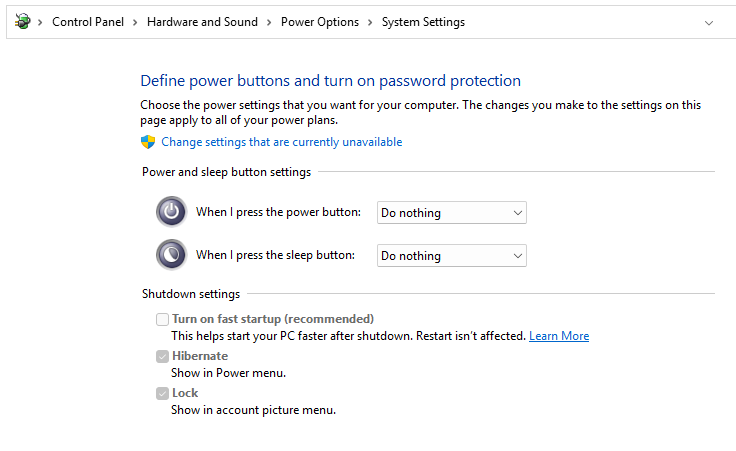
Thank you for reminder! I found the solution and wanted to post it here but not found time for this. So, to fix this issue need to be disabled "Fast Startup" option in: Control Panel -> Hardware and Sound -> Power Options -> Choose what the power buttons do -> Uncheck Fast Startup option (need to request admin rights) And Shutdown will start work without issues. Also another small advice. Use Q35 machine for Windows VMs. It's improves a lot idle CPU usage for server and as result consumption. As idea, I tried to use Hibernate but not found and viable solution for this... BR, Roman!
-
Hello, For not long time I switched to Windows VM usage as main work/game station. Everything work as expected. Only one thing I don't really understand. When I try to shutdown Windows VM, doesn't matter from where, windows or VMs page, VM instead of stopping just boot up again. Also I tried to hibernate and same behavior. Only Force stop can really stop VM. I am not expert in QEMU and don't know where to search. After search in forum and google, seems it is not a usual issue, because I didn't found anything. Can someone help me to fix this issue? Thank you in advance!
-
Hello, I solved this issue. I used next configuration https://ben.goodacre.name/tech/Setup_Gitlab_behind_off-loaded-slash-reverse_proxy_SSL_(such_as_AWS_ALB), just instead of port 80 use 9080 as it is used in docker. NginxProxyManager confgiuration should not be changed. BR, Roman!

