





Bob_C
Members
-
Joined
-
Last visited
-
I thought that was the case. Thanks for confirming. Looks like I will have to use an additional license slot for a new internal boot - I don't want to split up my 4 drive ZFS cache pool just to avoid adding a drive to my license usage. It would have been nice if the size of the boot pool was less than 16GB or 32GB, that it wouldn't contribute to the overall drive count!
-
@itimpi Supplemental question if I may! I have a 4 x drive ZFS Cache (Raid 10). Providing I move stuff off the Cache before hand, how would I make use of this current cache pool to implement an internal boot and use remaining space as a cache pool? Or is that not possible either?
-
Ok. Thanks for the very quick reply. Will need a plan B!!
-
If I add a new 8TB drive to the server, can I use it as a boot drive and then use any remaining data partition to add into the array? Or is data partition for use outside the array?
-
I am sooo impatient to be able to boot from a spare NVMe in a PCie slot so that I can ditch the USB boot drive and pass through my one and only XHCi controller to my VMs when needed. Have had a number of issues with interrupts with different devices when passed through individually, noticeaby a Webcam which has both Video and Sound devices and I still have intermittent problems with Teams! All things being equal, when would the R.C. version likely be ready for consumption?
-
Glad it helped you!
-
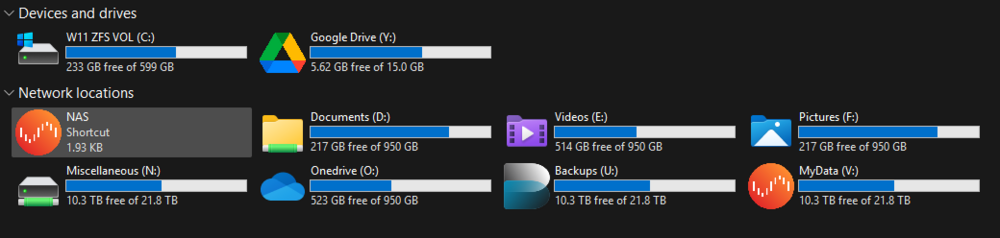
I found that exporting some of my Unraid ZFS datasets via SMB resulted in Windows Explorer reporting the capacity of the underlying storage pool instead of the quota configured on the dataset in which the share was looking. For example, a dataset with a quota of 1 TB may appear in Windows as having 8 TB or more available, depending on the size of the ZFS pool. While ZFS still correctly enforces the quota, the misleading capacity shown in Windows can be confusing to some user.s This behaviour occurs because Samba normally determines disk capacity using filesystem statistics from the underlying storage layer. When accessing data through the Unraid /mnt/user FUSE share, those statistics reflect the pool or backing filesystem rather than any dataset quota if one was in place within a share. The steps below hopefully show how I configured Samba (with ChatGPT assistance) to report the correct quota and available space for each ZFS dataset. This shows the use of using Samba’s dfree command feature and a helper script that queries ZFS directly when a Samba client requests the info. The solution works for datasets stored: on a single disk ZFS dataset on a multi-disk ZFS pool (mirror, RAIDZ, etc.) provided the SMB path maps to one dataset with a defined quota. Note: Although I was able to debug a number of potential edge-case uses, I am not a coder and have relied on ChatGPT to generate the necessary scripts! As a result please do not rely on me to provide any 'support' if your use case is outside the limits of the testing I did! Tested EnvironmentThis configuration was tested on: Unraid with ZFS datasets SMB exports via /mnt/user Windows SMB clients but the approach should work with any SMB client (Windows, macOS, Linux). Use CasesThis is particularly useful for setups such as: per-user storage quotas OneDrive / cloud-sync mirrors project-based storage limits media or archive shares with defined quotas where you want users to see the actual space available to them, not the capacity of the underlying storage pool. When This Fix AppliesThis solution works when the SMB path corresponds to a single ZFS dataset with its own quota, regardless of how many disks are in the pool. Examples where this works: Dataset on a single disk: (note in my use case, disk5 was a ZFS disk in the array, and I created a nested dataset /onedrive/Pictures /mnt/disk5/onedrive/PicturesDataset in a multi-disk ZFS pool: /mnt/zfs_cache/onedrive/PicturesEven if the pool itself consists of multiple disks (mirror, RAIDZ, etc.), the dataset still has: one mountpoint one quota which can be reported correctly. When This Does NOT ApplyThis method does not apply to normal Unraid shares (mnt/user/....) spanning multiple disks, for example: /mnt/disk1/media /mnt/disk2/media /mnt/disk3/mediaIn this case: there is no single dataset there is no single quota the correct behaviour is to report the combined capacity The helper script automatically falls back to default behaviour in these situations. Why This HappensSamba normally determines disk space using filesystem statistics (statfs). Because Unraid shares are accessed through the FUSE layer: /mnt/user/Samba sees the underlying storage pool, not the dataset quota. How the Fix WorksSamba provides a configuration option called: dfree commandThis allows Samba to call a helper script instead of querying the filesystem directly. The helper script (below): determines which ZFS dataset the SMB path belongs to reads the dataset's quota and available space returns those values to Samba SMB clients then display/use these 'corrected' values for the dataset quotas. Architecture OverviewTypical path flow: Windows / SMB Client │ ▼ Samba │ ▼ Unraid Share /mnt/user/ (mapped path) │ ▼ ZFS Dataset │ ▼ ZFS Pool │ ▼ Physical DisksExample: \\NAS\onedrive\Pictures │ ▼ /mnt/user/onedrive/Pictures │ ▼ /mnt/disk5/onedrive/Pictures │ ▼ disk5/onedrive/PicturesStep 1 – Create the 'Helper' ScriptNote. To allow this script to be persitant across reboots, you need to create a script on the USB /boot drive initially. Create: /boot/config/custom/samba_dfree_zfs.shExample script: #!/usr/bin/bash # Samba dfree helper for ZFS dataset quotas on Unraid # Returns: "<total_1K_blocks> <free_1K_blocks>" set -u PATH_IN="${1:-.}" CACHE_FILE="/run/samba_dfree_zfs_mounts.cache" CACHE_TTL=10 get_mounts() { local now mtime age now=$(date +%s) if [ -r "$CACHE_FILE" ]; then mtime=$(stat -c %Y "$CACHE_FILE" 2>/dev/null || echo 0) age=$(( now - mtime )) if [ "$age" -lt "$CACHE_TTL" ]; then cat "$CACHE_FILE" return 0 fi fi zfs list -H -t filesystem -o name,mountpoint 2>/dev/null > "${CACHE_FILE}.tmp" || true mv -f "${CACHE_FILE}.tmp" "$CACHE_FILE" 2>/dev/null || true cat "$CACHE_FILE" 2>/dev/null || true } df_fallback() { local line total avail line="$(df -P "${PATH_IN}" 2>/dev/null | tail -n 1 | tr -s ' ')" total="$(printf '%s\n' "$line" | cut -d' ' -f2)" avail="$(printf '%s\n' "$line" | cut -d' ' -f4)" if [ -n "${total:-}" ] && [ -n "${avail:-}" ]; then printf '%s %s\n' "$total" "$avail" return 0 fi printf '0 0\n' return 0 } if PATH_ABS="$(cd "$PATH_IN" 2>/dev/null && pwd -P)"; then : else PATH_ABS="$PATH_IN" fi if [[ "$PATH_ABS" != /* ]]; then PATH_ABS="/mnt/user/onedrive/$PATH_ABS" fi BEST_DS="" BEST_MP="" BEST_LEN=0 SUFFIX="${PATH_ABS#*/mnt/user}" while IFS=$'\t' read -r ds mp; do [ -n "${mp:-}" ] || continue [ "$mp" = "-" ] && continue case "$mp" in *"$SUFFIX") len=${#mp} if [ "$len" -gt "$BEST_LEN" ]; then BEST_LEN="$len" BEST_DS="$ds" BEST_MP="$mp" fi ;; esac done < <(get_mounts) if [ -z "$BEST_DS" ] && [[ "$PATH_ABS" == /mnt/user/* ]]; then REL="${PATH_ABS#/mnt/user/}" for d in /mnt/disk* /mnt/cache /mnt/*; do [ -d "$d" ] || continue if [ -e "$d/$REL" ]; then PATH_ABS="$d/$REL" break fi done BEST_LEN=0 while IFS=$'\t' read -r ds mp; do [ -n "${mp:-}" ] || continue [ "$mp" = "-" ] && continue case "$PATH_ABS" in "$mp"/*|"$mp") len=${#mp} if [ "$len" -gt "$BEST_LEN" ]; then BEST_LEN="$len" BEST_DS="$ds" fi ;; esac done < <(get_mounts) fi [ -n "$BEST_DS" ] || df_fallback QUOTA_B="$(zfs get -Hp -o value quota "$BEST_DS" 2>/dev/null || true)" if ! printf '%s' "$QUOTA_B" | grep -Eq '^[0-9]+$'; then QUOTA_B=0 fi if [ "$QUOTA_B" -eq 0 ]; then QUOTA_B="$(zfs get -Hp -o value refquota "$BEST_DS" 2>/dev/null || true)" if ! printf '%s' "$QUOTA_B" | grep -Eq '^[0-9]+$'; then QUOTA_B=0 fi fi [ "$QUOTA_B" -gt 0 ] || df_fallback AVAIL_B="$(zfs get -Hp -o value available "$BEST_DS" 2>/dev/null || true)" if ! printf '%s' "$AVAIL_B" | grep -Eq '^[0-9]+$'; then df_fallback fi TOTAL_K=$(( QUOTA_B / 1024 )) AVAIL_K=$(( AVAIL_B / 1024 )) [ "$AVAIL_K" -lt 0 ] && AVAIL_K=0 printf '%s %s\n' "$TOTAL_K" "$AVAIL_K" exit 0Note: The /boot drive is FAT32, so no chmod is required there. Step 2 – Configure SambaGo to: Settings → SMB → SMB ExtrasAdd: dfree command = /usr/local/sbin/samba_dfree_zfs.sh⚠ Important SMB configuration can only be modified when the array is stopped. Procedure: Stop the array Add the SMB Extras entry Start the array again Step 3 – Ensure the Script Exists After BootBecause Unraid runs from RAM, /usr/local is recreated on every boot. Create a UserScript which runs on Array Start. Example: #!/bin/bash SRC="/boot/config/custom/samba_dfree_zfs.sh" DST="/usr/local/sbin/samba_dfree_zfs.sh" mkdir -p /usr/local/sbin cp "$SRC" "$DST" chmod 755 "$DST" sleep 10 # Initial seeding/warm-up of values for the datasets/paths to be queried. # not entirely necessary, but belt and braces! for d in Pictures Videos Documents; do "$DST" "$d" >/dev/null 2>&1 done /etc/rc.d/rc.samba restartThe warm-up calls ensure the helper script cache is populated before Samba handles client requests. Note on Dataset Root PermissionsIf the dataset root is exported via SMB, ensure it allows write access. Example: chmod 775 /mnt/disk5/onedrive/PicturesOtherwise Windows clients may be unable to create folders at the root of the share. End Result in Windows! Uploading Attachment... Note that each 'mapped drive' relates to either the root directory in a dataset or a path within the dataset (the Helper script will determine the dataset quota to apply based on path and mount point). I found it worked for my set up! YMMV!!!
-
T'would have been easier for yourself and me if you had just ignored my misplaced question elsewhere instead of bemoaning that fact and sending me 3 PMs in a matter of minutes. FGS man, grow up - I inadvertently posted a question in the wrong thread. Hardly the crime of the century is it? That's a rhetorical question BTW - no need to reply. I won't see it. I'm adding you to my blocklist.
-
Upvote for this. Was pulling my hair out. My issue was the DMA error spawning whilst the VM was running and this induced unpredictable shutdowns. Intel 14700K GTX1080TI Passthrough
-
Using MS Edge and on my Galaxy S22. Not urgent, just not working as other elements on the Main tab. - ZFS Master panel - when swiping left / right the whole screen scrolls instead of just the specific ZFS Master panel/pane like the other panes above and below it when scrolling/swiping left/right.
-
Thanks for the quick feedback. What are the implications for doing this? I just read this on the docs: "If you are using Docker data-root=directory on a ZFS volume, we recommend that you navigate to Settings → Docker and switch the Docker storage driver to overlay2, then delete the directory contents and let Docker re-download the image layers. The legacy native setting causes significant stability issues on ZFS volumes." Not sure I want to go to an image if it has stability issues? Or have I read that wrong?
-
I recently built a new server and part of that was using 4 new 2TB NVMe drives to use in a Mirror/Raid 10 cache setup in zfs. It is sweet! I have exclusive share set on and the likes of appdata, system, domains, have been happily using this for a few months or so now. These shares (and the folders under appdata) each have individual datasets within the main zfs_cache. root@NAS:~# ls -ld /mnt/user/system readlink /mnt/user/system lrwxrwxrwx 17 root root 20 Nov 4 14:41 /mnt/user/system -> ../zfs_cache/system/ ../zfs_cache/system I tried to install a new docker/app "webgrabplus" and it appears there is a non-unicode character in a filename which by all accounts installs fine on a non-zfs setup, but on mine it would not install. I created an issue on Github thinking it was an error in the docker build. That post is here. Someone kindly posted a screenshot of the app installing OK on their Unraid system without ZFS. Having also read this post it appears, perhaps, that the extraction process fails with a ZFS locale / overlay2 unpack issue inside the docker layer itself which is on the exclusive 'system' share. As a result the error below occurs and the container fails to install at all. "Error: failed to register layer: open /defaults/ini/siteini.pack/International/sat.tv.channels.13?E-Arabesque.xml: invalid or incomplete multibyte or wide character" The '?' in 13?E is a ° degree symbol. What is a solution to this edge case I have?!! nas-diagnostics-20251107-1305.zip
-
I am having an issue just getting this to install. See my logged issue on github here. It seems as though with my setup at least, that the docker (overlay2 + ZFS, UTF-8-strict) just throws up its hands at the character set in /defaults/ini/siteini.pack/International/sat.tv.channels.13�E-Arabesque.xml That "�" is the degree (angle/temperature) sign. Any way to find a workaround to this so I can install the docker?
-
Thanks @ich777 — understood. The extra firmware copies were only part of the troubleshooting process; they’re indeed cleared on reboot and, as you say, already included in the LibreELEC bundle. The main issue turned out not to be missing firmware at all but the rtl2832_sdr module loading alongside the proper Sony + SiLabs path on the Astrometa stick. Once that SDR module was blacklisted and the legacy >700 MHz muxes removed, the tuner initialised cleanly and every current local transmitter mux locked with Scan Status = OK in Tvheadend. So we’re now 100 % operational using your stock LibreELEC drivers. Appreciate the confirmation and all your ongoing work on this plugin!
-
Thanks again for the quick feedback earlier. After your reply, I worked through a few cleanup and verification steps — here’s what was done and the outcome: Removed all custom build scripts Deleted the old user-script that tried to rebuild DVB drivers in a Docker container. Confirmed I’m running stock LibreELEC DVB driver package from your plugin only. Checked system config (go file, modules, etc.) Commented out aggressive USB/XHCI wake-disable lines to prevent interference. Ensured no custom /etc/modprobe.d/astrometa.conf entries remained. Left autosuspend disabled (good for DVB stability). Blacklisted conflicting SDR module Added /boot/config/modprobe.d/blacklist-rtl2832sdr.conf to stop rtl2832_sdr loading, which was hijacking the stick’s SDR interface. This allowed the proper Sony + SiLabs tuner path to initialise cleanly. Installed Silicon Labs tuner firmware Placed dvb-tuner-si2157-a30-01.fw, dvb-tuner-si2158-a20-01.fw, and dvb-demod-si2168-b40-01.fw in /lib/firmware. Rebooted and verified the Sony CXD2837ER frontend attaches correctly (even if Si2157 doesn’t print verbose logs). Updated to current muxes Removed legacy >700 MHz frequencies. Added valid local muxes (538 / 554 / 562 / 578 / 586 / 602 MHz). Result All muxes lock with Scan Status = OK and show the expected service counts in Tvheadend. DVB-T and DVB-T2 both functioning normally. Streams play perfectly; EPG data populating via OTA grabber. Everything’s now stable and working 100 %. 👍

