vincemue
Members
-
Joined
-
Last visited
-
this is what i have: Config Type: Variable Name: PAPERLESS_OCR_USER_ARGS Key: PAPERLESS_OCR_USER_ARGS Value: {"invalidate_digital_signatures": true, "continue_on_soft_render_error": true}
-
You additionally need tika and gotenberg as unraid Apps. After installing you need top add the url of both to paperless config. Check the documentation for Details
-
https://forums.unraid.net/topic/121075-support-paperless-ngx-docker/?do=findComment&comment=1333292
-
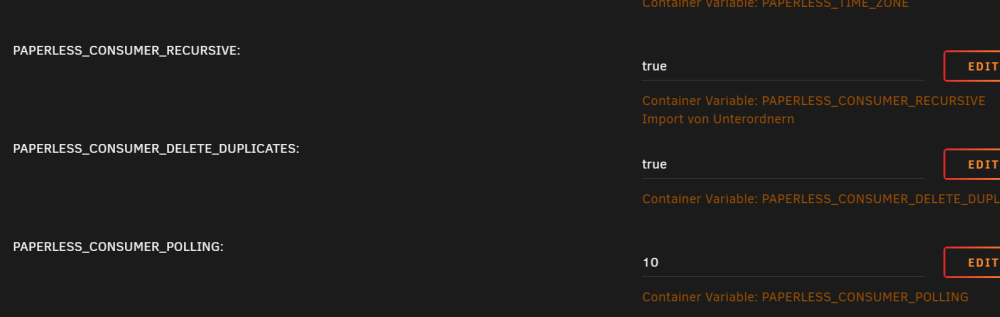
Hi all, I have the issue, that the consumer only works on container start. I already activated polling, but it does not change. to me it looks like the polling is not activated, because in the logs it still shows "Using inotify to watch directory for changes: /usr/src/paperless/consume" my consume directory is in a remote share. Any other suggestion? [2023-11-26 20:15:27,485] [INFO] [paperless.management.consumer] Received SIGINT, stopping inotify [2023-11-26 20:15:27,488] [DEBUG] [paperless.management.consumer] Consumer exiting. [2023-11-26 20:15:44,058] [INFO] [paperless.management.consumer] Adding /usr/src/paperless/consume/Eingangsbestätigung.pdf to the task queue. [2023-11-26 20:15:44,252] [INFO] [paperless.management.consumer] Using inotify to watch directory for changes: /usr/src/paperless/consume EDIT: I did not see, that the variable PAPERLESS_CONSUMER_POLLING: was already existing in the unraid template and created it a second time. After deleting my variable again, everything works.