





danbru1989
Members
-
Joined
-
Last visited
-
UPDATE – Duplicacy backups are still running flawlessly. I've had to restore a few files and experienced no problems. Duplicacy is great. For macOS clients at each location, I was running Time Machine backups to each server. Then Duplicacy would backup the TM backups to the other server. I found that this put a lot of strain on each server after weeks/months of this setup. All clients were also connected to Nextcloud instances running on the servers. NC is technically a file syncing service and not a backup solution, but with the built-in versioning and 3 month file retention for deleted files, I felt like it qualified as 1 of the 3 backups in my 3-2-1 backup system. I stopped all TM backups and just depend upon Nextcloud syncing client files to the server...which are then included in the server-to-server backups. This a SIGNIFICANTLY reduced my required data storage by over 50%. Both servers are way happier and everything is performing a lot better. I'd be interested in other's thoughts. Thanks! TLDR: I recommend Nextcloud for client "backups" and Duplicacy for server backups. In my situation, it's working very well.
-
If I understand you correctly, your first question is what I am doing. I use both servers to provide unique services, so I need data on both to be backed up. First server backups to the second server and the second backups to the first. Duplicacy is very capable and supports “revisions” which I believe would be to same concept as versioning. The server backups have been running flawlessly on one server. The other server is way under powered and some days I will get some errors because too much is being demanded of the machine at once. This doesn’t concern me too much though right now. I think that some hardware upgrades would do the trick. In addition to backing up each server to the other using Duplicacy, both also send a weekly appdata backup to B2.
-
I realize that...don't know why I did. 🙃 MariaDB is on bridge. InvoiceNinja is on my reverse proxy network. UPDATE: I put them both on my reverse proxy network and it still had the same problem.
-
No, I just masked that before posting...
-
Are there any instructions for installing InvoiceNinja on Unraid anywhere? I can't get the app working... I set up a database in MariaDB. Triple-checked my server, DB user, DB password, etc...But InvoiceNinja still crashes whenever I start it. Here's what the container log says: database/schema/mysql-schema.sql .............................. 47.05ms FAIL In Process.php line 269: The command "mysql --user="${:LARAVEL_LOAD_USER}" --password="${:LARAVEL_L OAD_PASSWORD}" --host="${:LARAVEL_LOAD_HOST}" --port="${:LARAVEL_LOAD_PORT} " --database="${:LARAVEL_LOAD_DATABASE}" < "${:LARAVEL_LOAD_PATH}"" failed. Exit Code: 1(General error) Working directory: /var/www/app Output: ================ Error Output: ================ ERROR 2005 (HY000): Unknown server host '192.168.1.100:XXXX' (-2)
-
That didn't work for me, but I solved the issue with a wildcard cert from Cloudflare.
-
Not sure where was the best place to post this, but needing some help with OnlyOffice + NPM. See here please:
-
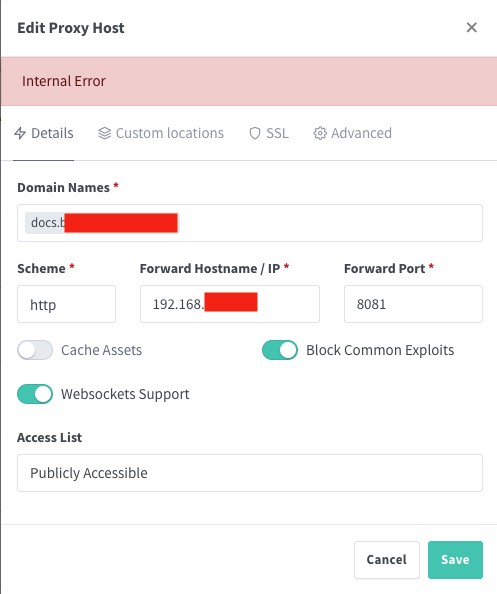
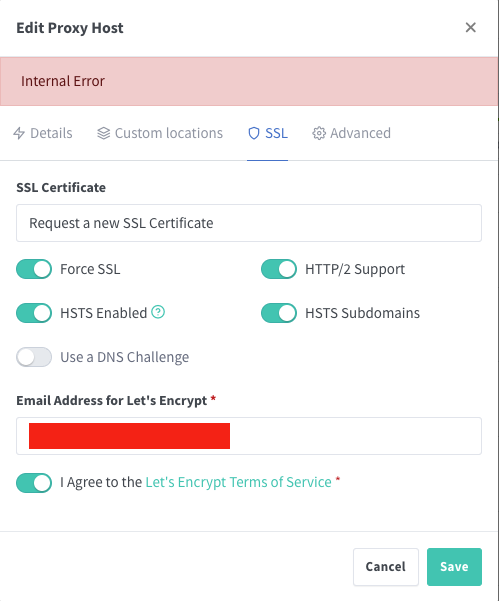
Anyone know why I can't get NPM to setup a SSL cert for my OnlyOffice domain? I get "Internal Error" every time. The OnlyOffice container is using my reverse proxy docker network with port 8081. I guess the problem is with my OnlyOffice setup and not NPM because I'm successfully using NPM for many other things. But I'm stuck on this for two days now and can't find a solution. Help appreciated!
-
I had no cache pool. I'm not sure what happened. Thankfully I was able to partially restore from AppData Backup. Critical configs were restored and the rest I could just rebuild...so I'm back in business now. 👍🏻
-
Error: Invalid folder cache contained within /mnt I had a server freeze up. I think that it was running low on RAM. Eventually, it broke free and responded so I gave it a restart. Now my Docker apps are broken. All the app configurations seem to be lost. Any ideas on how to recover? Restoring from AppData backup didn't fix it. fbcserver-diagnostics-20240518-1632.zip
-
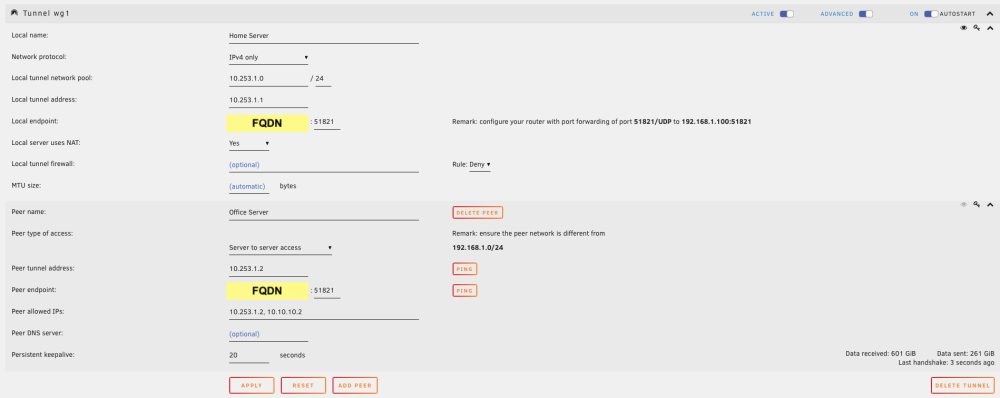
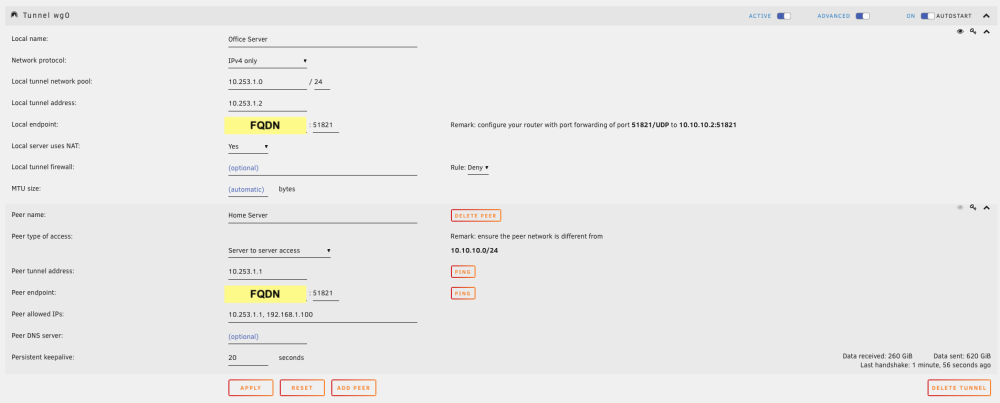
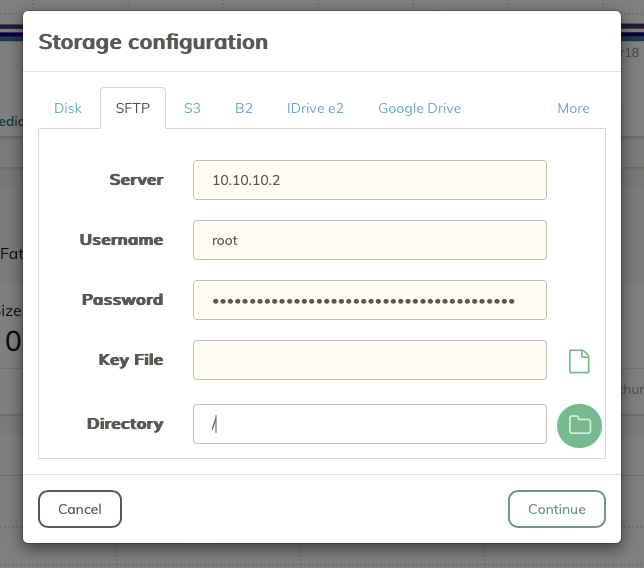
Backups between both Unraid servers have been going well for several days. Duplicacy is great...nice UI and reliable from my experience on other setups. My final setup and what I learned: Goal: Get off B2 to save on expenses. Replace B2 with two Unraid servers backing up to each other in separate geographical locations (home & office). I wanted each server to be running the Duplicacy app to manage the backups. Duplicacy can do backups to many cloud storage services. One option is to a sFTP server...such as our own Unraid server. If you're not familiar with sFTP, it is basically FTP through SSH. Solution: I configured a server-to-server Wireguard tunnel between the two servers so sFTP could be used without exposing each server's SSH to the internet. Once I verified (via server terminals) that ping and SSH connections were possible between servers, I knew that things were good and I configured Duplicacy for the sFTP backups. The backups have been running great. Steps: Install the DuckDNS app and set up FQDNs for access to each of your servers through the web. (used for the Wireguard endpoints) Setup Wireguard VPN tunnel between servers. (see screenshots) Forward Wireguard ports to your servers at each location. Test Wireguard tunnel is working by pinging and SSHing both directions by using each server's terminal. Install the Duplicacy app on each server. Set up Duplicacy storage locations. Enter IP address, user, password, and / in the Directory field so you can navigate from the top level. Click the Folder icon and select a folder in /mnt/user/ that you want to designate as the Storage location. Sep up Duplicacy backups and schedules. Run initial backups. Tip 1: Use FQDN for your Wireguard endpoints so your servers can find each other if your public IP address changes. Try DuckDNS if you aren't set up already with a FQDN to your server already. Tip 2: What's the difference between all the different Wireguard configurations? (Remote access to Server, Remote access to LAN, Server to Server, etc...) It all has to do with the "Peer Allowed IPs" setting in Wireguard. For example, if ONLY each servers IPs are allowed, then you have a "Server to Server" configuration. Tip 3: You could do sFTP backups without tunneling through Wireguard, but then you will begin to experience hacking attempts as soon as you open port 22 for allowing the SSH (sFTP) connections between your servers. Exposing SSH is highly discouraged because it is only a simple user/password wall between your server and the internet. Eventually, your password can be guessed by bots. For this reason, connect your SSH (sFTP) through Wireguard.
-
That was a helpful thread. Thank you for sharing. My final setup, though not all configured yet, I believe will be Duplicacy sFTP backups between the two servers running through a Wireguard VPN tunnel.
-
Same question here... Isn't it in the GUI anywhere?
-
How would you recommend backing up one Unraid server to another and vice versa? Duplicacy has done well for me so I was trying to employ that here. Should I backup via sFTP? Should I backup through a server-to-server VPN using the "Disk" option in Duplicacy (if possible)? I heard some rsync setup given as an option too. I'm not really sure what to pursue after putting in a few hours of research. Thanks for your thoughts!
-
Same errors here on my MX500s. Disabling the monitoring attribute. Thank you for the advice. 👍🏻



