titro
Members
-
Joined
-
Last visited
Everything posted by titro
-
Hi Guys, i'm currently planning a new NAS build and think about using the new Asrock N100M as a Mainboard / CPU Combo. My Corsair RM550x (yes, the 2021 one :-)) is on my way and will hopefully arrive in the next days and the Mainboard is now relased and in stock in the webshops of some dealers. The x16 pci is only available with two lanes. The Board only has two Ports so my idea was to extend the SATA Ports with an expansion card. And now i'm wondering if that could work? Does anyone having experience with a at least 4xSATA or better HBA Card which can work with only two lanes? Performace is not that important. The NAS will be used only for home usage without high performace requirements but of course all SATA drives attached to the card should be fully functional and not a huge bootleneck if for example a parity check is made. Thanks in advance Alex
-
solved. My Wireguard VPN was on.... my bad...
-
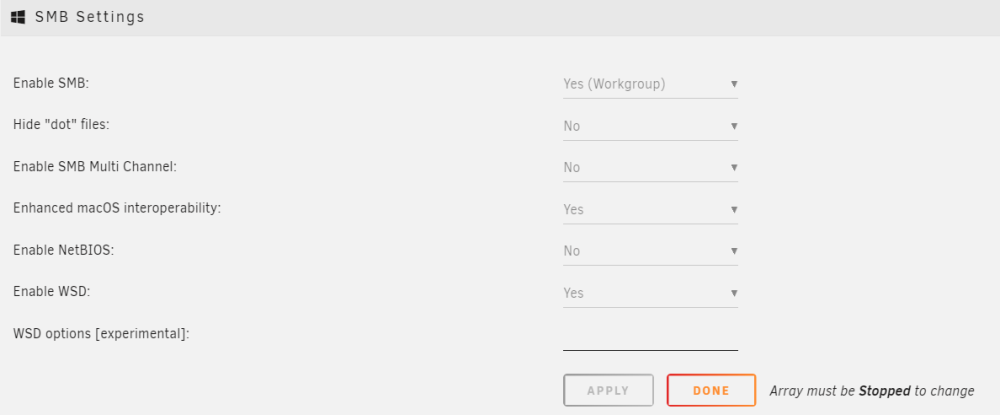
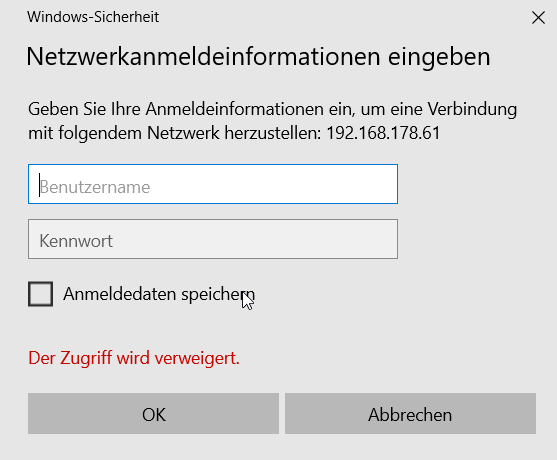
Hi all, i'm quite new to Unraid. I'm using a fresh installation with activated SMB I created a private share. Access to that with Windows 10 Explorer is fine when using the hostname and user:pass But when i accessing the share only with the IP address, it is not working. The login prompt is showing and nothing happens. Anyone has an idea/hint? I already read about activating smb1 or unscure login in Windows with Group policy but i do not want that and i am wondering why login with hostname is working and ip not...