




HDLynx
Members
-
Joined
-
Last visited
-
Great! Thank you for all your hard work, much appreciated!
-
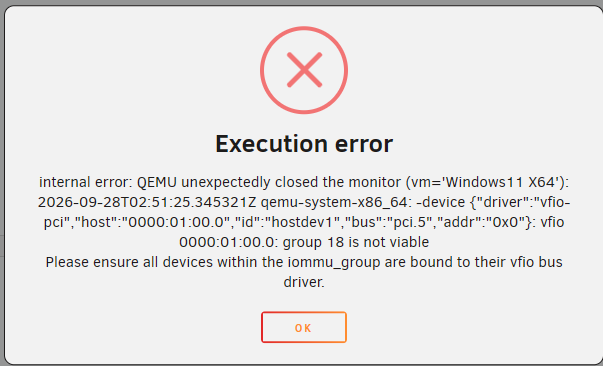
I have confirmed that no Docker containers are using the audio device, and no audio devices are plugged into the host. This error occurs when attempting to start the virtual machine.
-
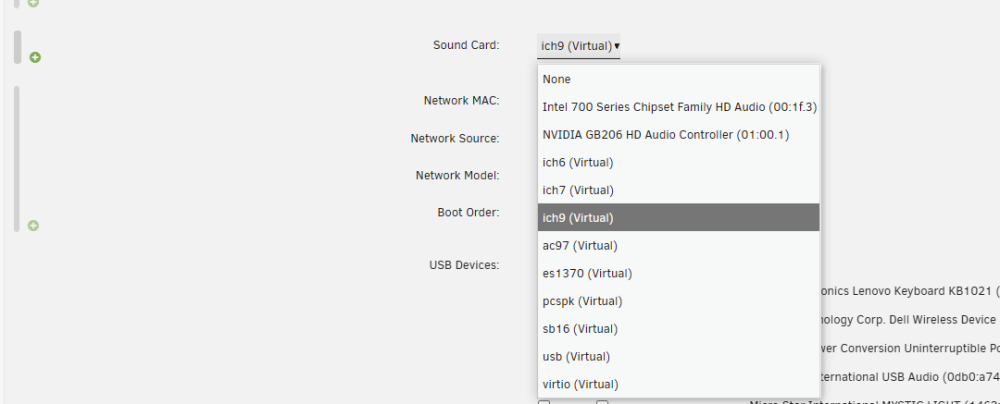
Okay, thank you very much. I'll stick with the virtual audio configuration to keep the GPU accessible for Unraid and Docker.
-
No. I need to make the NVIDIA GPU available for both Unraid and Docker.
-
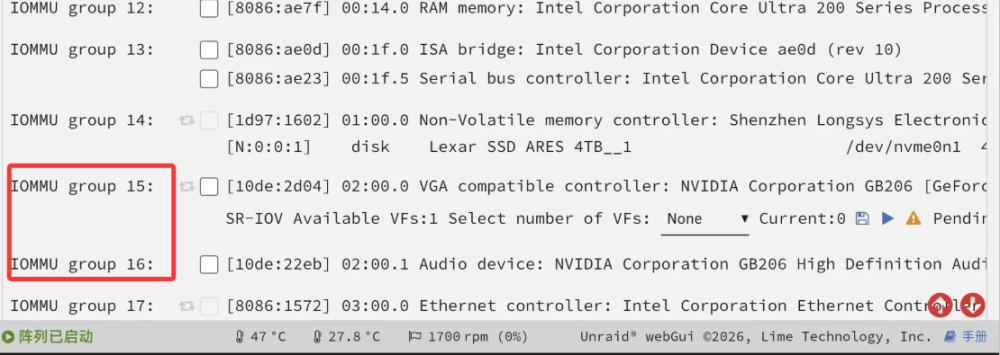
Here is a clue for reference. My friend uses Z890 + RTX 5060 Ti with GPU audio passed through to the VM. Unraid works normally after VM shutdown. It stays stable on Unraid 7.3.2 and older versions. On his system, the GPU and its audio device are in separate IOMMU groups.
-
Hardware: Z790 + RTX 5060 Ti. This issue occurs on Unraid 7.4-beta3, 7.3.3-rc2, and also versions 7.3.2 and older. When passing through the GPU audio device, WebUI hangs on all tested Unraid versions. While the WebUI is hung, I can create new SSH connections via Xshell. Commands like reboot, poweroff, and powerdown have no effect on Unraid. After running poweroff, the active Xshell SSH connection drops, and new SSH connections cannot be created. My previously opened ip/webterminal/ttyd/ and ttyd sessions remain alive without disconnecting. Running df -h shows all disks are still mounted, but any VM-related commands hang when executed. link to this discussion thread win11 xml.txt syslog syslog-previous lynxserver-diagnostics-20260929-0057.zip
-
Thanks,I will create a new thread for the shutdown freeze issue and link this conversation. I will enable Mirror syslog to flash before reproducing the freeze and collect the logs.
-
root@LynxServer:~# lspci -nnk -s 01:00.1 01:00.1 Audio device [0403]: NVIDIA Corporation GB206 High Definition Audio Controller [10de:22eb] (rev a1) Subsystem: NVIDIA Corporation Device [10de:0000] Kernel modules: snd_hda_intel After adding the kernel parameter module_blacklist=snd_hda_intel and rebooting, I ran lspci -nnk -s 01:00.1. There is no "Kernel driver in use" shown, and my Windows 11 VM starts normally. Problem solved. Thanks for your help, best wishes. I have another question. When passing through the audio device of my 5060 Ti, shutting down the VM causes the Web UI and VM management commands to freeze. Could you help troubleshoot this issue? Should I create a new separate thread? I recall other users in the forum also reported WebUI freezes with 50-series GPUs when passing through the GPU audio. If this is a hardware limitation with no fix, that is fine. Using the virtual audio card meets my current needs for now. A friend of mine uses Z890 + 5060 Ti with GPU audio passed through. His WebUI remains normal after shutting down the VM.
-
root@LynxServer:~# lspci -nnk -s 01:00.1 01:00.1 Audio device [0403]: NVIDIA Corporation GB206 High Definition Audio Controller [10de:22eb] (rev a1) Subsystem: NVIDIA Corporation Device [10de:0000] Kernel driver in use: snd_hda_intel Kernel modules: snd_hda_intel root@LynxServer:~# echo 0000:01:00.1 > /sys/bus/pci/drivers/snd_hda_intel/unbind root@LynxServer:~# lspci -nnk -s 01:00.1 01:00.1 Audio device [0403]: NVIDIA Corporation GB206 High Definition Audio Controller [10de:22eb] (rev a1) Subsystem: NVIDIA Corporation Device [10de:0000] Kernel modules: snd_hda_intel After executing the unbind command echo 0000:01:00.1 > /sys/bus/pci/drivers/snd_hda_intel/unbind, the Windows 11 VM on 7.3.3-rc2 starts and runs perfectly. This same problem occurs on 7.3.3-rc2 as well as 7.4-beta3. Can this be fixed? Or will I have to manually unbind the audio device each time before launching the VM?
-
Okay, I will boot into 7.3.3rc2 and perform this test. Thank you.
-
Thank you. Here are the diagnostics from 7.3.2 and the VM XML. The Windows 11 VM is currently booted and working normally. win11 xml.txt lynxserver-diagnostics-20260928-2101.zip
-
7.3.2 The VM was configured this way on 7.3.2: only the NVIDIA GPU was passed through, without passing through the HDMI audio device. If I roll back to 7.3.2 now, the VM boots normally. I have confirmed that 7.3.2 works fine with no configuration changes. After upgrading to either 7.3.3rc2 or 7.4beta3, the VM fails to start
-
1.When I try to select only the NVIDIA audio device (01:00.1, 10de:22eb), the 01:00.0 VGA (RTX 5060 Ti) gets checked automatically. I cannot check the NVIDIA audio device alone Bind selected to VFIO at boot

-
I need to use an Nvidia graphics card in Unraid and Docker, and the virtual machine can be directly connected to the Nvidia card. The virtual machine can start normally. What should I do next? Thank you
-
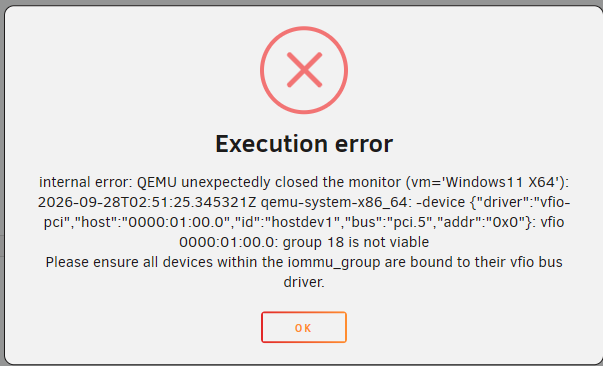
Equipment:Z790+5060ti OS: Unraid7.3.3-rc2 The configuration details of virtual machine Win11 can be found in the XML file. In Unriad7.3.2, everything is working normally. When upgrading to Unraid 7.3.3-rc2 or Unraid 7.4-beta3, the virtual machine starts with an error. How can I solve the startup error? Background: Z790+5060Ti, for virtual machine Win11, simply connect to the Nvidia sound card. After turning off the virtual machine Win11, Unraid's webui freezes and spins, causing a malfunction in the virtual machine's functionality. It can only be shut down by forcibly pressing the switch. Therefore, physical sound cards cannot be used, only virtual sound cards can be used lynxserver-diagnostics-20260928-1658.zip win11 xml.txt syslog vm.txt