




-
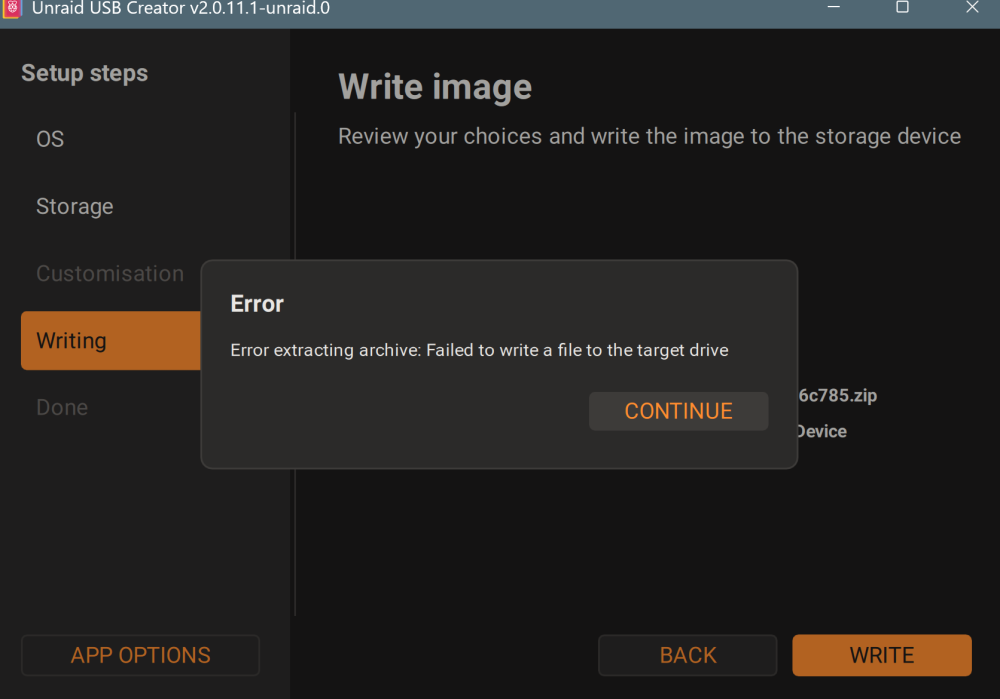
A few days ago my - so far working - unraid system did not boot. USB Stick: JetFlash_Transcend_32GB unraid version 7.2.8 Console message: waiting up to 30 sec for device with BOOT UNRAID to come online .... umount: /dev: target is busy umount:/: not mounted Step 1 - failure unraid usb creator I downloaded the recent (a few days old) boot device backup. But was not able to install it with unraid usb creator: Error message see screen shot Step 2 - success with standard unraid version I chose a default unraid operating system, could install it on usb stick and was able to boot the server. So USB stick, bios settings, etc are ok and not the root cause for the original failure. Step 3 - boot failure I formatted the usb stick, unzipped (PEAzip) the recent boot device backup to the usb stick. No success - same console error message. I did use different usb ports - no success - same console error message Step 4 - failure unraid usb creator I renamed the USB stick from original name "BOOT" to "UNRAID". Unraid USB creater again failed to create the usb stick. Same error message as in step 1 Step 5 - success I formatted the usb stick, kept the usb stick name "UNRAID", unzipped (PeaZip) the files from boot device backup to the usb stick and the system did reboot - Success! Questions: 1. What is the meaning of the original console error message? / not mounted 2: Why is unraid usb creator not able to create a boot device from my backup? What does the error message mean? 3: What should be the name of the usb stick: BOOT or UNRAID or whatever. Is that relevant? 4: Is there any explanation for that behavior?
-
Originally I meant the new "Virtual Machines Usage" widget on the dashboard. There the ip is not shown. But a work around is to just look at the "VMS" tab. After having installed the qemu guest agent I can now see the ip address, even the ip of tailscale.
-
It would be helpful to see the ip address of the vm in the dashboard, Virtual Machines Usage After having created a new vm I always have to login and find out the ip. Furthermore it is helpful to have an overview about the used ips.
-
There are some video on how to use tailscale in a Docker container. What about VMs? Is there another option or jus use the VM operating system functionality to install tailscale.
-
I was not able to boot from an usb stick created with "unraid usb creater 1.0.1" using my backup from connect, option "use customize" The bios did not recognize a bootable media. Comparing the content of the backup zip and the data on the usb stick shows that the /config and /EFI were not copied to the usb stick. After manually copying the files to the usb stick my system booted. Question 1: Why does usb creator not copy the important directories? Question 2: Is it OK to copy the missing directories or will that cause some issues? So far I only had to reenter the master password - everything else seems to work (VM, container, SMB, apps, ...) Update 2025-02-12: I also had to update the password for smb user.

View in the app
A better way to browse. Learn more.
