





JoeArny
Members
-
Joined
-
Last visited
-
Old post, but since I was having the same problem I'll post what solved the issue for me. You have to add the tailscale IP to the trusted_domains section in the config.php, as can be seeing in many places. This file is in the appdata folder of the nextcloud, in my case in here: /mnt/user/appdata/nextcloud-ffmpeg/config/config.php What no one says is that if you add like this (not real IPs...): 'trusted_domains' => array ( 0 => '192.168.0.10:8084', 1 => '100.100.48.99:80', ), It's NOT going to work, I have no idea why! On the other hand, if you add like this: 'trusted_domains' => array ( 0 => '192.168.0.10:8084', 1 => '100.100.48.99', ), It works just fine. Note that the only difference is that on the tailscale IP I removed the port.
-
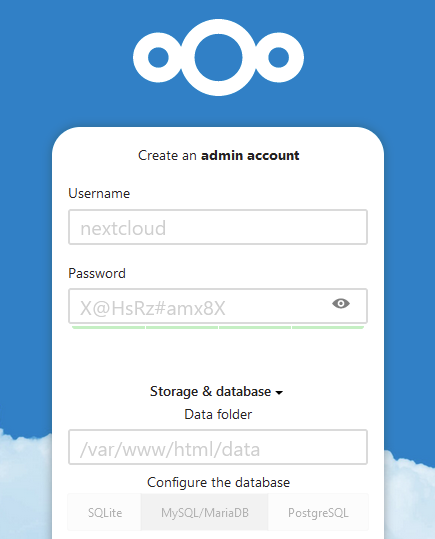
Hope this can help anyone else with the same problem... When you create the docker you set the location of your files in "User Files" Note that the container is going to access this path through /var/www/html/data . When you are setupping the account you are now asked where to add the Data folder: If you change this path you will not point to the data folder you defined earlier, this will cause the interface to issue the message you are seeing. PS: Other problems may cause the same, but I dare to say this is a common mistake.

-
Thanks!!!
-
I'm experiencing the exact same error using an Odroid H2+ board and the eMMC card... Is anyone using the Odroid H2+ with eMMC, or this has some sort of known issue?
