erikmanzato
Members
-
Joined
-
Last visited
-
I couldn't do anything until now. I only uploaded the containers I moved the conf file to leave it as I would like Black theme, minimalist, etc. I can enter the channels and watch the videos, but I can't log in with any user
-
It looks like an error in the preferences Even though I have an account, I can't make changes
-
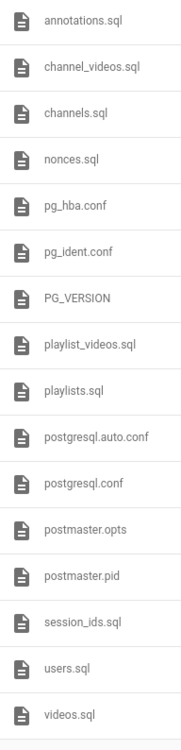
unraid config portainer config in the db folder are the files of this image appdata/invidious/postgesql14
-
Hello guys, first of all, thank you very much for the tutorial, I've been thinking for months that I had broken my invidious, I didn't know about YouTube blocking it. But even doing the stack by the portainer with docker compose and doing it manually by the unraid. I can register the user but I can't log in. I thought it could be the database, I deleted it and started it again and nothing. I can't log in
-
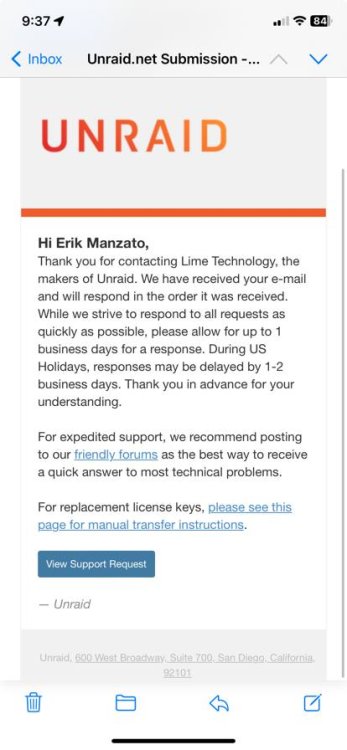
The 2 times I went here I didn't receive anything. I only receive a response via https://unraid.net/contact
-
I've already sent it 4 times
-
I've already sent it 4 times
-
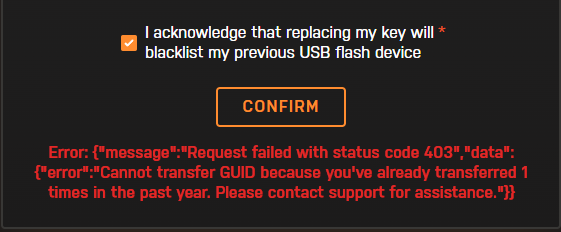
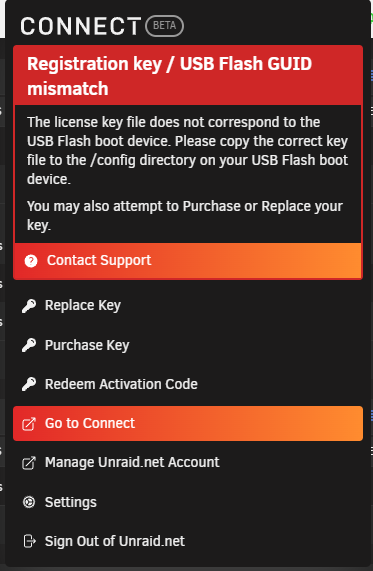
I'm having trouble activating my key I started with flash A, configuring a trial, bought another Flash B and transferred from A to B. However, Flash B had failures. So I tried to go back to A, but I saw that it was blacklisted. I took a backup of Flash B and migrated it to flash C. this in less than 2 months. I've been trying for support for a week now and nothing, I know we're in the holiday season. I have the server stopped in this image. It looks like I've exceeded the 1 year transfer limit