





crocker5731
Members
-
Joined
-
Last visited
Everything posted by crocker5731
-
can you give me ISO with Automatic Ripping Machine installed or a usb to install a new copy of the os with Automatic Ripping Machine installed
-
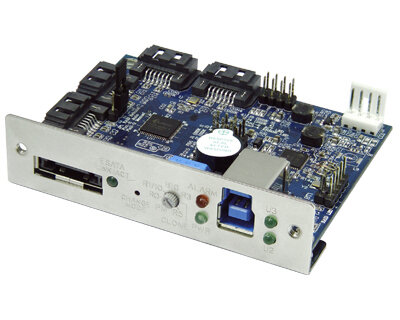
I'm wanting to build a standalone machine with no motherboard. I'm looking for a board that has like 6 stat ports to USB 3.0 so that my unread can see them and I can pass them through to automatic ripping machine container? Got the idea from this video https://youtu.be/GX9F3YwytYY?si=6suHEa9PkKqu2vLh
-
I got it working for now. Thank you for all your help!!!
-
No I do not have a GPU in my pc. I'm using on bored video. So I do need get it to work with a GPU.
-
I had automatic-ripping-machine working at one time. But now I get win reinstalling it. docker run -d --name='automatic-ripping-machine' --net='bridge' --privileged=true -e TZ="America/Los_Angeles" -e HOST_OS="Unraid" -e HOST_HOSTNAME="Tower" -e HOST_CONTAINERNAME="automatic-ripping-machine" -e 'NVIDIA_DRIVER_CAPABILITIES'='all' -e 'NVIDIA_VISIBLE_DEVICES'='GPU-9152780a-a0e6-3877-b6fd-01ec4b6c22be' -e 'ARM_UID'='1001' -e 'ARM_GID'='1001' -l net.unraid.docker.managed=dockerman -l net.unraid.docker.webui='http://[IP]:[PORT:8080]/' -l net.unraid.docker.icon='https://raw.githubusercontent.com/automatic-ripping-machine/automatic-ripping-machine/main/favicon.ico' -p '8088:8080/tcp' -v '/mnt/user/appdata/ARM/':'/home/arm':'rw' -v '/mnt/user/appdata/ARM/Music':'/home/arm/Music':'rw' -v '/mnt/user/appdata/ARM/config':'/etc/arm/config':'rw' -v '/mnt/user/appdata/ARM/logs':'/home/arm/logs':'rw' -v '/mnt/user/appdata/ARM/media':'/home/arm/media':'rw' --runtime=nvidia --gpus all --device /dev/sr0 --device /dev/sg1 '1337server/automatic-ripping-machine:latest' bcfc6a1d3e1c4ec2c84b57da2e9f8b0503e6b4d1fb62378ff4ac4a27019cbf4d docker: Error response from daemon: failed to create task for container: failed to create shim task: OCI runtime create failed: runc create failed: unable to start container process: error during container init: error running hook #0: error running hook: exit status 1, stdout: , stderr: Auto-detected mode as 'legacy' nvidia-container-cli: initialization error: nvml error: driver not loaded: unknown. The command failed. how do I fix it??? What I'm trying to do automatic rip dvd to Plex-Media-Server.I got add the diagnostics file!!!I'm getting NVIDIA-SMI has failed because it couldn't communicate with the NVIDIA driver. Make sure that the latest NVIDIA driver is installed and running. how do I fix it? tower-diagnostics-20240816-0129.zipdocker run -d --name='automatic-ripping-machine' --net='bridge' --privileged=true -e TZ="America/Los_Angeles" -e HOST_OS="Unraid" -e HOST_HOSTNAME="Tower" -e HOST_CONTAINERNAME="automatic-ripping-machine" -e 'ARM_UID'='1001' -e 'ARM_GID'='1001' -l net.unraid.docker.managed=dockerman -l net.unraid.docker.webui='http://[IP]:[PORT:8080]/' -l net.unraid.docker.icon='https://raw.githubusercontent.com/automatic-ripping-machine/automatic-ripping-machine/main/favicon.ico' -p '8088:8080/tcp' -v '/mnt/user/appdata/ARM/':'/home/arm':'rw' -v '/mnt/user/appdata/ARM/Music':'/home/arm/Music':'rw' -v '/mnt/user/appdata/ARM/config':'/etc/arm/config':'rw' -v '/mnt/user/appdata/ARM/logs':'/home/arm/logs':'rw' -v '/mnt/user/appdata/ARM/media':'/home/arm/media':'rw' --runtime=nvidia --gpus all --device /dev/sr0 --device /dev/sg1 '1337server/automatic-ripping-machine:latest' 485bffa63dce323b014ae19dfac7b7969f984cb0af98f23cce92f65712d66081 docker: Error response from daemon: failed to create task for container: failed to create shim task: OCI runtime create failed: runc create failed: unable to start container process: error during container init: error running hook #0: error running hook: exit status 1, stdout: , stderr: Auto-detected mode as 'legacy' nvidia-container-cli: initialization error: nvml error: driver not loaded: unknown. The command failed. how do I fix it???yes I have the Nvidia driver installed.I had it working at one time. I have reinstalled unraid. Win in installing I get docker run -d --name='automatic-ripping-machine' --net='bridge' --privileged=true -e TZ="America/Los_Angeles" -e HOST_OS="Unraid" -e HOST_HOSTNAME="Tower" -e HOST_CONTAINERNAME="automatic-ripping-machine" -e 'ARM_UID'='1001' -e 'ARM_GID'='1001' -l net.unraid.docker.managed=dockerman -l net.unraid.docker.webui='http://[IP]:[PORT:8080]/' -l net.unraid.docker.icon='https://raw.githubusercontent.com/automatic-ripping-machine/automatic-ripping-machine/main/favicon.ico' -p '8088:8080/tcp' -v '/mnt/user/appdata/ARM/':'/home/arm':'rw' -v '/mnt/user/appdata/ARM/Music':'/home/arm/Music':'rw' -v '/mnt/user/appdata/ARM/config':'/etc/arm/config':'rw' -v '/mnt/user/appdata/ARM/logs':'/home/arm/logs':'rw' -v '/mnt/user/appdata/ARM/media':'/home/arm/media':'rw' --runtime=nvidia --gpus all --device /dev/sr0 --device /dev/sg1 '1337server/automatic-ripping-machine:latest' f12724b94e3ea9553fe445805e48293f8e37a6fb5570425c929bab4deeb7536d docker: Error response from daemon: failed to create task for container: failed to create shim task: OCI runtime create failed: runc create failed: unable to start container process: error during container init: error running hook #0: error running hook: exit status 1, stdout: , stderr: Auto-detected mode as 'legacy' nvidia-container-cli: initialization error: nvml error: driver not loaded: unknown. The command failed. how do I fix it?



