






TheRandy
Members
-
Joined
-
Last visited
Everything posted by TheRandy
-
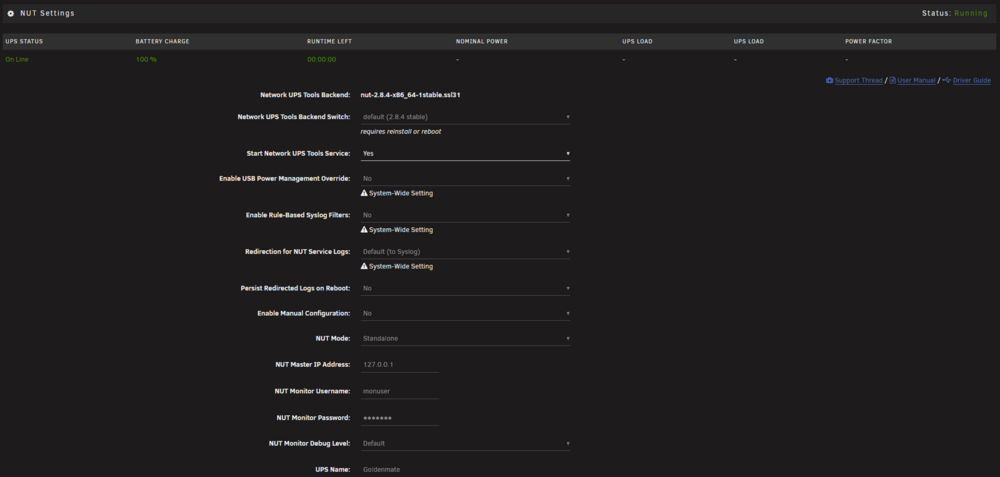
Hey @EricB, did you ever hear back on this? I just upgraded from an old APC to the Goldenmate 2000VA 2025 Version as well with USB NAS data port for my Unraid Server and networking equipment. I installed the plugin to monitor any power outages but don't see a lot of information...no load information or anything really...All I get is Battery percentage and runtime left with stays at zero...I assume it will calculate runtime when on Battery. Do you get any additional info, and if so, what did you do?
-
Hey, good evening. Do you have more than one scraper setup?
-
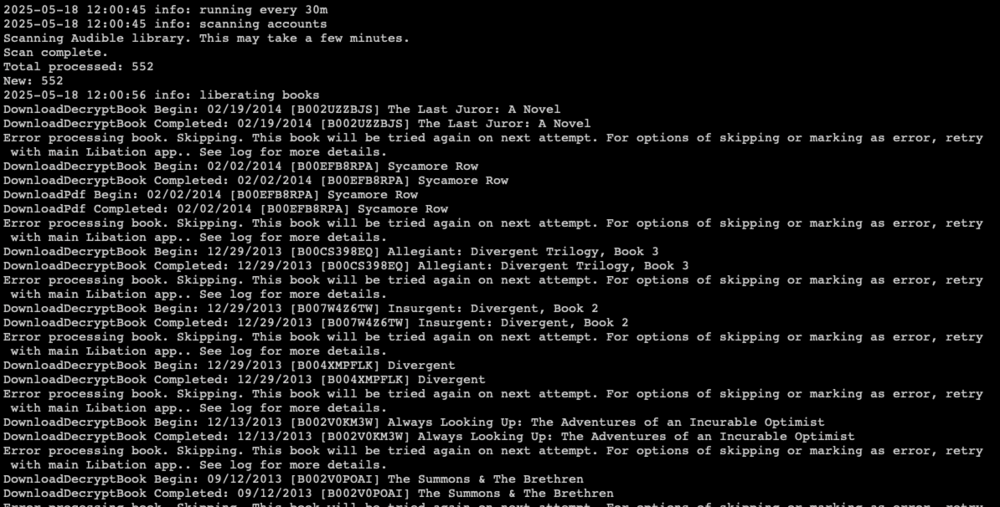
***Libation*** So I was finally able to get the container running by using the accountsettings.json, and setting.json in the correct folders and updated the permissions. Checking the logs, I see that it is now connected and downloading the books. It says download complete, but then skips and says it will retry. Any help on this would be greatly appreciated. I'd like them all stored in the defined directory which will then allow me to play remotely when I want. I'm very new to 'Libation' - just heard of it today, installed today...so maybe I don't know it's limitations. Thanks
-
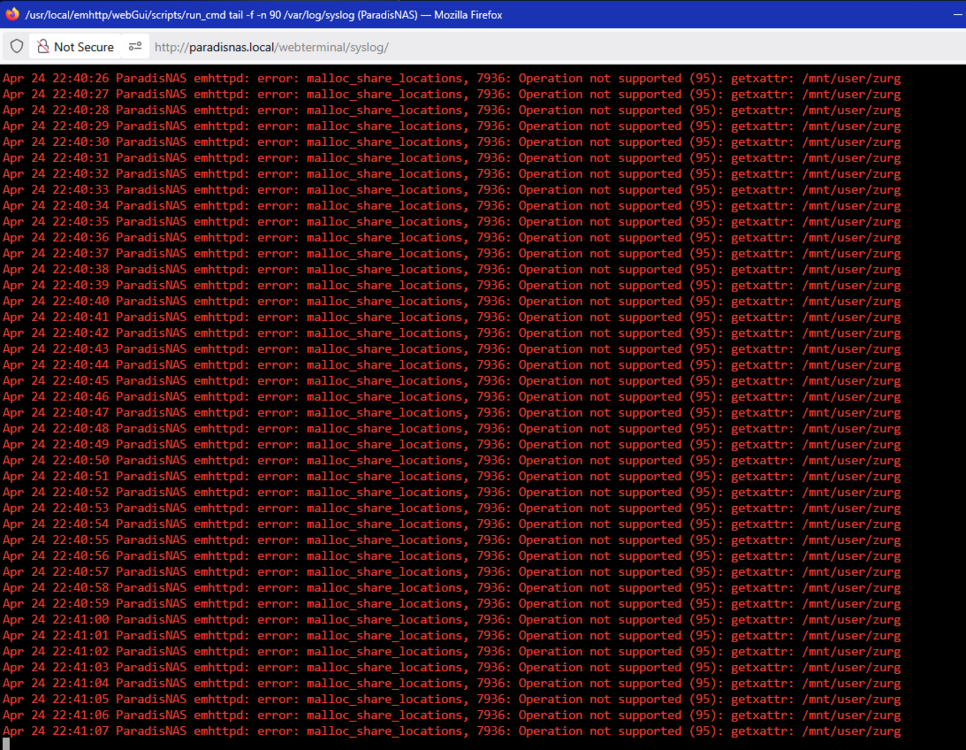
Random question here. Anyone know what would cause this? The remote is mounted at ..../zurg so I dont see a problem with the mount....but my unRAID logs is looping this every second?!? Not sure what the heck is going on. Any help would be appreciated.
-
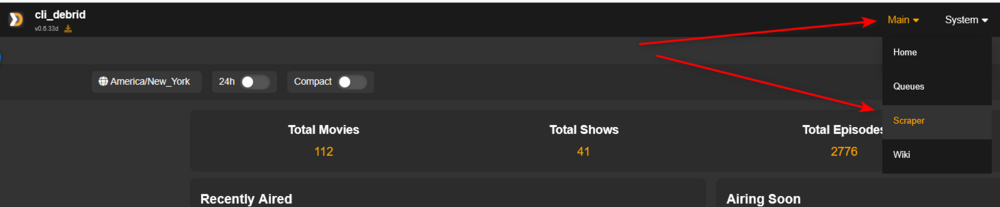
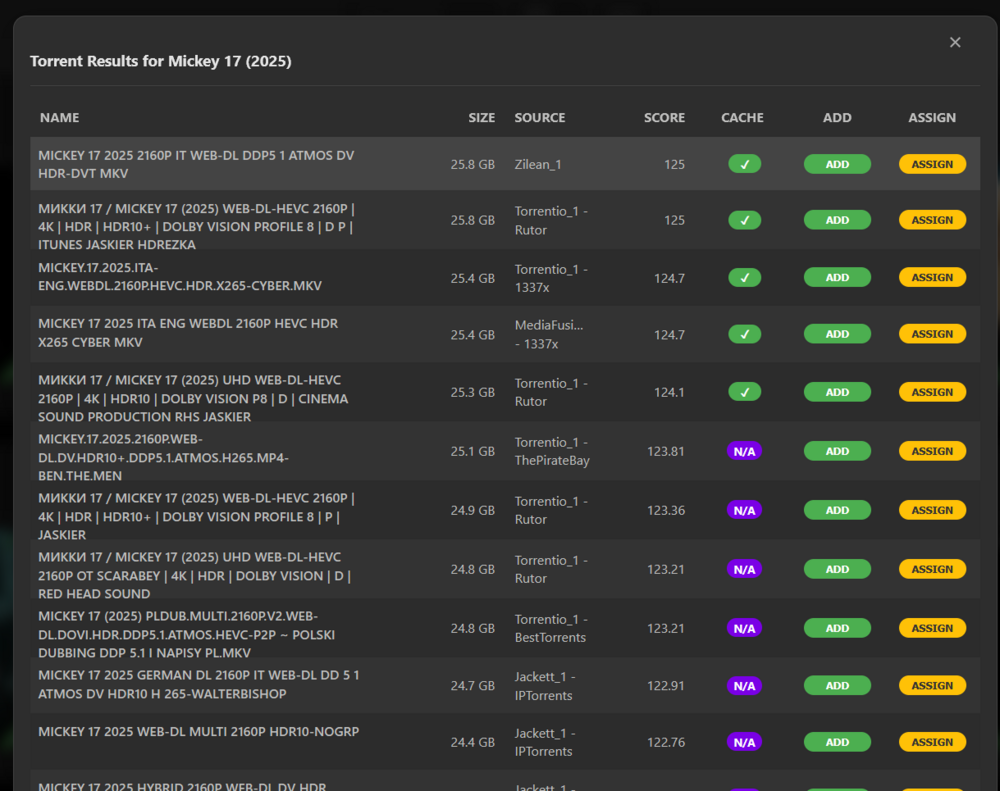
Unless you change the time...the overseerr requests will always be the same wait. If YOU wanted something and not one of your server users...you can use the scraper built into CLI_Debrid...it's actually really good, and lets you choose which one you want added...I typically go for the cached ones and it is immediately available.
-
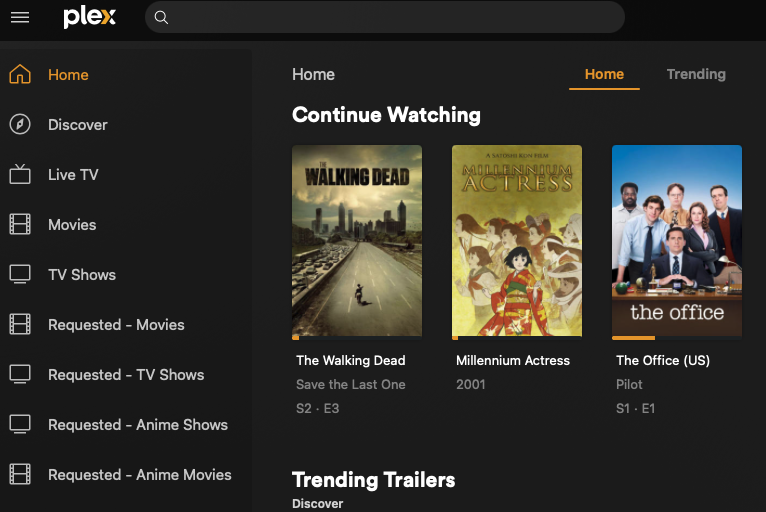
CLI_Debrid is designed to not just fetch, but also upgrade. Without screenshots of your logs, or more information, I would only be speculating. So here is my best guess on what little info you provided. You have an existing Plex library. You setup CLI_Debrid with that existing library and mainly need it for 'new' requests. If that's the case, CLI will scan the library it has available to it...and if it 'determines' that it is a bad copy (or that it can scrub a better one), it's going to download new versions. (I say this with experience, as I did this exact thing on my initial setup. I ultimately SHUTDOWN CLI_Debrid and now run 6 separate folders for my Plex media. Movies (these are the files I already have locally) TV Shows (these are the files I already have locally) Requested - Movies (CLI_Debrid Symlinks) Requested - TV Shows (CLI_Debrid Symlinks) Requested - Anime Movies (CLI_Debrid Symlinks) Requested - Anime Shows (CLI_Debrid Symlinks) Setting up CLI this way does NOT scan your existing library and does NOT download 'EVERYTHING'
-
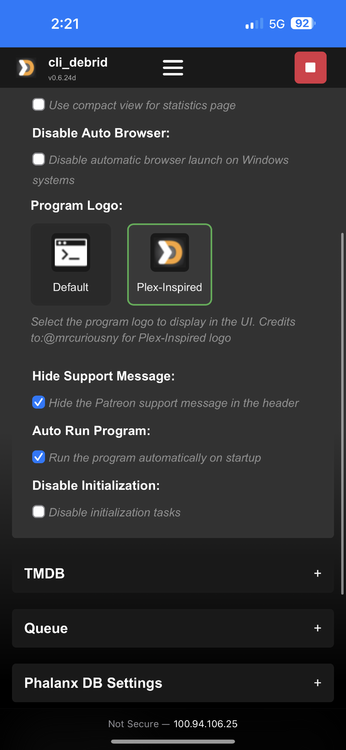
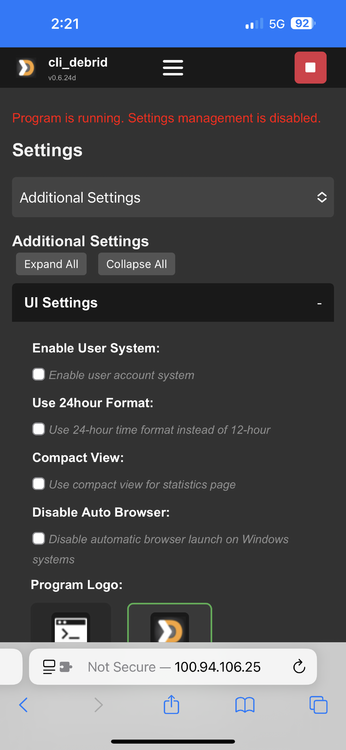
Yes there is a way to start the program automagically when the container restarts. It’s in the advanced settings. Go to system>settings>advanced…check the box that says “auto run program”
-
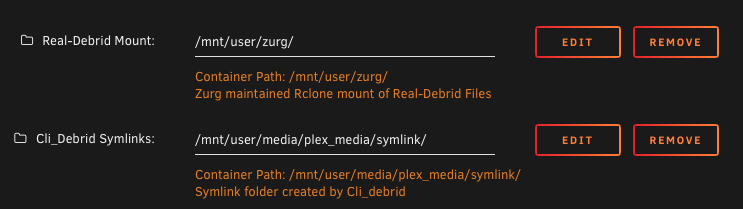
Ooof, I'll try to capture the long list of issues I ran into below. Some of which were my fault. Listed with (*) (*) Zurg - Most observant folks won't run into this, but I did because I was rushing through the process Ensure to download the correct files from 'testing' - I download Darwin (top of the list), when I needed Linux - my mistake Rclone - would not mount I found that I didn't have NFS enabled within my unRAID instance - didn't think it mattered Enabled NFS in disk settings, and then the clone mounted to zurg. Not sure why that made a difference (*) Failed to mount via script via CLI, I was able to mount leaving out the .config argument reviewing with Godver3, he saw that the script was calling for 'zurg' but the .config had 'zurg-wd' - not sure how I got this changed but reviewing your guide, they match so again, my mistake Cli_Debrid Container Path: /data as per the guide, did not allow Cli_Debrid to see my RD files for some reason. Confirmed with @Godver3, the container mount should match the location you want Cli_Debrid to search so both container path" & host path: should be /mnt/user/zurg/ I noticed that in the guide, you are using the direct mount within Cli_Debrid - which works and is fine. I'm using the symlinks path (Anime will struggle without symlinks) I had to add another path to both Cli_Debrid, and Plex containers for Cli_Debrid to manage the library properly via Symlinks Screenshot about show's that path (for mysetup). Others would look like '/mnt/user/user_folder/user_folder/symlinks/' where the user corrects the path their specific location. I'm sure there's more, but I gotta get back to work. I'll see about adding additional notes from my experience later. Thanks again
-
Hey, I appreciate the reply...sorry, I meant to respond earlier. Through a bunch of trial and error, and working with @Godver3 over on Discord, I was able to get it sorted out. I really appreciate the guide and hope it brings more folks over to Cli_Debrid. It's a great piece of code.
-
Okay, this is the correct location now: #!/bin/bash sleep 10 rclone mount zurg: /mnt/user/zurg --dir-cache-time 20s --config=/mnt/user/appdata/zurg/rclone.conf --allow-other --allow-non-empty --gid 100 --uid 99 --daemon Same outcome....nothing is mounted in the share.
-
Thanks for the feedback. Let me go take a look and report back.
-
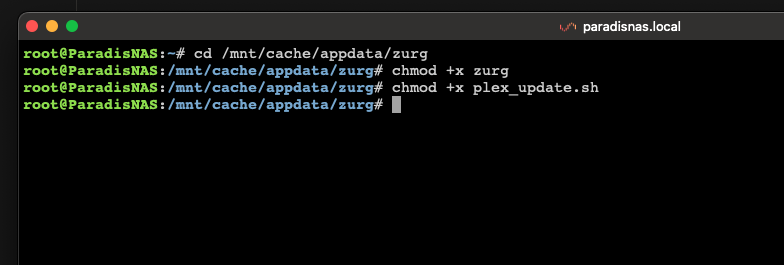
Hi, thanks for the response. Yes, I 'think' I edited them properly. See below: config.yml zurg: v1 token: XM--REDACTED--OQ # host: "[::]" # port: 9999 # username: # password: # proxy: # concurrent_workers: 20 check_for_changes_every_secs: 10 # repair_every_mins: 60 # ignore_renames: false retain_rd_torrent_name: true retain_folder_name_extension: true enable_repair: true auto_delete_rar_torrents: true # api_timeout_secs: 15 # download_timeout_secs: 10 # enable_download_mount: false # rate_limit_sleep_secs: 6 # retries_until_failed: 2 # network_buffer_size: 4194304 # 4MB # serve_from_rclone: false # verify_download_link: false # force_ipv6: false on_library_update: sh plex_update.sh "$@" #for windows comment the line above and uncomment the line below: #on_library_update: '& powershell -ExecutionPolicy Bypass -File .\plex_update.ps1 --% "$args"' directories: anime: group_order: 10 group: media filters: - regex: /\b[a-fA-F0-9]{8}\b/ - any_file_inside_regex: /\b[a-fA-F0-9]{8}\b/ shows: group_order: 20 group: media filters: - has_episodes: true movies: group_order: 30 group: media only_show_the_biggest_file: true filters: - regex: /.*/ plex_update.sh #!/bin/bash # PLEX PARTIAL SCAN script or PLEX UPDATE script # When zurg detects changes, it can trigger this script IF your config.yml contains # on_library_update: sh plex_update.sh "$@" # docker compose exec zurg apk add libxml2-utils # sudo apt install libxml2-utils plex_url="http://192.168.1.42:32400" # If you're using zurg inside a Docker container, by default it is 172.17.0.1:32400 token="h--REDACTED--9" # open Plex in a browser, open dev console and copy-paste this: window.localStorage.getItem("myPlexAccessToken") zurg_mount="/mnt/user/zurg" # replace with your zurg mount path, ensure this is what Plex sees # Get the list of section IDs section_ids=$(curl -sLX GET "$plex_url/library/sections" -H "X-Plex-Token: $token" | xmllint --xpath "//Directory/@key" - | grep -o 'key="[^"]*"' | awk -F'"' '{print $2}') for arg in "$@" do parsed_arg="${arg//\\}" echo $parsed_arg modified_arg="$zurg_mount/$parsed_arg" echo "Detected update on: $arg" echo "Absolute path: $modified_arg" for section_id in $section_ids do echo "Section ID: $section_id" curl -G -H "X-Plex-Token: $token" --data-urlencode "path=$modified_arg" $plex_url/library/sections/$section_id/refresh done done echo "All updated sections refreshed" # credits to godver3, wasabipls rclone.conf [zurg-wd] type = webdav url = http://192.168.1.42:9999/dav vendor = other pacer_min_sleep = 0 zurg_start_rclone (mount rclone): #!/bin/bash sleep 10 rclone mount zurg-wd: /mnt/zurg --dir-cache-time 10s --config=/mnt/user/appdata/zurg/rclone.conf --allow-other --allow-non-empty --gid 100 --uid 99 --daemon Thanks again for the response.

-
Afternoon, all. So, I worked closely with @godver3 on discord getting this setup on a RazPi 5 running Ubuntu as a proof of concept and it works great. I've recently changed my TerraMaster NAS from their OS (TOS) to unRAID, and now I'd like to get this setup on my production environment. I've followed the guide and I seem to be stuck pretty early on: I ran (in background) both Start Zurg and Start Rclone mount (logs below) Start Zurg: Script Starting Mar 31, 2025 12:43.28 Full logs for this script are available at /tmp/user.scripts/tmpScripts/Start Zurg Service/log.txt Script Finished Mar 31, 2025 12:43.28 Full logs for this script are available at /tmp/user.scripts/tmpScripts/Start Zurg Service/log.txt /tmp/user.scripts/tmpScripts/Start Zurg Service/script: line 4: /mnt/user/appdata/zurg/./zurg: cannot execute binary file: Exec format error Start Rclone Mount: Script Starting Mar 31, 2025 12:43.40 Full logs for this script are available at /tmp/user.scripts/tmpScripts/Start Zurg Rclone Mount/log.txt 2025/03/31 12:43:50 ERROR : Daemon timed out. Failed to terminate daemon pid 693003: os: process already finished 2025/03/31 12:43:50 CRITICAL: Fatal error: daemon exited with error code 1 Script Finished Mar 31, 2025 12:43.50 Full logs for this script are available at /tmp/user.scripts/tmpScripts/Start Zurg Rclone Mount/log.txt --------------------------------- I can't move on from here as I dont see my real-debrid folders mounted in /mnt/user/zurg/ Any help would be appreciated. Thanks





