Cambork
Members
-
Joined
-
Last visited
Everything posted by Cambork
-
I just bite the bullet and spun up a debian 13 VM and used a script posted in the unifi forums here, to install the UNIFI OS. https://community.ui.com/questions/UniFi-OS-Server-Installation-Scripts-or-UniFi-Network-Application-Installation-Scripts-or-UniFi-Eas/ccbc7530-dd61-40a7-82ec-22b17f027776 Restored from a backup and readopted all my unifi devices, it was pretty painless.
-
From the release notes of the latest 10.1.84 update, sounds like ubiquiti is starting to push their Unifi OS server over the network application.
-
Method 1 worked for me, everything is up and running.
-
Had the same experince. Also noticed a bunch of a new tags for this particular release, not sure whats up with that.
-
Thanks!
-
Correct, I did an initial parity sync / build a few weeks ago. I haven't done a "check" yet.
-
I had just done a Parity Sync a few weeks ago. This is a relatively new setup.
-
Hello, I recently upgraded my cache to a larger drive. During the process of swapping out the drive, I went through the steps of making a new config by unassigning the old drive and then assigning the new one. Nothing changed with the array. When starting up the array, I forgot to check the "Parity is Valid" and it started to do a Parity Sync. Is it save to cancel the sync and mark it valid? I don't want to waste of bunch of time of doing a sync, when it does need it. Thanks
-
I'm seeing the same errors. Thanks!
-
I'm using a QNAP TR-004U USB Enclosure: https://www.qnapworks.com/TR-004U.asp?srsltid=AfmBOor6t-c7780CxVOsFx2jRTrP05cFH2Mv8z8m5TpMtFn9DBTlke67 I know, I know.. don't use USB enclosures. It is what it is and works for my needs and has been reliable thus far. I'm wondering if there is away to get the SMART details to be shown in the UI. Currently it shows "Unknown USB Bridge" and gives no information. However, I'm able to see the SMART info for each drive by running the following commands from terminal: smartctl -d jmb39x-q,0 -x /dev/sda smartctl -d jmb39x-q,1 -x /dev/sdb smartctl -d jmb39x-q,2 -x /dev/sdc smartctl -d jmb39x-q,3 -x /dev/sdd I've tried modifying the /boot/config/smart-one.cfg around the parameters I've listed above, with no sucess. Any pointers would be helpful.
-
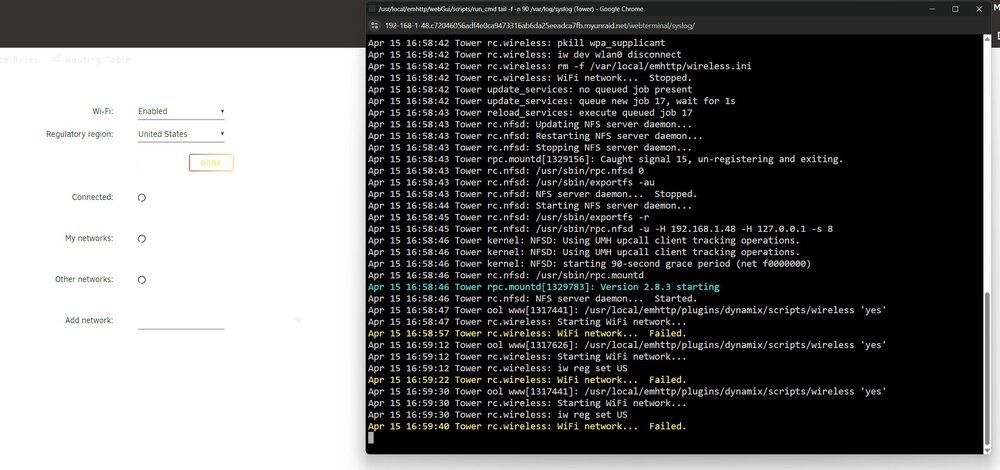
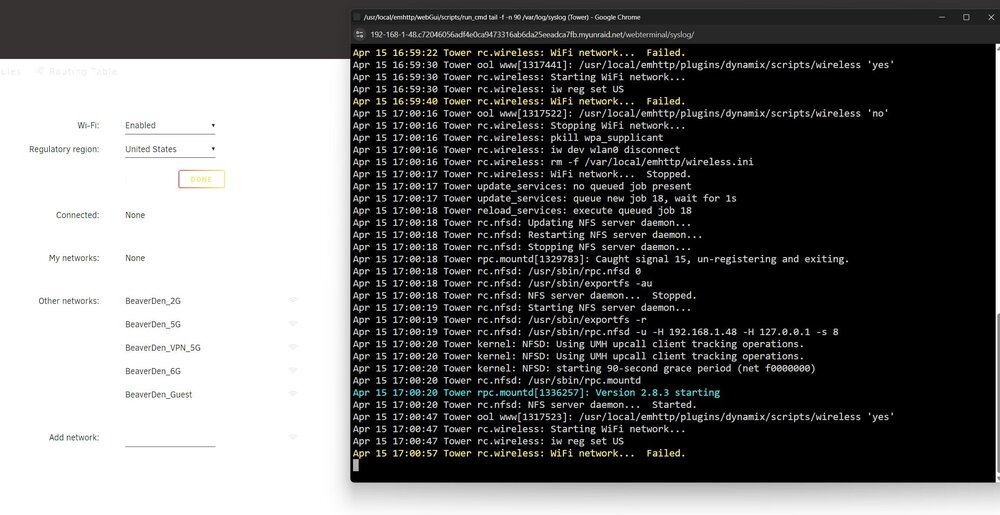
@bonienl Thanks for looking into the problem. I just wanted to add some details, as I'm not sure if the bug you found is for the same issue I'm running into. If I set my "Regulatory Region" and then enable WIFI, its still failing: If I manually enable the wifi interface like you suggested, it does appear to actually scan for networks. However, its still failing and won't let me select one to connect with.
-
It never gets to the point of selecting a wifi network. If I manually enable the wifi interface using ifconfig from the terminal, then it does at least shows wifi networks when I enable it from the UI, but it still doesn't let me actually connect.
-
@JorgeB Updated yesterday and the wireless interface does seem to be recongized now! However, its failing when I try to enable it. Apr 13 09:29:04 Tower ool www[527776]: /usr/local/emhttp/plugins/dynamix/scripts/wireless 'yes' Apr 13 09:29:04 Tower rc.wireless: Starting WiFi network... Apr 13 09:29:04 Tower rc.wireless: iw reg set US Apr 13 09:29:14 Tower rc.wireless: WiFi network... Failed. Appricate you adding the driver so quickly. tower-diagnostics-20250413-0920.zip
-
Thank you!
-
Not sure if there is a better area to post this, but it said to submit something in the forums if the wireless adapter wasn't showing up. I have: MEDIATEK Corp. MT7921 802.11ax PCI Express Wireless Network Adapter Diagnostic log is attached tower-diagnostics-20250410-1034.zip