





Schubi05
Members
-
Joined
-
Last visited
-
Yes, the Ugreen NAS Control plugin now includes an option to disable fan control.
-
@joshmo Yes, the Ugreen NAS Control plugin now includes an option to disable fan control.
-
I've merged UGREEN LED Control into a new plugin, UGREEN NAS Control: https://forums.unraid.net/topic/201044-plugin-ugreen-nas-control-led-fan-and-system-control-for-ugreen-dxdxp-nas/ It contains the whole LED part of this plugin (the same code, with the same colours, effects, status mode, night mode, Unraid alerts, shutdown signal and dashboard tile) and adds fan control and a case view for the DXP6800 Pro and the DXP4800 GT, an overview of the whole NAS and a combined dashboard tile. It works on every model UGREEN LED Control knew; the LEDs are off until you switch them on. From now on new features go into UGREEN NAS Control. UGREEN LED Control stays installed and keeps working for everyone who prefers it, but I'd recommend switching. How to switch (about two minutes, no reboot needed): Plugins → Install Plugin → paste https://raw.githubusercontent.com/alexanderschubert/ugreen-nas-control/main/plugin/ugreen-nas-control.plg → Install. Keep UGREEN LED Control installed for now. Settings → UGREEN NAS Control → LED control → switch it on, then press Take over the settings. Colours, effects, status mode and night mode are copied; nothing of the old plugin is changed. Check the LEDs on the Overview and under General & preview. While both plugins are installed they write the same LEDs and the last write wins, so don't leave both running for long. Uninstall UGREEN LED Control under Plugins. Your settings are already in the new plugin; uninstalling the old one removes its own settings folder only. You don't have to switch. If you stay, nothing changes for you, and bug reports for this plugin are still welcome in this thread. Thanks to everyone here who tested, reported and translated – ivolution for the Spanish translation, which now also works in UGREEN NAS Control.
-
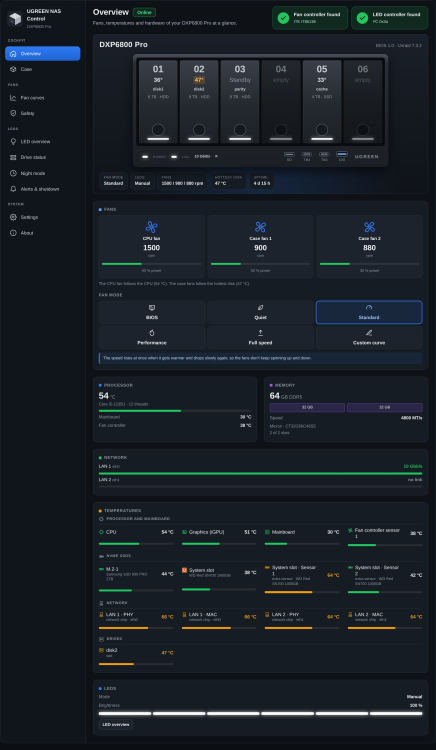
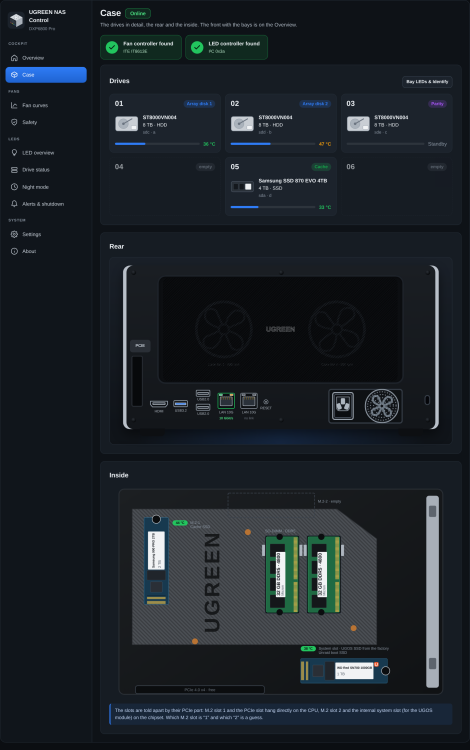
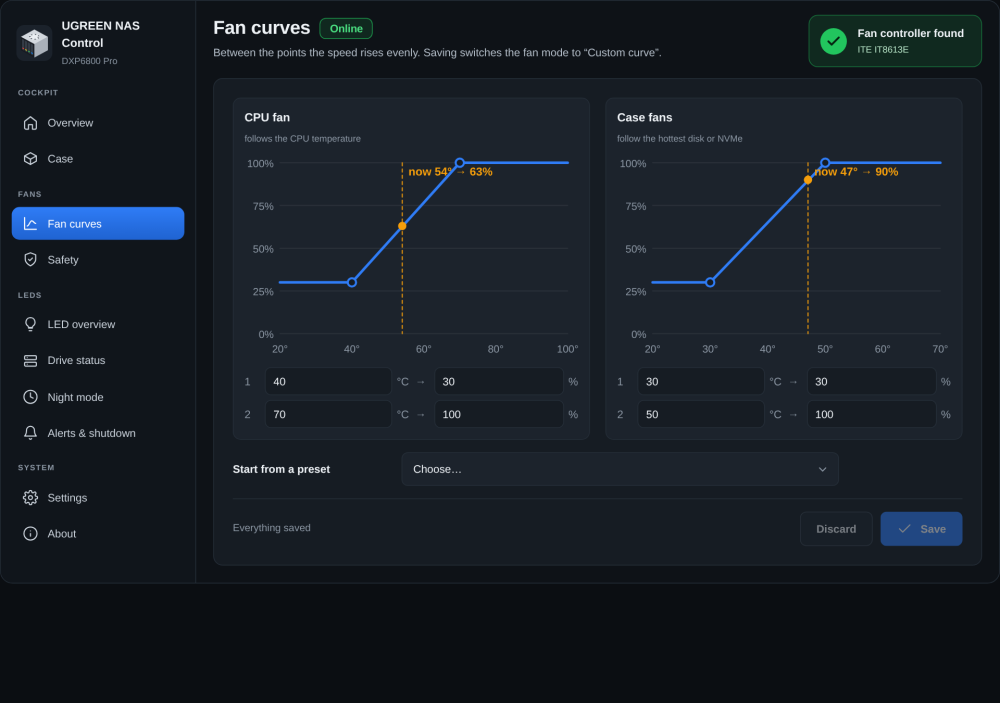
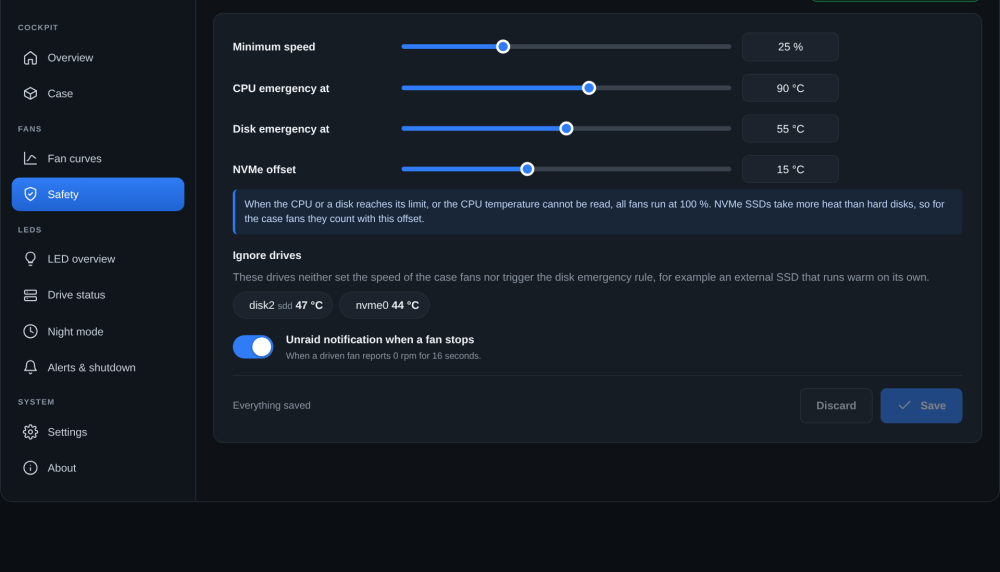
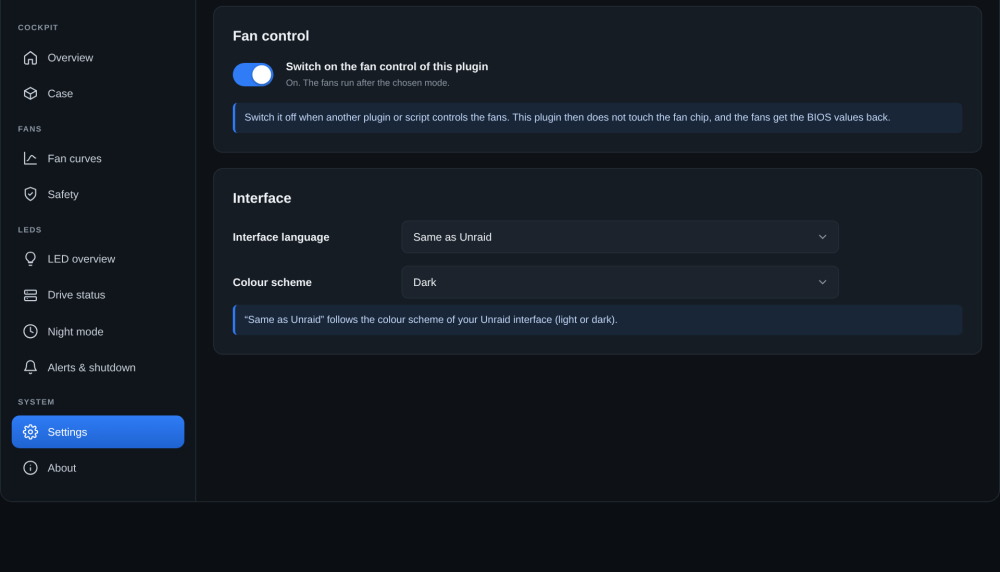
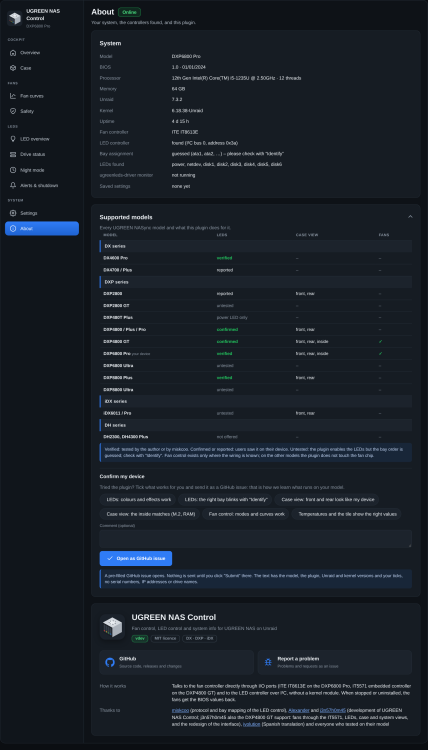
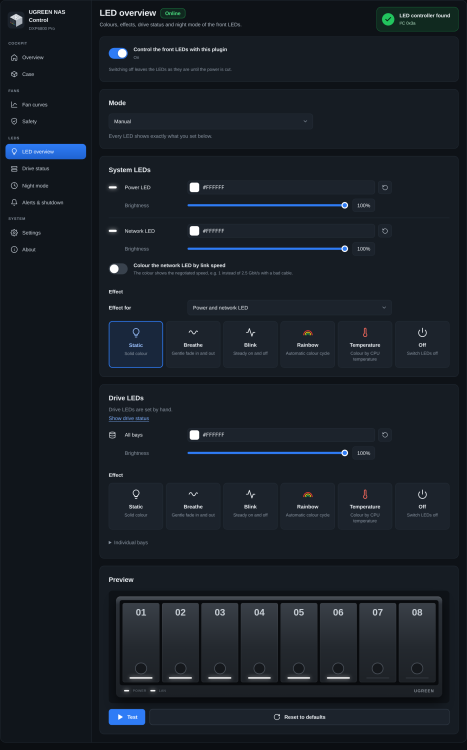
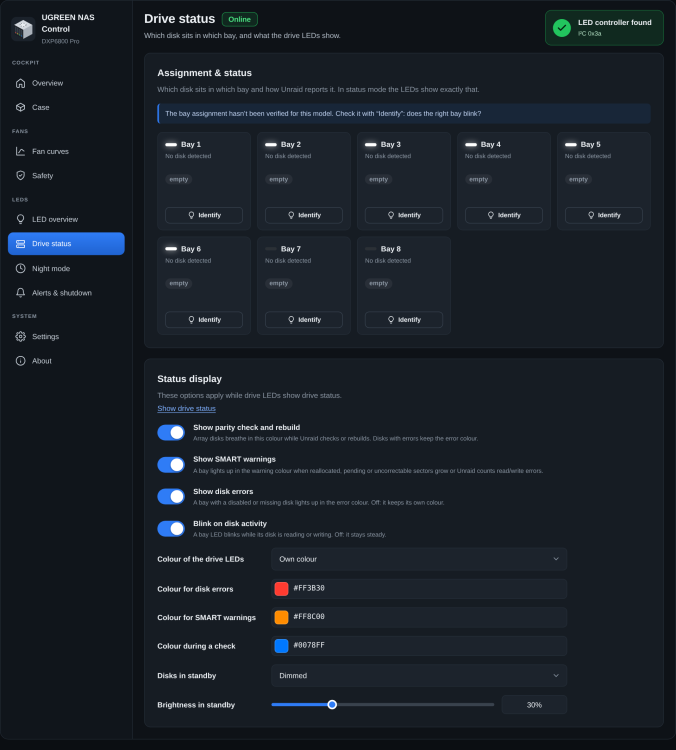
UGREEN NAS Control UGREEN NAS Control brings the front LEDs, the fans and a live picture of your UGREEN NAS into Unraid. It is the successor of UGREEN LED Control: the LED part is built in (and works on every model UGREEN LED Control knew), and it adds a case view with front and rear (and the inside on two models), temperatures, and fan control for the DXP6800 Pro and the DXP4800 GT, like the fan settings of UGOS. Like its predecessor it talks to the hardware directly, with no kernel module, so Unraid updates with a new kernel don't break it. Project status Current version: 3.2. Developed and used daily on a DXP6800 Pro with Unraid 7.3. The DXP4800 GT support (fans through the IT5571 embedded controller, LEDs, case and system view), the temperature sections and a big part of the interface redesign were contributed by j3n57h0m45 – thank you! For all other models the LED part is the proven code of UGREEN LED Control; the case views were drawn after UGREEN's product photos and wait for your feedback (see "Confirm my device" below). Requirements Unraid 7.0 or newer A UGREEN DX, DXP or iDX NAS (fan control: DXP6800 Pro or DXP4800 GT) No other LED plugin running at the same time: if you use ugreenleds-driver, uninstall it first. If UGREEN LED Control is still installed, see "Coming from UGREEN LED Control" below. Features Overview as a cockpit: your NAS drawn as it is (front with the bays, their temperatures, the LED colours live), the fans, processor, memory, network, all sensors and the SSDs by their place in the case Case page: drives as cards with their role (array, parity, cache), the rear with all ports, link speeds and the turning fans; the inside with the real M.2 modules, RAM sticks, system slot and PCIe slot on DXP6800 Pro and DXP4800 GT. Front and rear views also exist for the DXP4800 / Plus / Pro, DXP8800 Plus, DXP2800 and iDX6011 / Pro Fan control (DXP6800 Pro, DXP4800 GT): live speeds, modes BIOS, Quiet, Standard, Performance, Full speed or your own curves; the CPU fan follows the CPU, the case fans follow the hottest disk or NVMe SSD. It can be switched off in Settings if another plugin or script controls your fans: the plugin then leaves the fan chip alone and the BIOS values are back Safety: minimum speed, all fans at 100 % when the CPU or a disk gets too hot or the CPU temperature can't be read, an Unraid notification when a fan stops, drives you can exclude from the fan control (e.g. a backup disk that is allowed to run hot), and the BIOS values back when the plugin stops or is removed Temperatures in sections: processor and mainboard, NVMe SSDs (with the extra sensors), network chips, drives – read from Unraid, so sleeping disks are never woken up LEDs (optional, off until you switch them on): colour, brightness and effect per LED, a status mode for disk activity, errors and SMART warnings, network LED by link speed, night mode, Unraid alerts and a shutdown/reboot signal on the power LED Dashboard tile with fans, temperatures, the SSDs (with the Unraid mark on your boot SSD) and the live LEDs Dark, light or "same as Unraid" colour scheme; interface in English, German and Spanish Supported models and "Confirm my device" in About: the list of all UGREEN models and what the plugin does for each, and a form to tell me what works on yours Supported models The list is also in the plugin (Settings → About → Supported models), grouped by series. Fan control exists only for the two models whose wiring is known; on any other model the plugin does not touch the fan controller (system info, temperatures, case view and LEDs still work). Model LEDs Case view Fans DXP6800 Pro verified front, rear, inside yes (ITE IT8613E) DXP4800 GT confirmed front, rear, inside yes (IT5571 embedded controller) DXP4800 / Plus / Pro confirmed front, rear – DXP8800 Plus verified front, rear – DXP2800 reported front, rear – DX4600 Pro, DX4700 / Plus verified / reported – – iDX6011 / Pro untested front, rear – DXP6800 Ultra, DXP8800 Ultra, DXP2800 GT and others untested – – Confirm my device: the case views of the models other than the DXP6800 Pro and GT were drawn from photos, not from a device in my hands. In Settings → About there is a form: tick what works on your NAS (LED colours, the right bay blinking with "Identify", front and rear view, temperatures, fan control) and it opens a pre-filled GitHub issue. Nothing is sent until you press Submit there, and it contains no serial numbers, IP addresses or drive names. For a model marked untested the LEDs page says so; "Identify" shows whether the right bay blinks. A reply in this thread works just as well. Installation Plugins → Install Plugin, paste this URL and click Install: https://raw.githubusercontent.com/alexanderschubert/ugreen-nas-control/main/plugin/ugreen-nas-control.plg The plugin will be submitted to Community Applications; until it is listed, install it with the URL above. Updates show up under Plugins as usual. Settings are under Settings → UGREEN NAS Control. First steps Open Settings → UGREEN NAS Control. The banner shows the detected fan controller. On the DXP6800 Pro / DXP4800 GT, pick a fan mode (Standard is a good start) or draw your own curves under Fan curves. Check Safety once (there you can also exclude drives from the fan control). If another plugin controls your fans, switch the fan control off under Settings. For the LEDs: switch LED control on (LEDs → LED control, or Appearance & About), then use General & preview, Colours, Effects and Drive status. "Identify" on each bay checks that the right one blinks. Settings: language, colour scheme and the fan control switch. About: the system facts, the supported models and "Confirm my device". Coming from UGREEN LED Control Install UGREEN NAS Control and switch LED control on (Appearance & About → LED control). If the new plugin has no LED settings of its own yet, the settings of UGREEN LED Control are taken over automatically: colours, effects, status mode and night mode are copied (the page reloads once). If you already have settings here, a "Take over the settings" button on the same card copies them on request. Check the LEDs, then uninstall UGREEN LED Control under Plugins. While both are installed they write the same LEDs and the last write wins, so don't keep both running. Details are in the README. Coming from ugreenleds-driver Uninstall ugreenleds-driver first, then install this plugin and reboot once. No kernel module is needed; the plugin unloads led_ugreen if an older setup left it behind. Fan safety The fans are driven through the chip's registers. The plugin saves the BIOS values at the first start after boot and writes them back when it stops, updates or is removed. Fan control is only offered on the two models whose wiring is known, and it can be switched off completely in Settings. As always with hardware: use at your own risk. How it works A small static tool (ugreen-nas-fan, written in Go) talks to the fan chip directly: through I/O ports on the DXP6800 Pro (ITE IT8613E) and through the embedded controller's ACPI ports on the DXP4800 GT (IT5571). The LED part comes from UGREEN LED Control (now maintained inside this plugin) and talks to the LED controller over I²C (on the GT through /dev/mem). Settings are stored in /boot/config/plugins/ugreen-nas-control/. Screenshots Support Questions and problems: please post in this thread and include your NAS model and Unraid version the plugin version (Settings → UGREEN NAS Control → About) the output of these commands: /usr/local/emhttp/plugins/ugreen-nas-control/backend/ugreen-nas-fan status /usr/local/emhttp/plugins/ugreen-nas-control/backend/ugreen-nas-ctl status Bug reports and feature requests are also welcome as GitHub issues. Source code: https://github.com/alexanderschubert/ugreen-nas-control Translations The interface is available in English, German and Spanish. The Spanish texts of the LED part are ivolution's; the rest was translated with help and would like a native speaker's review. Another language? The texts are in one file; see the README. Pull requests or a JSON in an issue are both fine. Credits miskcoo for working out the LED controller protocol and the bay layouts j3n57h0m45 for the DXP4800 GT (fans through the IT5571, LEDs, case and system view), the temperature sections, many fixes and a big part of the interface redesign ich777 for the ugreenleds-driver plugin, which showed how LED control can work on Unraid ivolution for the Spanish translation and many careful suggestions everyone who tested on their model and reported what they found License and disclaimer MIT licensed. This is a community project and not affiliated with UGREEN. Use it at your own risk.
-
Thanks for the detailed report, arcmodo, and for the output. I looked at how the vendor driver and the other iDX6011 plugins talk to your MCU and built it in: six bays, the LED registers of the Pro (two LAN LEDs, so disk1 is register 3), the SMBus-block frames, and the bay numbers by SATA controller (ASMedia ports are bays 1-4, Intel ports 5-6, which fits what you saw). It's version 0.25.0, which I can't test myself. Could you update and tell me: (1) are your two drives now in bays 1 and 2? (2) do the LED colours you set show up on the right bays, and does the lighting marquee stop? (3) if something is wrong: the output of /usr/local/emhttp/plugins/ugreen-led-control/backend/ugreen-led-ctl status and which LED lit up when you pressed "Identify" on bay 1.
-
Thanks a lot for testing, @Squirt6346, that’s exactly what I hoped for, as I can’t try this model myself. Good to know the DXP480T Plus works without any script or extra packages. @datarepos, same for you: update to 0.23.0, remove your startup script and reboot. If the LED still blinks, the two commands above would show why.
-
Thanks again, datarepos. I looked at ich777’s plugin: your script is exactly what he runs for the DXP480T Plus (the dxp480t_static function), and it needs the i2c-tools package that his plugin shipped. Since that plugin is deprecated and you’ve removed it, i2cset is gone, which is why the LED keeps blinking. I’ll add native support for the DXP480T to my plugin: it will set the power LED to static white by itself, without any script or extra packages. I’ll ask you to test it once it’s ready, since I don’t have this model. New Update 0.23.0 sets the DXP480T Plus power LED to static white by itself at boot (no script or i2c-tools needed; it uses the same register writes as ich777’s driver). Please update, remove your startup script, reboot and tell me if the LED stops blinking. If it doesn’t, please run /usr/local/emhttp/plugins/ugreen-led-control/backend/ugreen-led-i2c dxp480t white; echo $? and /usr/local/emhttp/plugins/ugreen-led-control/backend/ugreen-led-i2c scan all and paste the output.
-
Hi d4nnmuerte, thanks for the very complete report, that saves a lot of back and forth. The SMBus and modules are fine, so this looks like a hardware revision where the LED controller isn’t at 0x3a (the DXP2800 V1.2 board is already known to be different, and I haven’t seen your revision yet). To find out where it is, could you run this in the Unraid terminal and paste the output? i2cdetect -l for b in $(i2cdetect -l | grep -Po 'i2c-\K\d+'); do echo "== bus $b"; i2cdetect -y $b; done dmidecode -s baseboard-manufacturer; dmidecode -s baseboard-product-name; dmidecode -s baseboard-version; dmidecode -s bios-versionPlease also tell me what the LEDs do right now (power LED colour and whether it blinks, any disk LEDs lit). If an address other than 0x3a shows up, I can try it; I’d need you to test carefully, because I can’t test your board myself.
-
Hi datarepos, thanks for the details. I haven’t been able to test the DXP480T Plus myself, so I need a bit of data to see what your LED controller looks like. Could you run these in the Unraid terminal and paste the output? /usr/local/emhttp/plugins/ugreen-led-control/backend/ugreen-led-ctl smbus /usr/local/emhttp/plugins/ugreen-led-control/backend/ugreen-led-i2c probe i2cdetect -l i2cdetect -y $(i2cdetect -l | grep "SMBus I801" | grep -Po "i2c-\K\d+") And two questions: where does the script run (User Scripts “At first array start”, or the go file?) and is the plugin’s page showing the controller as found? Two possible reasons for the blinking: the script runs before the SMBus driver is loaded (then I2C_DEV is empty), or the plugin writes the LED again afterwards. The output will tell which. If the controller at 0x3a answers, you could simply set the power LED in the plugin (colour, static) instead of the script.
-
Thanks for the detailed list, hsf. Both things that don’t work for you (network LED by link speed, and the standby look of the disks) are done by the status daemon, while the manual colours and effects are written once directly to the LEDs. So my first guess is that the daemon isn’t running for you. Two possible reasons: The default mode is still “Manual”. Under Overview, set the default mode to “Status-based”. A leftover of ich777’s plugin is still running and the daemon steps aside for it (it logs “ugreenleds-driver monitor is running”). Could you run this in the Unraid terminal and paste the result? /usr/local/emhttp/plugins/ugreen-led-control/backend/ugreen-led-ctl status | grep -E '"mode"|daemon|netdev|network_ports' pgrep -af ugreen-leds lsmod | grep -i ugreen grep ugreen-led-control /var/log/syslog | tail -15
-
Thanks for the idea, lsaranto – the link-speed colour is in (version 0.22.1, Plugins → Check for Updates). Where: LED settings → card “Network LED” → “Network LED by link speed”. It gives each speed its own colour (10M, 100M, 1G, 2.5G, 5G, 10G), all changeable, and it’s off by default. On top of that, the case picture and the dashboard tile now draw the network ports next to the LAN LED as RJ45 sockets: a connected port in the colour of its speed with “2.5G”, “10G” and so on, and a port without a link as a dimmed socket with a cross and the speed it supports. @ivolution – to your question: a real use is a cable or port that only negotiates 1G instead of 2.5G or 10G. That often goes unnoticed for years, and a different LED colour shows it at a glance.
-
Thanks for the details, that was the missing piece! Unraid keeps a favorite as a label on the plugin’s page file and only puts it back at boot, so an update dropped it until the next reboot. Version 0.19.5 restores it right away after an update (Plugins → Check for Updates). Your favorite should now stay. And thank you for the Spanish translation – no hurry!Your assumption was close, but I meant the “Network LED” setting right below the default mode – the sentence was confusing. I’ll reword it to name the setting: “…shows the error colour without a connection; the “Network LED” setting lets it glow steadily or stay manual instead.” Please translate that new wording; the JSON in the issue will be updated within a few minutes. Thanks for the careful reading! About the favorite: I’m not sure what exactly you mark. Is it a star in the Unraid header (e.g. from the “Quick Favorites” plugin or Unraid itself), a Community Applications favorite, or something else? And what exactly is lost after the update – the star, the entry, or its icon? The plugin keeps its settings in /boot/config/plugins/ugreen-led-control/, and its settings page keeps the same address (/Settings/UGREENLEDControl) across updates, so I’d expect a favorite pointing at it to survive. If you tell me which Unraid version and which favorites feature, I can look into it.Thanks, your output explains it: disk2_brightness is 127, but the LED sits at 38, which is exactly 30 % of 127. The disk in bay 2 is spun down, and Drives → Status display → Disks in standby is set to “Dimmed” (30 %), so in status mode the plugin dims that LED a few seconds after you change it. Nothing is being reverted, but the slider showed the dimmed value, which made it look that way. In manual mode there’s no standby dimming, which is why it works there. Version 0.19.3 makes this visible: the slider keeps your setting, and the LED table says “in standby dimmed to 30 % of this brightness”. If you don’t want standby dimming, set Disks in standby to “Normal” (or raise the level).



