





umax
Members
-
Joined
-
Last visited
-
I need to finally swap out marvel based sas cards. I am using Supermicro X8SIA-F board with PCIe 2.0 slots. On ebay, the cheapest cards are newer PCIe 3.0, specifically 9207-8i can be bought for 20€, while 9211-8i are 30€. Since the difference is minimal, I am leaning more towards 9207 in case I upgrade the MB in the future, but if for any reason 9211 are better performing in native 2.0 slots I would go with that. Any thoughts?
-
Here they are, thanks unraid-diagnostics-20221019-1040.zip
-
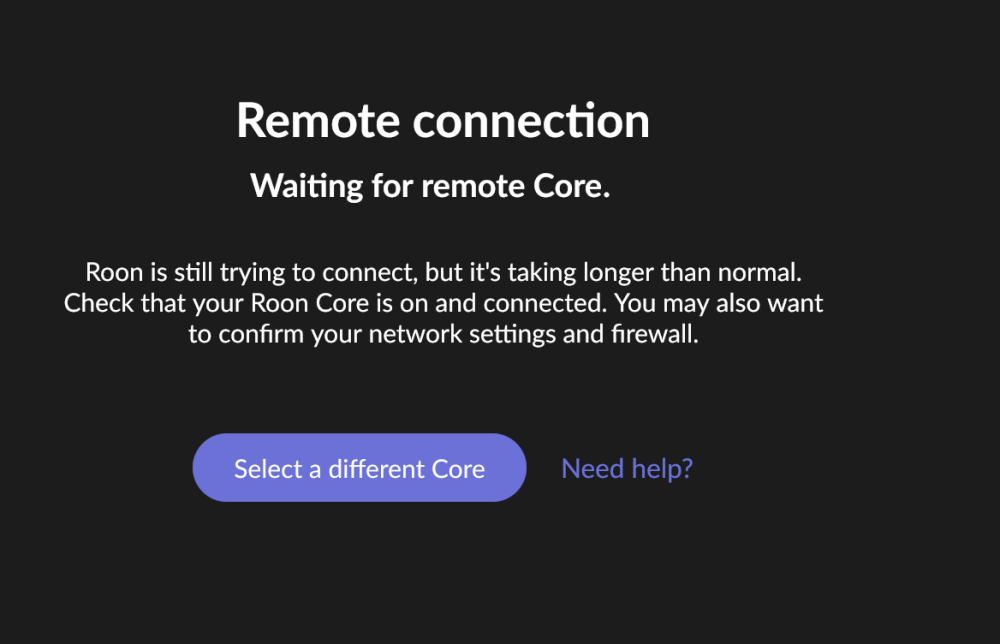
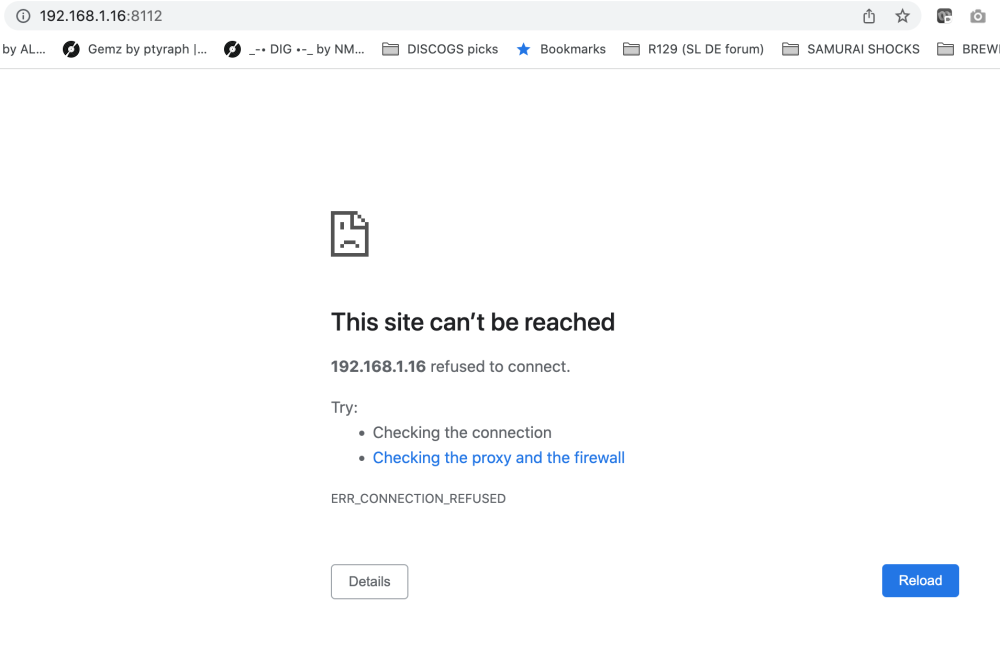
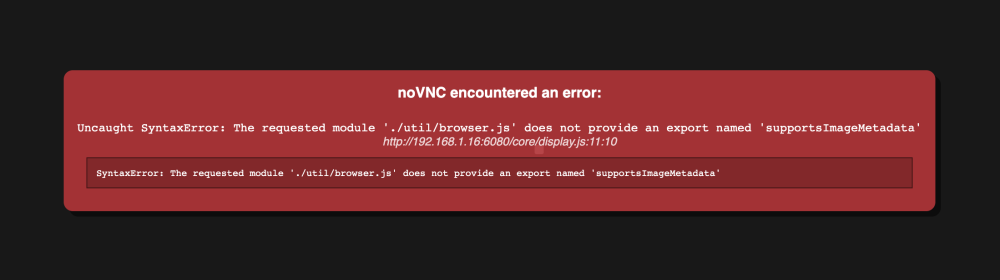
Hi, I have successfully converted my two new ssd into raid0 btrfs, folowed the step to move appdata onto array and than back to cache pool, but now my dockers are acting up. I only use three of them, deluge, krusader and roon. Deluge refuses to connect to WebUi, krusader is giving me some vnc error and my roon clients are unable to reach roonserver. What should I do?

-
Thanks! Can I use Btrfs file system on new cache drive and just follow the above steps?
-
My cache drive only has 2GB left since I use it to store Roon library on it. Beside that I use it for 4 docker's and thats it, no mover, etc.. What is the right way to migrate everything from existing ssd to a new one? Is there a line code to clone everything? I have attached diagnostic file from my server, maybe someone can check if there is something else on the cache drive or/if something could be optimised (docker image allocation size)? Thanks in advance! unraid-diagnostics-20221007-1943.zip
-
Thank you, got it through by opening ports as per your edit on 1st page! My favourite docker on unraid! Roon rules, now on the go!
-
It went smooth on my side, updated as usual, I just need to figure out the port forwarding now for the ARC in order to ba able to stream music from outside
-
I am struggling to understand how to import from server function works. Whatever path I try to use, lychee is saying; Given path is not a directory (/mnt/user/Pictures) Also, where does lynchee creates folder for pictures (/uploads)? This is my lychee log; 2017-09-02 23:41:27 - error - Lychee\Modules\Database::createTables (180) - Table 'lychee.lychee_settings' doesn't exist 2017-09-02 23:41:27 - error - Lychee\Modules\Database::createTables (225) - Table 'lychee.lychee_albums' doesn't exist 2017-09-02 23:41:27 - error - Lychee\Modules\Database::createTables (248) - Table 'lychee.lychee_photos' doesn't exist 2017-09-02 23:42:57 - error - Lychee\Modules\Import::server (106) - Given path is not a directory (/nmt/users/PiCTURES/TEST) 2017-09-02 23:45:22 - error - Lychee\Modules\Import::server (106) - Given path is not a directory (/nmt/users/PiCTURES/TEST) 2017-09-02 23:59:16 - error - Lychee\Modules\Import::server (106) - Given path is not a directory (/mnt/users/PiCTURES/TEST) 2017-09-03 00:00:56 - error - Lychee\Modules\Import::server (106) - Given path is not a directory (/mnt/users/PiCTURES/Thumbs) 2017-09-03 00:01:32 - error - Lychee\Modules\Import::server (106) - Given path is not a directory (/PiCTURES/TEST) 2017-09-03 00:13:43 - notice - Lychee\Modules\Session::login (81) - User (umax) has logged in from 192.168.1.7 2017-09-03 00:14:30 - error - Lychee\Modules\Import::server (106) - Given path is not a directory (/mnt/users/PiCTURES) 2017-09-03 00:15:25 - error - Lychee\Modules\Import::server (106) - Given path is not a directory (/nmt/users/PiCTURES) 2017-09-03 00:21:50 - notice - Lychee\Modules\Session::login (81) - User (umax) has logged in from 192.168.1.7 2017-09-03 00:23:17 - error - Lychee\Modules\Import::server (106) - Given path is not a directory (/mnt/user/Pictures) 2017-09-03 00:26:42 - notice - Lychee\Modules\Session::login (81) - User (umax) has logged in from 192.168.1.15 2017-09-03 00:39:43 - notice - Lychee\Modules\Session::login (81) - User (umax) has logged in from 192.168.1.7 2017-09-03 00:40:58 - error - Lychee\Modules\Import::url (56) - Photo format not supported (/mnt/user/PiCTURES/) 2017-09-03 00:41:24 - error - Lychee\Modules\Import::server (106) - Given path is not a directory (/mnt/user/PiCTURES) 2017-09-03 00:41:50 - error - Lychee\Modules\Import::server (106) - Given path is not a directory (/mnt/user/PiCTURES/boatTrip13-zaGledat) 2017-09-03 00:46:31 - notice - Lychee\Modules\Session::login (81) - User (umax) has logged in from 192.168.1.7 2017-09-03 00:46:53 - error - Lychee\Modules\Import::server (106) - Given path is not a directory (/mnt/user0/PiCTURES) 2017-09-03 00:48:42 - error - Lychee\Modules\Import::server (106) - Given path is not a directory (/mnt/disk7/PiCTURES) 2017-09-03 00:49:17 - error - Lychee\Modules\Import::server (106) - Given path is not a directory (/disk7/PiCTURES) 2017-09-03 00:49:33 - error - Lychee\Modules\Import::server (106) - Given path is not a directory (/PiCTURES)
-
That did it, thank you, great plug!
-
Having problem with installing this plugin. When I install via "Install Plugin" it looks like it is installed, but there is no icon under System Information group (I have just "Active Streams" from Dynamix there). When I try via telnet I get "plugin: run failed: /bin/bash retval: 1" Any clue what is going on? I have just upgraded to 6.1.3 (from 5.0.6) root@UNRAiD:~# wget https://github.com/dlandon/open.files/raw/master/open.files.plg --2015-11-07 23:00:18-- https://github.com/dlandon/open.files/raw/master/open.files.plg Resolving github.com (github.com)... 192.30.252.129 Connecting to github.com (github.com)|192.30.252.129|:443... connected. HTTP request sent, awaiting response... 302 Found Location: https://raw.githubusercontent.com/dlandon/open.files/master/open.files.plg [following] --2015-11-07 23:00:19-- https://raw.githubusercontent.com/dlandon/open.files/master/open.files.plg Resolving raw.githubusercontent.com (raw.githubusercontent.com)... 185.31.17.133 Connecting to raw.githubusercontent.com (raw.githubusercontent.com)|185.31.17.133|:443... connected. HTTP request sent, awaiting response... 200 OK Length: 3063 (3.0K) [text/plain] Saving to: ‘open.files.plg.1’ open.files.plg.1 100%[=====================>] 2.99K --.-KB/s in 0s 2015-11-07 23:00:19 (241 MB/s) - ‘open.files.plg.1’ saved [3063/3063] root@UNRAiD:~# installplg open.files.plg plugin: installing: open.files.plg plugin: run failed: /bin/bash retval: 1
-
Thanks! Not a biggie, but good to know so I stop messing with it Anyway, congrats to all the work you have done
-
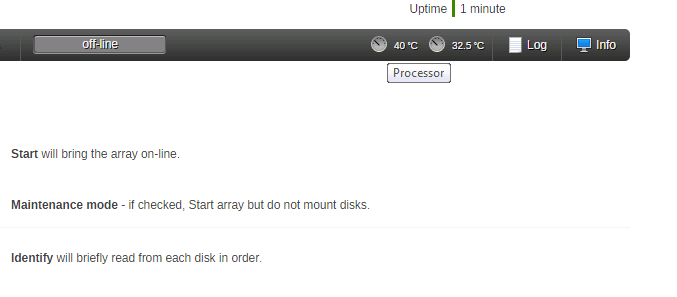
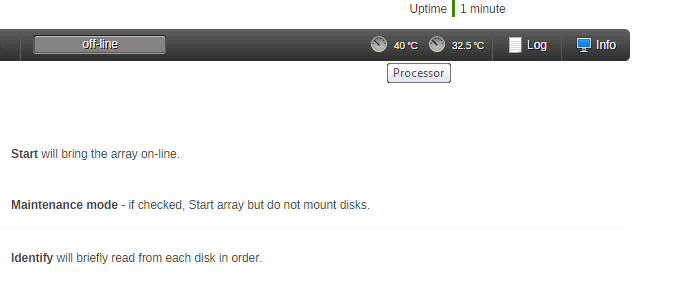
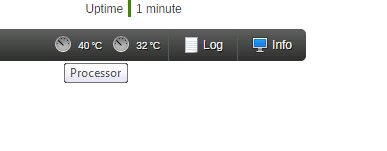
I have the same problem, no matter how I label temps in sensors_conf, I always get the MB temp is Processor window and vice-versa. Tho my lowest temperature (CPU) is on the right side (see bellow)
-
Yes, I have tried this but with no success. See bellow; sensors_conf chip "w83627dhg-isa-0a10" label temp1 "MB Temp" label temp2 "CPU Temp" This is "sensors" output from console; UNRAiD login: root Linux 3.9.11p-unRAID. root@UNRAiD:~# sensors coretemp-isa-0000 Adapter: ISA adapter Core 0: +33.0 C (high = +89.0 C, crit = +105.0 C) Core 2: +38.0 C (high = +89.0 C, crit = +105.0 C) w83627dhg-isa-0a10 Adapter: ISA adapter Vcore: +0.95 V (min = +0.60 V, max = +1.49 V) in1: +1.82 V (min = +1.62 V, max = +1.99 V) AVCC: +3.25 V (min = +2.98 V, max = +3.63 V) VCC: +3.25 V (min = +2.98 V, max = +3.63 V) in4: +1.53 V (min = +1.35 V, max = +1.65 V) in5: +1.26 V (min = +1.13 V, max = +1.38 V) in6: +1.44 V (min = +1.42 V, max = +1.52 V) 3VSB: +3.23 V (min = +2.98 V, max = +3.63 V) Vbat: +3.17 V (min = +2.70 V, max = +3.30 V) fan1: 0 RPM (min = 753 RPM, div = 128) ALARM fan2: 1591 RPM (min = 712 RPM, div = fan3: 1010 RPM (min = 712 RPM, div = fan4: 0 RPM (min = 753 RPM, div = 128) ALARM fan5: 1035 RPM (min = 712 RPM, div = MB Temp: +40.0 C (high = +60.0 C, hyst = +55.0 C) sensor = thermistor CPU Temp: +33.5 C (high = +95.0 C, hyst = +92.0 C) sensor = CPU diode temp3: +39.0 C (high = +75.0 C, hyst = +70.0 C) sensor = thermistor cpu0_vid: +1.513 V intrusion0: ALARM And this is how the Dynamix is displaying it (see attachment "sensors_conf"). The temperatures are switched. I have also tried with; sensors_conf chip "w83627dhg-isa-0a10" label temp1 "CPU Temp" label temp2 "MB Temp" console output is now wrong; UNRAiD login: root Linux 3.9.11p-unRAID. root@UNRAiD:~# sensors coretemp-isa-0000 Adapter: ISA adapter Core 0: +33.0 C (high = +89.0 C, crit = +105.0 C) Core 2: +37.0 C (high = +89.0 C, crit = +105.0 C) w83627dhg-isa-0a10 Adapter: ISA adapter Vcore: +0.95 V (min = +0.60 V, max = +1.49 V) in1: +1.82 V (min = +1.62 V, max = +1.99 V) AVCC: +3.25 V (min = +2.98 V, max = +3.63 V) VCC: +3.25 V (min = +2.98 V, max = +3.63 V) in4: +1.53 V (min = +1.35 V, max = +1.65 V) in5: +1.26 V (min = +1.13 V, max = +1.38 V) in6: +1.44 V (min = +1.42 V, max = +1.52 V) 3VSB: +3.23 V (min = +2.98 V, max = +3.63 V) Vbat: +3.17 V (min = +2.70 V, max = +3.30 V) fan1: 0 RPM (min = 727 RPM, div = 64) ALARM fan2: 1607 RPM (min = 712 RPM, div = fan3: 1016 RPM (min = 712 RPM, div = fan4: 0 RPM (min = 727 RPM, div = 64) ALARM fan5: 1035 RPM (min = 712 RPM, div = CPU Temp: +40.0 C (high = +60.0 C, hyst = +55.0 C) sensor = thermistor MB Temp: +32.0 C (high = +95.0 C, hyst = +92.0 C) sensor = CPU diode temp3: +39.0 C (high = +75.0 C, hyst = +70.0 C) sensor = thermistor cpu0_vid: +1.513 V intrusion0: ALARM but dynamix (see attachment "sensors_conf (wrong)")is still showing it the same (temps switched)
-
yea, the labels are switched, not a biggie, but can't figure it out... tried 3 different sensors_conf; chip "w83627dhg-isa-0a10" label temp2 "CPU Temp" label temp1 "MB Temp" and chip "w83627dhg-isa-0a10" label temp1 "MB Temp" label temp2 "CPU Temp" and label temp1 "CPU Temp" label temp2 "MB Temp" And yes, that is awesome news indeed, cant wait for V6 final!
-
thanks to both, that did it!!! i now have both temps showing up on Dynamix!



