





puncho
Members
-
Joined
Everything posted by puncho
-
Is there a way to make it so that deluge will only work/run if it is connected to the VPN. So it will start/stop depending on the connection to the VPN. Thanks!
-
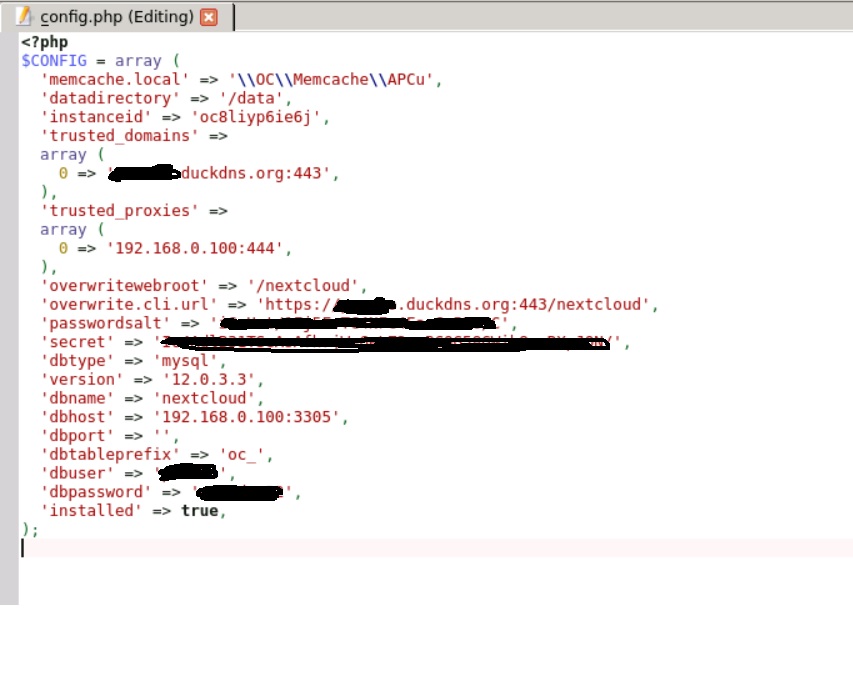
Hi, I just installed this using the LSIO tutorial (up to the letsencrypt reverse proxy) since I had already set it up using cyanlab's tutorial (https://cyanlabs.net/tutorials/the-complete-unraid-reverse-proxy-duck-dns-dynamic-dns-and-letsencrypt-guide/#comment-171). I'm able to access xxxxx.duckdns.org/nextcloud. However, when I go to my array and add/remove a picture (and i'm sure any other file), it does not reflect that when I access it online. Do I need to do something else? I attached the config file below in case that helps. Thanks!
-
Figured mine out. Didn't like that I had an array already, so had to wipe it/start fresh. Go to "tools" then new config. Going back to the preclear plugin, it works now!
-
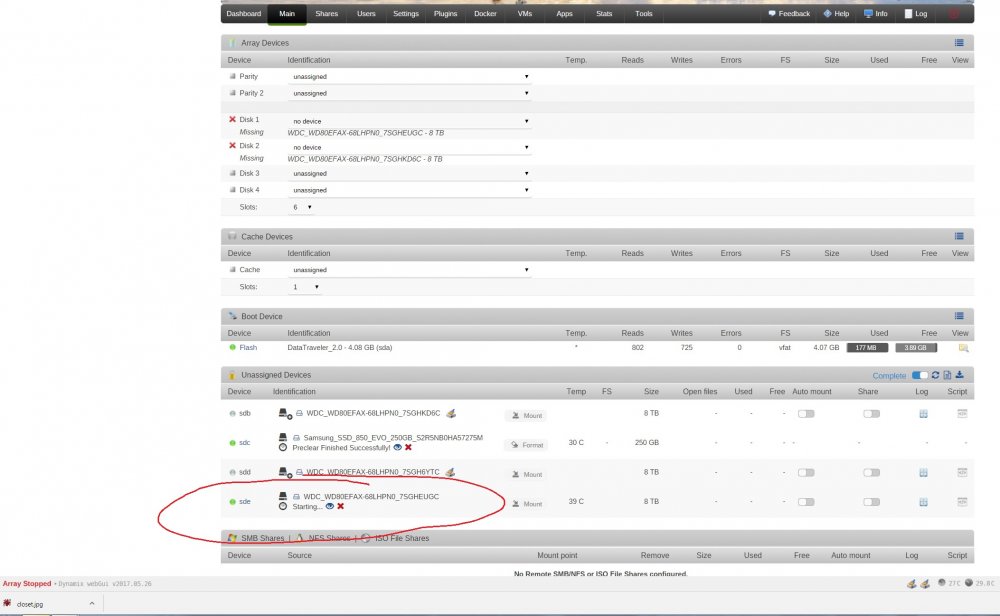
I had tried to do the parity sync, stopped it midway when I realized I should have pre-cleared it first. Would that be causing any issues? I took the array offline and unassigned the devices...I was able to preclear my ssd cache drive (250gb) but stuck at the "Starting..." for the WD hard drives. Thanks.
-
Same. I just put together a brand new system, all new hard drives. I just sits at "Starting..." and doesn't do anything. System logs don't show anything wrong?
