Lo Key
Members
-
Joined
-
Yeah, you were right. I didn't think of clicking the Advanced settings to see everything I needed so I just assumed since it was a special setup I had to do via command line. BTW, don't anyone do what I did as it will be gone after the next start/stop of docker anyway I've now set it up properly via the GUI and it's working fine.
-
@ken-ji it worked! Thank you so much! With everything moved over, I'm now able to get to any docker with an assigned static IP over OpenVPN. I had not managed anything with docker from the command line before this. So, in case anyone else was like me and wants to do this, here were the commands I used in the console for the steps "Delete the docker custom network on eth0/br0" and "Setup the docker custom network on eth1/br1" after I had broken the bond on the interfaces in network settings: docker network ls (this will list out what docker networks are available) NETWORK ID NAME DRIVER SCOPE c152fe231096 br0 macvlan local 2077b50fac9e bridge bridge local c73f55312022 host host local e219d9bf945e none null local docker network rm br0 (this will delete the br0 network used by docker when static ips are applied - be sure you're ready to do this) docker network create -d macvlan --subnet=192.168.1.0/24 --gateway=192.168.1.1 -o parent=eth1 docker (creates the new network and names it "docker". Name it what you want. Make sure the network settings match your own local network if you're keeping them all on the same subnet.) Then, go into Docker and move each container onto the new network.
-
Thank you ken-ji. Luckily enough, I am running Unraid on a server motherboard with dual NICs onboard. I'll try your best solution and report back in a few days.
-
I have been running this OpenVPN container without issues for a few months now. Once I realized the option for assigning containers their own IP address was available in Unraid, I assigned most of my containers static IPs in their settings so I could use my router software to track bandwidth usage. I did not reassign the OpenVPN container and left it running on the same IP as Unraid. Internally, everything is fine. But when I connect via OpenVPN, I cannot get to any container that has it's own IP address. I am able to reach the Unraid webgui and any container still running off of the Unraid IP address. I am able to get to any other resources on the network with other PCs, web sites not on Unraid, etc. The static IPs are on the same internal subnet, 192.168.1.0/24. In searching for information, I came upon this old reddit thread where the top response says "Using custom IP's (macvlan) isolates you from the host, can't remember if it also isolates you from other containers.". Is this correct, and if so, is there any way around it or do I have to reassign the containers back to using the Unraid IP if I want to access them via OpenVPN?
-
May be a dumb question... but is it OK to let Crashplan back up the appdata share? I ask mainly because there are so many warnings about appdata and permissions, etc. Just want to be sure before backing up.
-
Ugh... yeah, that was it. Corrected the path and I'm good to go. Thanks!
-
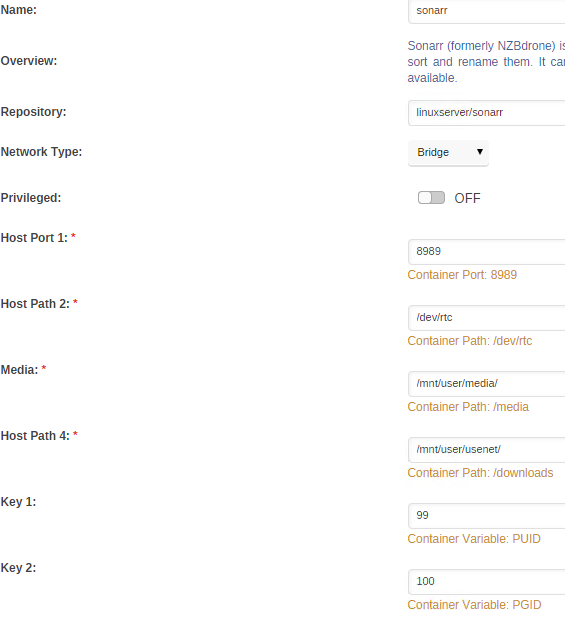
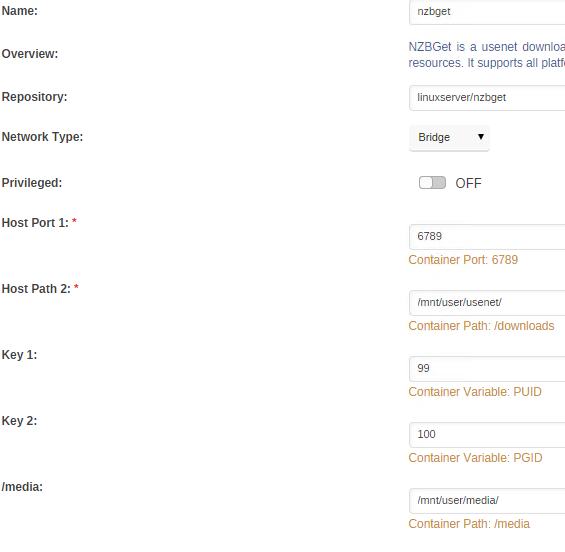
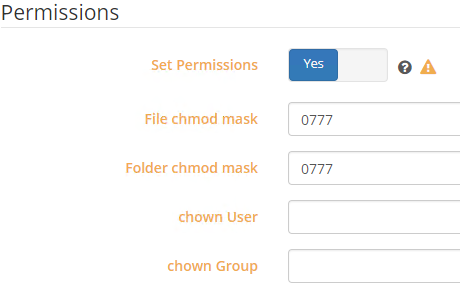
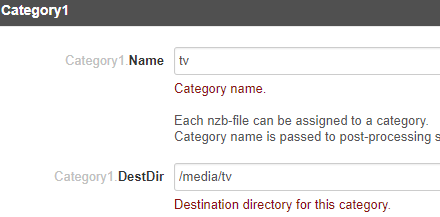
I've been having the same kind of errors as Gog. The renaming issue also happens with Radarr although here, of course, we'll focus on Sonarr. I'll provide everything I can think of here. Please let me know what I might be overlooking.