





Bigsease30
Members
-
Joined
-
Last visited
-
Is the ugreen LED driver supported on this forum?
-
Does anyone know anything about this driver and how to make it work? Any help would be appreciated.
-
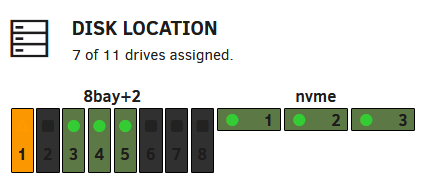
Hello All, I am in need of some assistance with the UGreen LED driver. I just purchased the DXP8800 Plus and installed Uraid on it. I downloaded the ugreen LED driver from ich777 and followed the instructions (At least I think) but I can only get the Network, HD1 and HD3 lights working. I have tried leaving it as default, (ata), serial and adding in my serial numbers in order (ST26000NM001C-XXXXXX_XXXXXXXX) with a space in between as well as the hctl option with (0:0:0:0 1:0:0:0 etc) but nothing seems to change after rebooting. I have been able to successfully change the LED colors but nothing else. When the unit firsts boots, it does light up all of the hard drive LED's in white for a brief moment but then turns off and only shows the network, 1st and 3rd again. What am I missing here? The model is listed as compatible but for the life of me, can't find the correct configuration. Below is a screenshot of the hard drives and current layout. Disk1 is parity (currently building), Disk2 is a future parity so it is empty, Disk3, 4 and 5 are 26TB drives in the pool. Any help would be greatly appreciated.
-
@d8sychain, Your the best! Finally got it up and running thanks to you and your assistance. I would of never figured that out. Thanks again!
-
Hello d8sychain and thank you for your reply. I have installed and reinstalled both MediaWiki and MySQL and receive the same error. I have also gone as far as uninstalling my MariaDB docker to further test and still receive the same results. I have tried my unraid IP as well as with and without 3306 and tried different ports. So to further test, I installed a PHPmyAdmin docker and attempted to connect to the MySQL database, still nothing, no connection what-so-ever. I think that the issue resides in the MySQL docker and not in your MediaWiki. What MySQL docker are you running on your version? The one that I am using is from Bungy's Repository.
-
Is anyone else using MediaWiki docker and MySQL Docker together without issues?
-
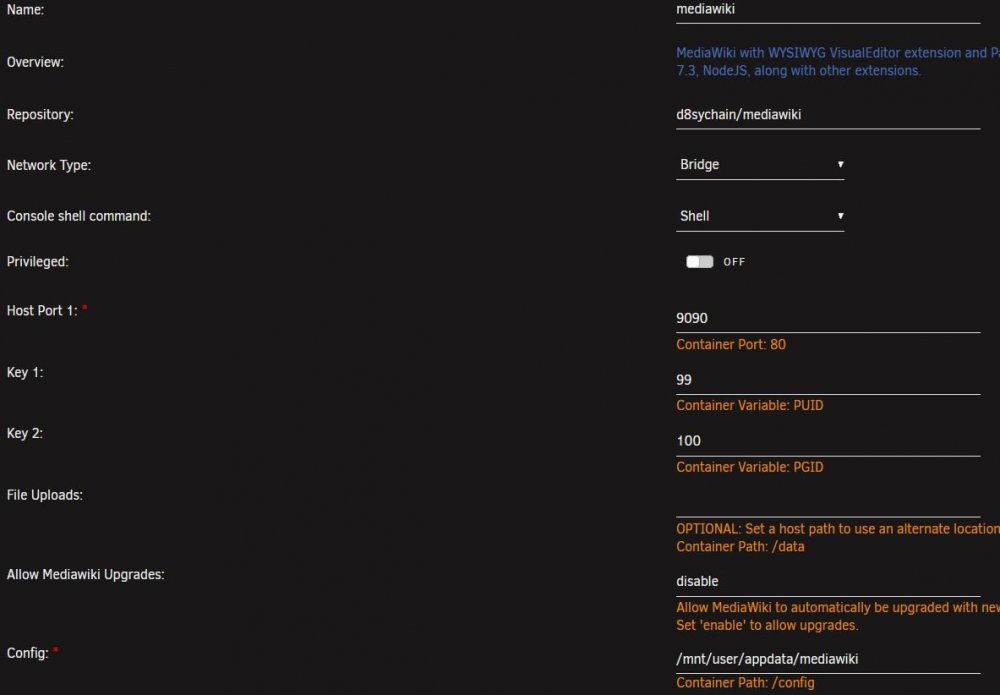
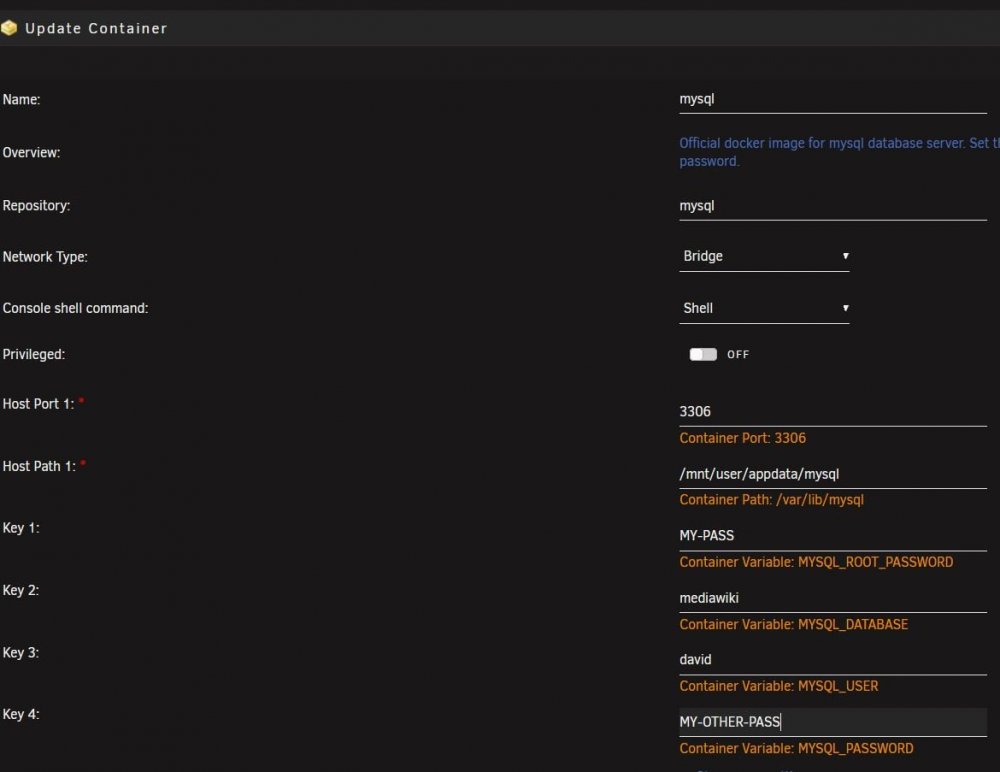
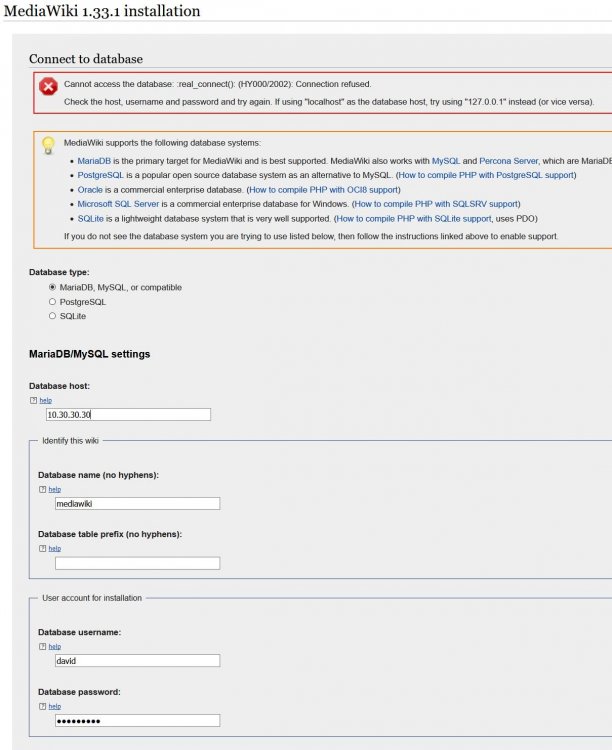
OK Guys, I am pulling my hair out. My initial issue was that the instructions said to go to the following address in the browser: "You should be able to browse your wiki at http://localhost:9090." When it should be: http://SERVER-IP:9090/mw-config/index.php to reach the installer. Now I can access the installation site for MediaWiki, I am still unable to connect it to a MySQL database. I will include screenshots to help assist in finding a resolution to this issue. (Side note: I currently have Nextcloud and MariaDB installed but is currently disabled. I have tried to use a different port number for mysql other then 3306 but have decided to temporarily to disable MariaDB and use the original port. Clean installations of MySQL have been obtained when settings were changed to further diagnose if it is a SQL error or an issue with MediaWiki docker) I have tried localhost, 127.0.0.1 as well as the IP of my unraid server without any luck of connecting. I have tried simple to complexed passwords and I still receive the same error as shown in the screen shot below named "ERROR". I have tried everything to make this work that I am aware to try. I do not want to use MariaDB for both Nextcloud and MediaWiki. If you can assist, please let me know.

-
Your read me doesn't seem to be written for UnRaid users. unless I am missing something.


