





Rocco1
Members
-
Joined
-
Last visited
-
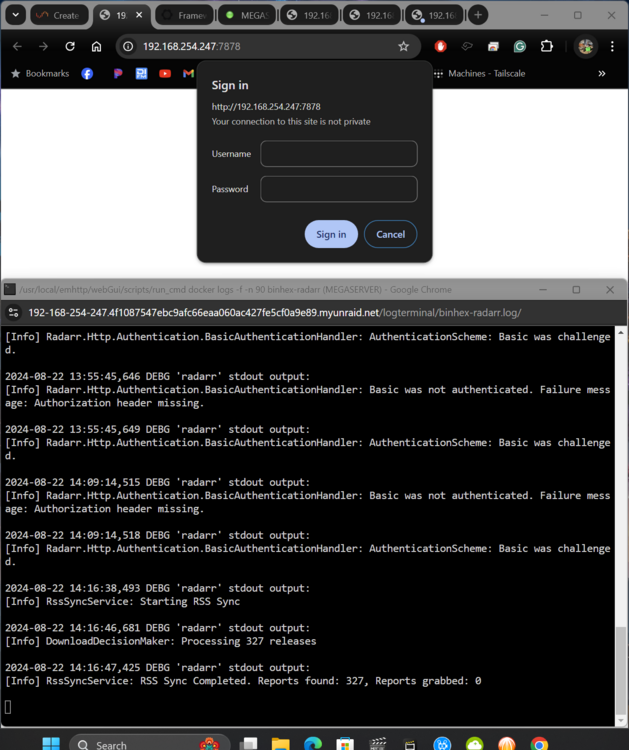
I have had zero issues connecting or logging in to any of the above-listed apps on my local network until yesterday. When I try to connect to Radarr / Sonarr or Prowlarr I get "your connection to this site is not private" with a username and password request. I have never set up or needed a login for these apps. When trying to connect to nzbget or Deluge the page never loads, times out and I get "This site can’t be reached 192.168.254.247 took too long to respond. I can still access all other docker apps with no problem. I searched online for the past 5 hours and have not found a solution so any help would be greatly appreciated.
-
I have been running an Unraid server for almost 10 years now primarily for media storage and distribution. I don't have much experience with the technical aspects of Unraid so over the years I would pay Ed also known as Spaceinvader One from our Unriad community to remote in to help keep the server running optimally from time to time. Unfortunately I haven't been able to get in touch with him recently. A few months back my 10 year old server had a hardware failure so I did a full upgrade and rebuild this week. The server is up and running, all drives are working but I have a list of things that are not working and a few upgrades I need help with. If there is any admin or user with an advanced knowledge of Unriad that would be willing to remote in and help me get the server back to an optimal working state I would be willing to pay for the help. Thanks
