





helomen
Members
-
Joined
-
Last visited
Everything posted by helomen
-
Same problelm here: moodle 19:45:58.32 INFO ==> moodle 19:45:58.32 INFO ==> Welcome to the Bitnami moodle container moodle 19:45:58.33 INFO ==> Subscribe to project updates by watching https://github.com/bitnami/containers moodle 19:45:58.33 INFO ==> Submit issues and feature requests at https://github.com/bitnami/containers/issues moodle 19:45:58.33 INFO ==> moodle 19:45:58.33 INFO ==> ** Starting Moodle setup ** realpath: /bitnami/apache/conf: No such file or directory moodle 19:45:59.07 INFO ==> Configuring Apache ServerTokens directive moodle 19:45:59.10 INFO ==> Configuring PHP options moodle 19:45:59.10 INFO ==> Setting PHP expose_php option moodle 19:45:59.11 INFO ==> Setting PHP memory_limit option moodle 19:45:59.12 INFO ==> Setting PHP output_buffering option moodle 19:45:59.15 INFO ==> Validating settings in MYSQL_CLIENT_* env vars moodle 19:45:59.16 INFO ==> Validating settings in POSTGRESQL_CLIENT_* env vars moodle 19:45:59.24 INFO ==> Ensuring Moodle directories exist moodle 19:45:59.27 INFO ==> Trying to connect to the database server moodle 19:46:59.42 ERROR ==> Could not connect to the database any ideas how to fix this?
-
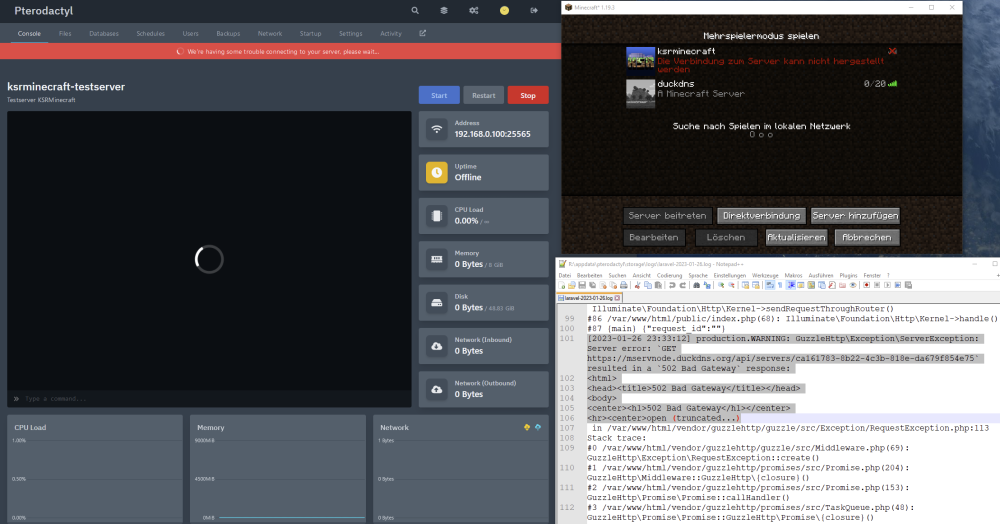
Hello everyone, I need your help! I have successfully run pterodactyl exactly according to the great instructions of IBRACORP until almost the end. Unfortunately I have problems with the console in the game server (panel). I can access and play Minecraft on this server, but all the time I get the error message "We're having some trouble connecting to your server, please wait...". I also get a 502 error message in the log for the node. Does anyone have an idea how I can solve this problem? I am using the "NginxProxyManager". Thank you already for your help. Dev-Tools ind FF shows this: Firefox cannot connect to the server at wss://xxxxxxnode.duckdns.org/api/servers/xxxxxxxx-8594-488d-86fb-c935583da9e7/ws. I still have some understanding issues with forwarding ports. Currently I have the following setting: Router: TCP&UDP: 80 -> 1880 (for Nginx Proxy Manager). TCP&UDP: 443 -> 18443 (for Nginx Proxy Manager) Nginx Proxy Manager: XXXXXX_node.duckdns.org -> 8002 (host port in wings to container port 8080) XXXXXX_panel.duckdns.org -> 8001 (Port in panel to container port 80) panel: 172.19.0.3:80/TCP <-> 192.168.0.100:8001 wings: 172.19.0.2:2022/TCP <-> 192.168.0.100:2022 172.19.0.2:8080/TCP <-> 192.168.0.100:8002 Is that correct? XXXXXX_node.duckdns.org/ shows this message in the browser: {"error":"The required authorization heads were not present in the request."} -> So, wings seems to be reachable from the browser I have already invested several hours without success and don't know what to do. Therefore I am glad about any help. Thank you very much!
-
After restarting UNRAID, the web interface is no longer displayed. Neither via the IP nor on the server itself (localhost). I did not change the ports and before the restart the system was working correctly. On the server I can still open the console and the apps from autostartup (Plex, Nextcloud, etc) all work propperly. The browser displays the error message: Connection failed. The browser cannot connect to the server at XXXXXXXX. Even several restarts have so far brought no success. Does anyone have any ideas?
-
same problem here... does somebody already find a solution for this issue?
