





dtctechs
Members
-
Joined
-
Last visited
Everything posted by dtctechs
-
I assume my problem is that when I use Filebot I move the renamed files which then deletes the folder... so when I click Load the previous folder isn't there any more and it lands me in the default folder. I just created a new path called AAAADownloads so it stays at the top of the container root. This is good enough. Thanks for your reply.
-
Question: Is there anyway to set the 'home' folder that you land on when you open the docker and/or delete/move a folder? Every time I rename/move a folder it diverts back to the /config folder and I have to browse back to my /storage folder and drill down. Not a huge deal but I am curios if there is a way to set this in docker config.
-
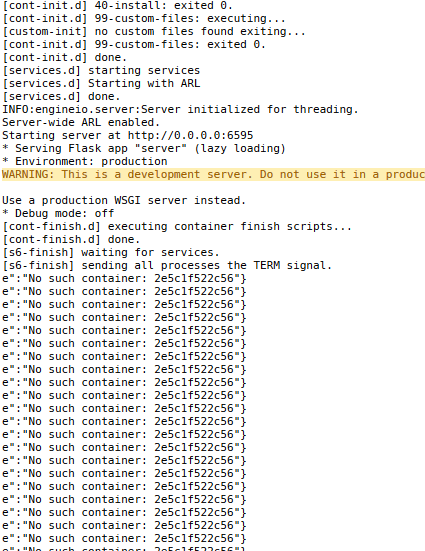
I finally got the app to update and remove 'not available' tag. I've tried several different ports including 6595/WebUI with no luck. Whenever I attempt to hit the UI it times out. Regardless of UI port I get this in my log.
-
Same.
-
NordVPN doesn't allow port forwarding: https://support.nordvpn.com/FAQ/1047408432/Do-you-offer-port-forwarding.htm The posts I found on reddit suggests port forwarding hasn't been enabled in at least a year or two. Hope this helps.
-
I had a similar issue. I was able to fix it by going into Sonarr docker config and under network type bridge to br:0... Network Type: Custom : br0 After that I was able to see qBittorrentVPN from Sonarr. Source: First and Second post.

