trevorw333
Members
-
Joined
-
Last visited
-
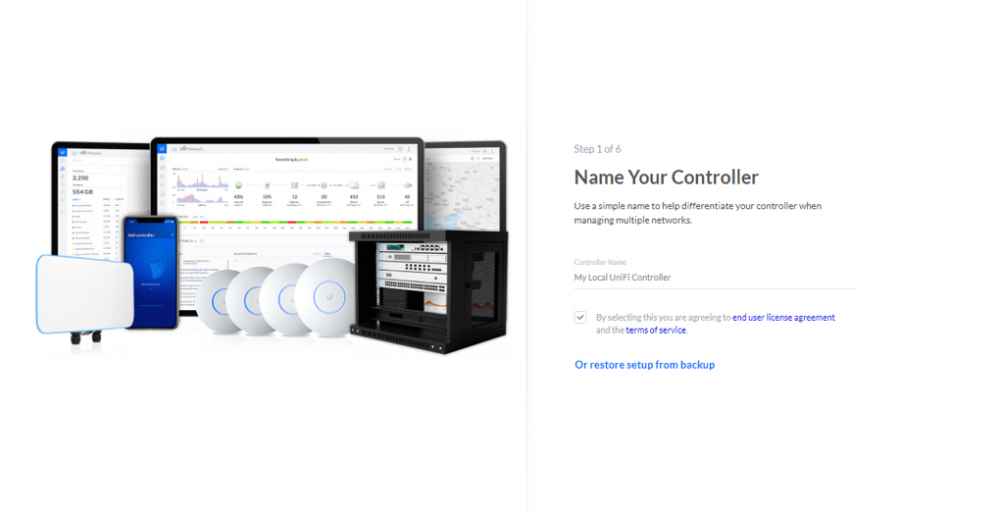
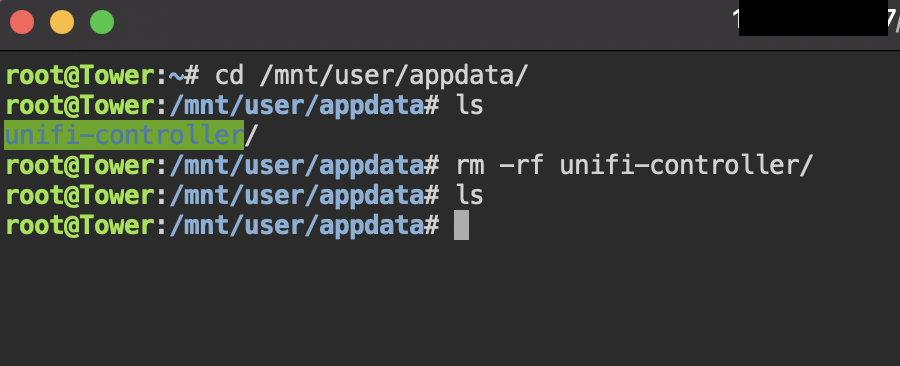
When I install this docker container, the process I used was add: https://github.com/linuxserver/docker-unifi-controller/ to my Template repository in my docker settings add a new container select the "Unifi-controller" template put the following in the Repository field: linuxserver/unifi-controller:version-6.0.43 Click apply, the container starts. When I go to http://unraid-ip:8080 it redirects to :8443 and shows a Ubiquiti login page, the blue page prompting for a username and password, I input my Ubiquiti credentials but I get an invalid login notification as if my credentials are invalid, but they are not. in previous installations I have used my same credentials for ui.com. Am I doing things wrong? When I click reset password and input my email address I don't get a password reset email either. I don't get the standard Unifi controller setup screen seen in the guide from Ubiquiti seen in the following picture Edit 1: When reading through additional posts on this thread I saw that people were advocating for using 5.14.23-ls76, when trying to use that version I am able to go to ip:8443 and I get the following error : UniFi Controller startup failed We do not support upgrading from 6.0.43. Edit 2: Figured out my problem: I had an old config in my /mnt/user/appdata/ opened a shell cd to /mnt/user/appdata/ rm -rf unifi-controller Created a new docker container and I was good to go. Updating this post and leaving this here just in case anyone else has issues.