janiszesiger
Members
-
Joined
-
Last visited
-
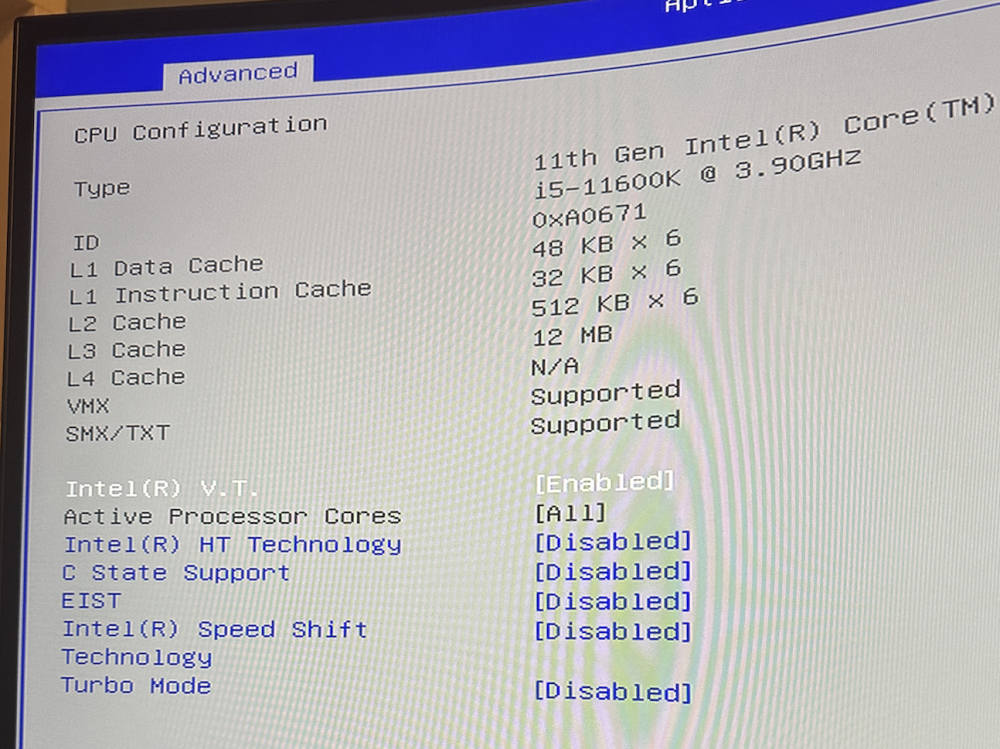
So, as you thought find /sys/kernel/iommu_groups/ -type l does not return anything. Yes, I have tried to activate everything in the bios under Active Processor Cores, This was also the default setting. The Support could only assure me that this model supports VT-d, but could not provide any further specific information.
-
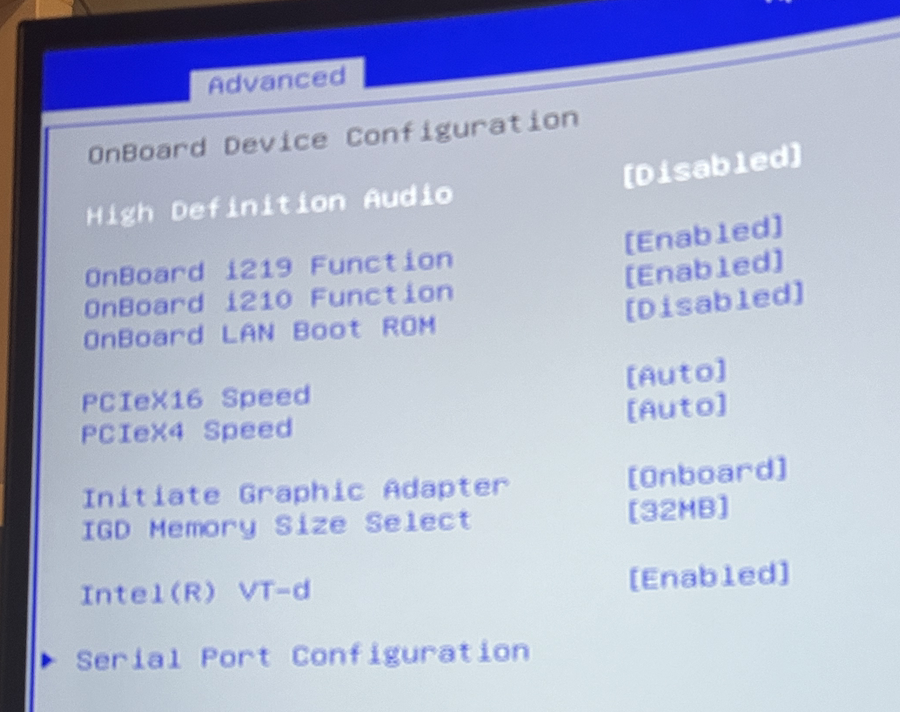
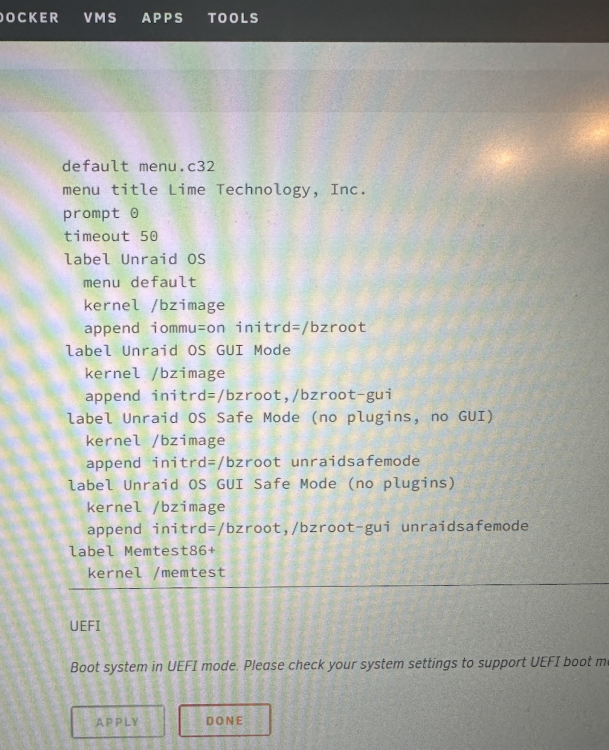
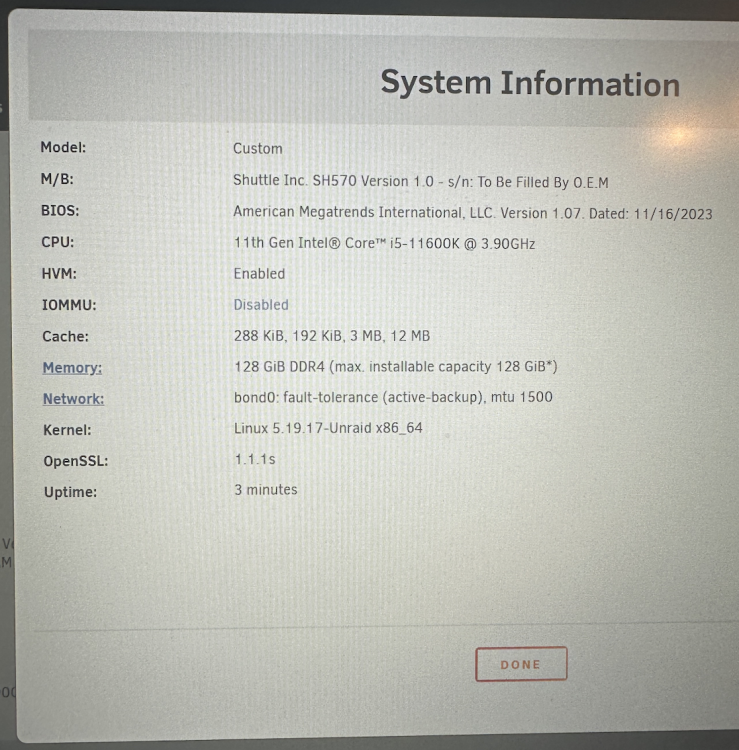
I recently purchased a new server. I would like to use it to make a graphics card passthrough to a Windows VM. However, I have not yet succeeded in activating IOMMU. Specifications of the server: XPC cube SH570R8 -CPU: Intel Core i5-11600k -Motherboard: Shuttle SH570 -GPU: Nvidia Geforce RTX 3060 VT-d is present and activated in the bios. When I deactivate it, it changes from 'Disabled' to 'Not available' in Unraid. According to Intel ARK, the processor is VT-d capable. I couldn't find any information about the motherboard online, but I don't think it should be a problem because the option is displayed in the bios by default. I have also updated the bios to the latest version, but without success. In addition, as already mentioned in other posts, I have already adjusted the following settings in the syslinux.cfg file as a test. iommu=pt iommu=1 iommu=pt iommu=1 intel_iommu=on iommu=1 iommu=pt intel_iommu=on Have any of you already had a similar problem or do you know what the problem could be? I would be very grateful for an answer s5-diagnostics-20231223-1904.zip