





mrkonyk
Members
-
Joined
-
Last visited
Everything posted by mrkonyk
-
-
The md1 drive is encrypted using LUKS2, is there a possibilty of recovery?
-
Yep disk1 is encrypted, here's the output Device /dev/md1 is not a valid LUKS device
-
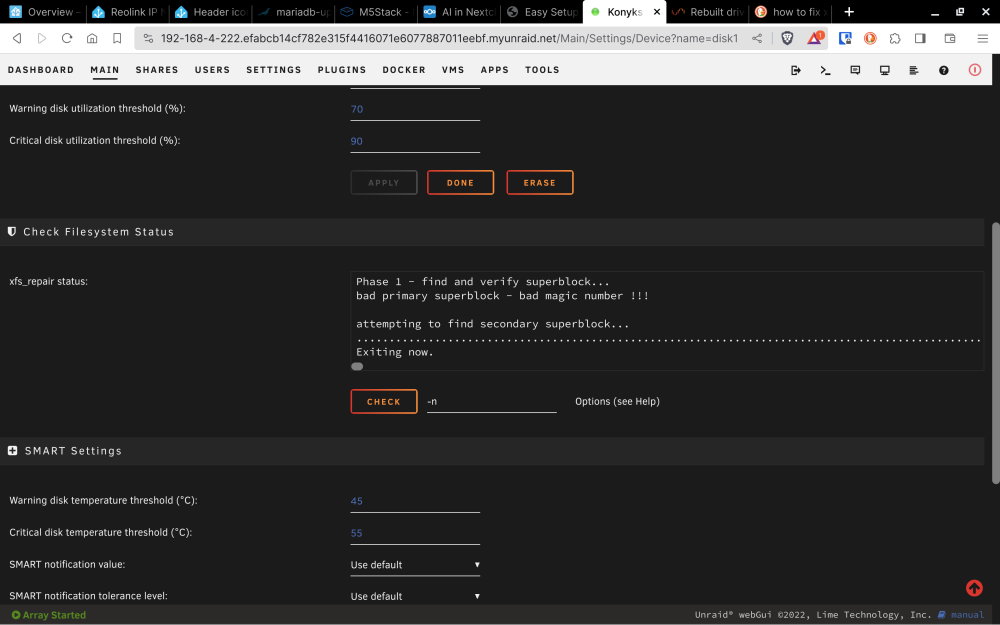
Here's some context, My UPS failed and shut down my server unexpectedly. Started it back up and one of my array drives failed to startup. Went through the process of removing the drive from the array, restarting then shut down again. Added the drive back to start the rebuild process, once that was done I did a server restart. Now I'm getting the "unmountable: volume not encrypted" message so I shut the array down and started back up in maintenance mode to run a xfs repair -n. As you can see from the screenshot it doesn't make it passed the first phase it just gets to the "attempting to find secondary superblock..." wait 12 hours and it just exits, doesn't give me any other error messages. Does this mean I'm out of luck or is there anything else I could try? I've also tried -v and -L with the same result. konyks-server-diagnostics-20230930-1622.zip
-
Everything was working great till I installed 4th HDD in my Orico enclosure. To do so I shut down the server and turned off enclosure, installed HDD then turned everything back on. Once booted I was given a "Too many disks missing from the array". From there I was instructed by wiki to go through the new config procedure, now I can't see any of my drives from the enclosure. konyks-server-diagnostics-20221020-1104.zip
