LarryW
Members
-
Joined
-
Last visited
-
That fixed it. That means those were hanging around since my first version (I think it was v4 or v5) and never caused an issue. Thank you for the assist.
-
I will give it a shot and report back.
-
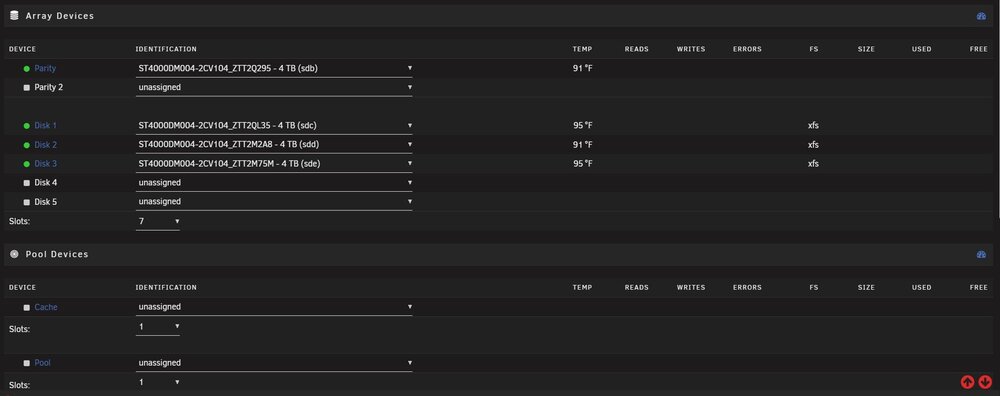
I did not put those two pool disks in. My original version did way back when I think. So younare saying if I remove cache and pool from "pool devices I should be good? What about the three in the array devices that are unassigned after the upgrade (that don't exist?)
-
Nope. Just the same 4 disks...3 in the pool and 1 for parity. The same thing happened when I tried to upgrade to an earlier version of 7.2 and I downgraded back thinking it was a bug.
-
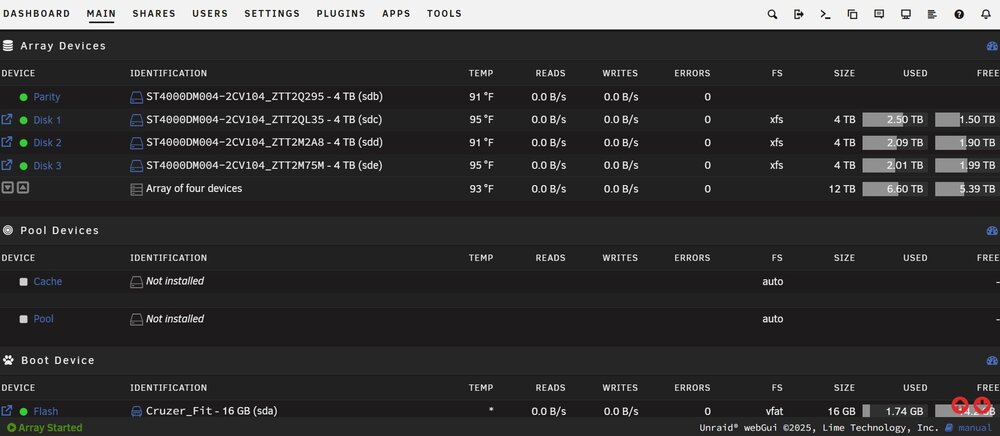
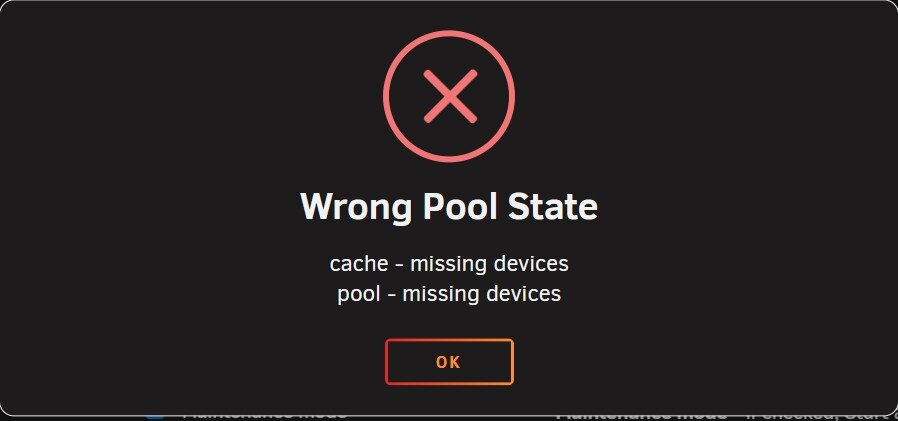
Array won't start and it looks like some pool config changes are happening during the upgrade. Can anyone assist? Array won't start after upgrade but will again after downgrade back to 7.1.4. Steps taken...deleted empty cache pool. Changed array pool sizes to try to get rid of the three unassigned devices, but it won't let me change to anything lower than 5 disks in the pool, and I can't remove the unassigned cache disk no matter what I do. 7.1.4 pool config: Post upgrade to 7.2.4 error message: Post upgrade array config: nas-diagnostics-20260419_0816.zip