020120221422
Members
-
Joined
-
Last visited
-
Thank you for the help and quick replies. That all worked out and no data was lost.
-
How do I install the second 8TB drive after that? Wait for the rebuild to finish and then do a completely new configuration (including parity)?
-
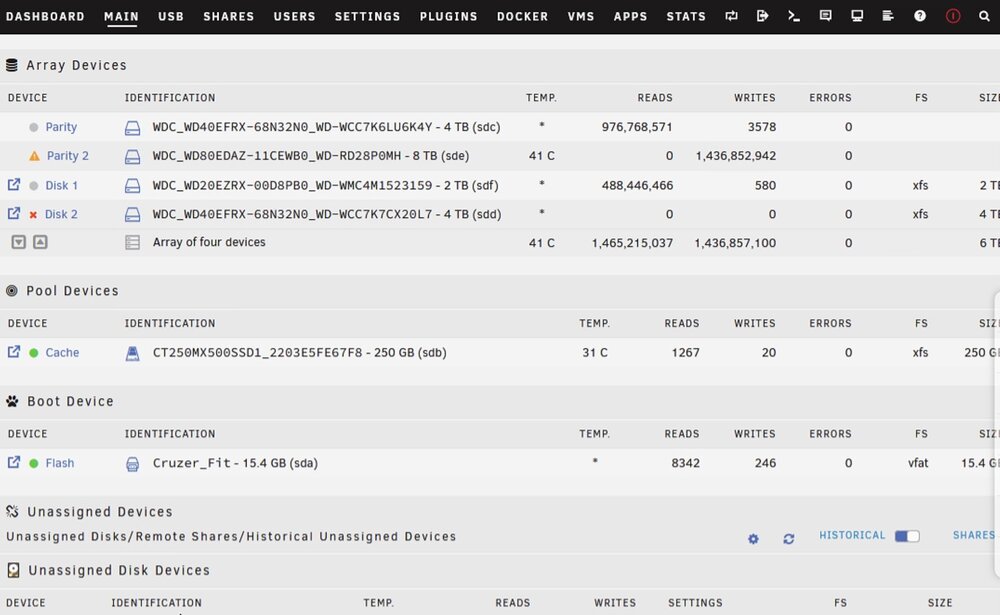
Hello everyone, The data disk 2 in my unRAID server died and I bought two 8TB drives to replace both the 4TB Parity and the dead drive. Here is what I did so far: 1. I shut down the server 2. Put one 8 TB drive (as the new parity) in. 3. Started up and assigned that new 8TB to parity position 2. 4. Then at the bottom of the main tab started the parity-sync process. The sync is in progress and I‘m currently at hour 12 of 15. Now I think I‘ve done something incorrect, since all the guides online said I should unassign the first parity and put my new, bigger drive into position 1. I probably acted to quick before consulting any guide on how to do that process. I know. Rookie error. Did I make a mistake by having both assigned? Can I unassign the first drive after parity sync is completed and rebuild the contents of my dead 4TB data disk, from the new parity drive, onto my second new 8TB drive? Do I need to start over that whole process? Thank you very much in advance.