Andrew Piper
Members
-
Joined
-
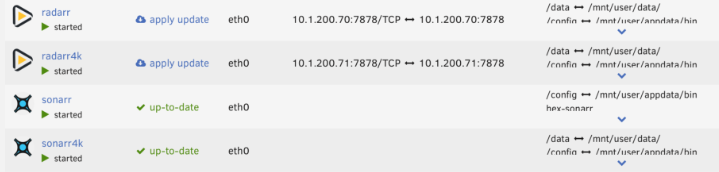
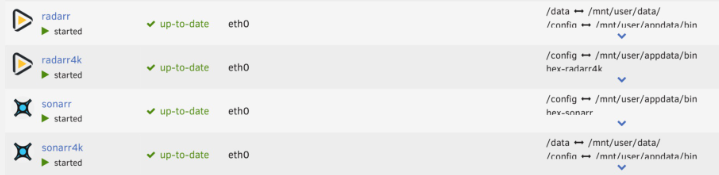
I've also been experiencing what appears to be the same issue for the last few weeks. I've tried upgrading to 6.12.11 to no avail. One thing I have noticed however, is that the issue occurs after applying an update to a container. For me, it seems to be affecting @binhex containers only at present. Those that haven't been updated for a while (e.g. Lidarr) still show their mappings, where as other such as Radarr, Sonarr, Codeserver have now lost them. I'm using macvlan networking, but have also tried switching one or two to bridge but with no joy. I believe the missing port mapping are then having a knock-on effect on the WebUI URLs as the IP/Port replacements are not firing, rather the 'raw' URL is being used on the page: I can still access the services by manually entering the IP:Port in a browser. It more of an annoyance really, rather than a major issue. The latest containers to be affected, last Sunday, were may Radarr ones. I took a couple of screenshots: Before update: After update: Nothing else has changed other than applying a container update. Example run command: docker run -d --name='radarr' --net='eth0' --ip='10.1.200.70' -e TZ="Europe/London" -e HOST_OS="Unraid" -e HOST_HOSTNAME="server" -e HOST_CONTAINERNAME="radarr" -e 'TCP_PORT_7878'='7878' -e 'UMASK'='000' -e 'PUID'='99' -e 'PGID'='100' -l net.unraid.docker.managed=dockerman -l net.unraid.docker.webui='http://[IP]:[PORT:7878]/' -l net.unraid.docker.icon='https://raw.githubusercontent.com/binhex/docker-templates/master/binhex/images/radarr-icon.png' -v '/mnt/user/data/':'/data':'rw' -v '/mnt/user/appdata/binhex-radarr':'/config':'rw' 'binhex/arch-radarr' 2c890c5b7516359d119a9e5958c3173de2dc147660ea48df4dd3024e2045be3d server-diagnostics-20240726-0917.zip