-
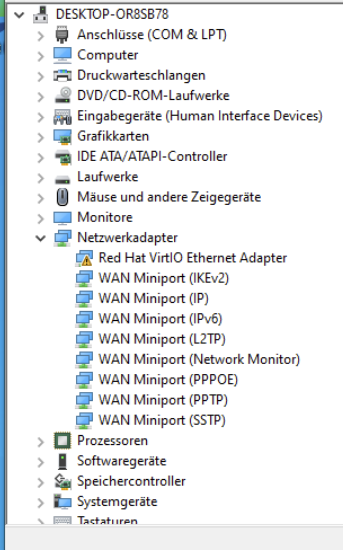
No internet After virtio Driver installation
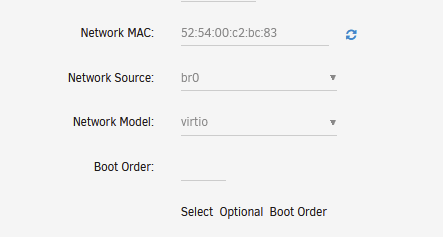
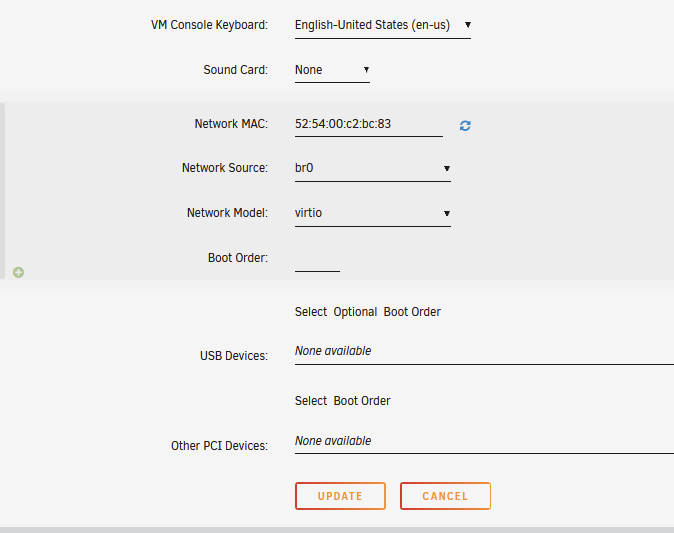
note i had instantly internet with e1000 updatet windows to the latest version and installed the virt-io drivers and chaned back to the normal network model still wrking
-
No internet After virtio Driver installation
Mate i love you thanks
-
No internet After virtio Driver installation
Can you please explain what exactly you mean
-
No internet After virtio Driver installation
-
No internet After virtio Driver installation
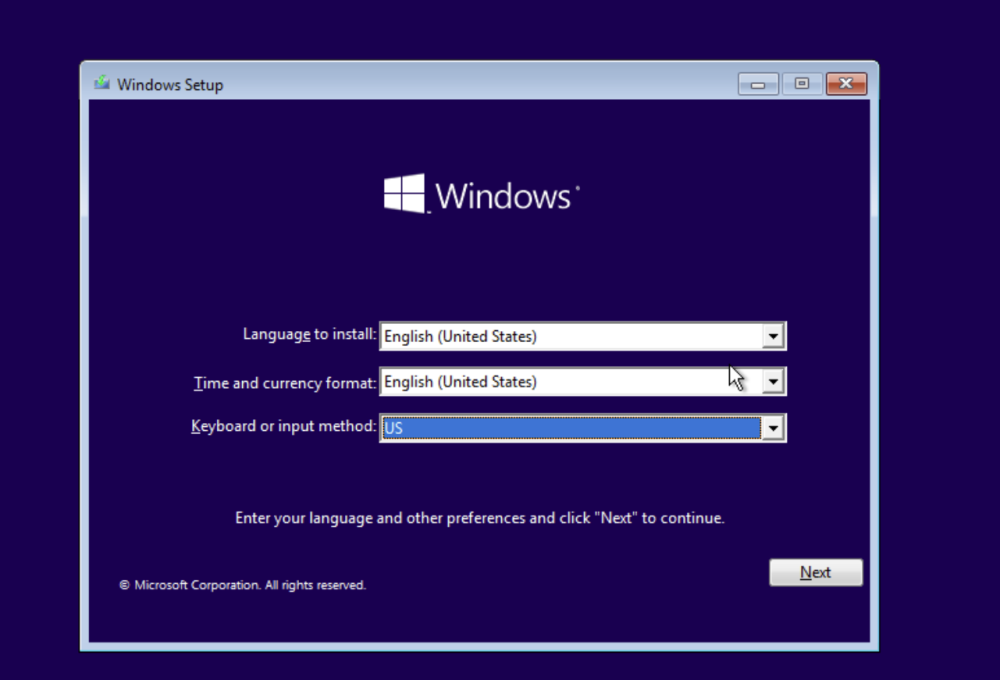
other wise i dont know what you mean with an english iso
-
No internet After virtio Driver installation
i just seletet german language or you mean i sould intall it on english laguage
-
No internet After virtio Driver installation
thats the hole way i did it but still no internet
-
No internet After virtio Driver installation
- No internet After virtio Driver installation
i donloaded a new iso and i will try it- No internet After virtio Driver installation
- No internet After virtio Driver installation
and im yusing unraid V 6.11.5- No internet After virtio Driver installation
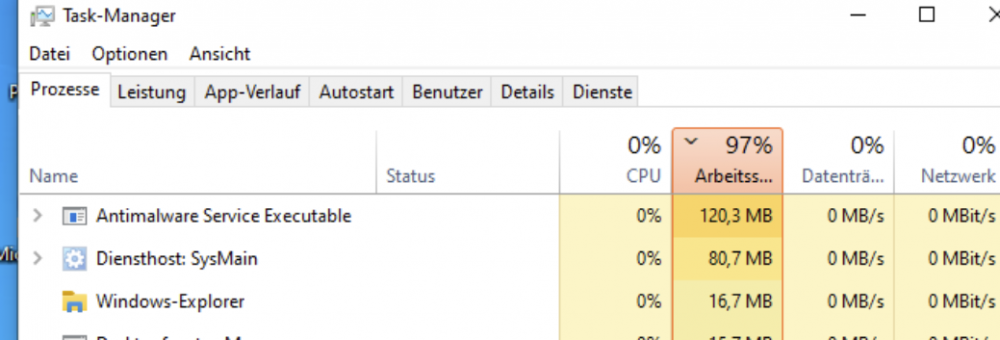
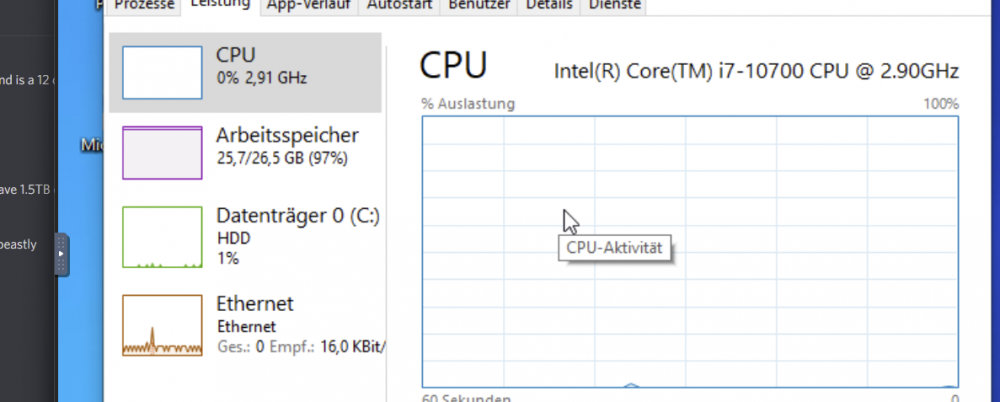
Hello i made 10 vm now and i dint get a internet adapter after instaling a the virt io drivers i tryed Manual driver instalation- looks like too mutch ram is used but why
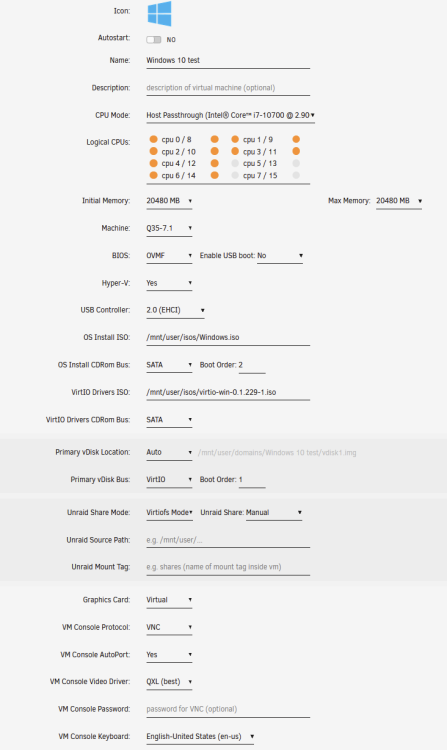
So Nothing to worry right?- looks like too mutch ram is used but why
Hello i dont know why i have that on my vm 1 and made a second one to test jusst tell me what infor you need its a 30 gb of ram in the server - No internet After virtio Driver installation
Ezio
Members
-
Joined
-
Last visited
Account
Navigation
Search
Configure browser push notifications
Chrome (Android)
- Tap the lock icon next to the address bar.
- Tap Permissions → Notifications.
- Adjust your preference.
Chrome (Desktop)
- Click the padlock icon in the address bar.
- Select Site settings.
- Find Notifications and adjust your preference.
Safari (iOS 16.4+)
- Ensure the site is installed via Add to Home Screen.
- Open Settings App → Notifications.
- Find your app name and adjust your preference.
Safari (macOS)
- Go to Safari → Preferences.
- Click the Websites tab.
- Select Notifications in the sidebar.
- Find this website and adjust your preference.
Edge (Android)
- Tap the lock icon next to the address bar.
- Tap Permissions.
- Find Notifications and adjust your preference.
Edge (Desktop)
- Click the padlock icon in the address bar.
- Click Permissions for this site.
- Find Notifications and adjust your preference.
Firefox (Android)
- Go to Settings → Site permissions.
- Tap Notifications.
- Find this site in the list and adjust your preference.
Firefox (Desktop)
- Open Firefox Settings.
- Search for Notifications.
- Find this site in the list and adjust your preference.