Nezuko Kamado
Members
-
Joined
-
Last visited
-
I followed https://docs.unraid.net/legacy/FAQ/shrink-array/#the-remove-drives-then-rebuild-parity-method this method of removing failed drive and rebuilding parity
-
okay. this might clarify what happened. Configuration before Shrinking Parity - 14TB Disk1 - 14 TB Disk2 - 10 TB Disk3 - 8 TB ..... Disk7 - 2 TB (failed) To compensate/To Remove the failed Disk I followed the guide https://docs.unraid.net/legacy/FAQ/shrink-array/ After removing failed drive I should I selected good configuration and should have started the array. But at the time of selection, Unraid didn't populated any of the Disks. So I chose Parity and Disk1 incorrectly ( same size) and that caused all the issue
-
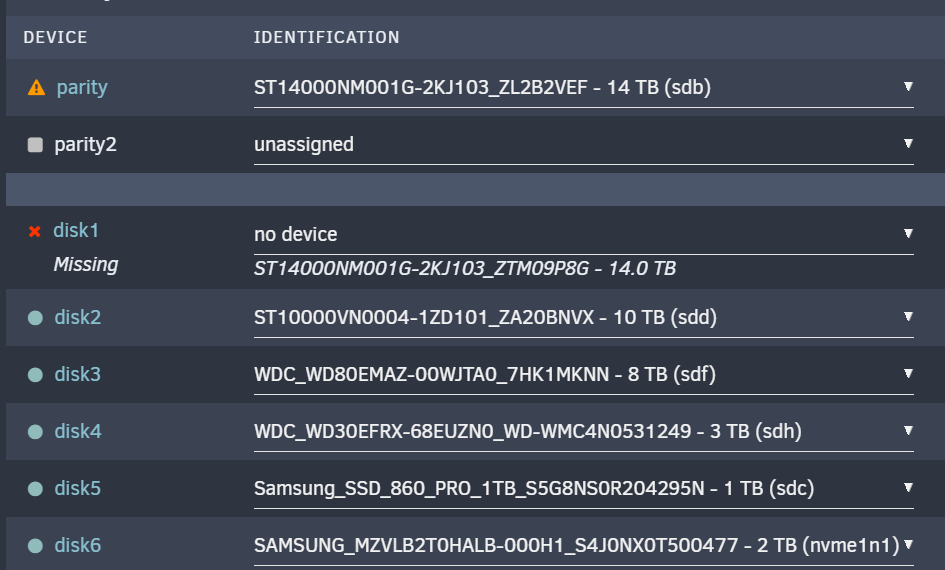
I have the following configuration. When removing the failed disk, I used the https://docs.unraid.net/legacy/FAQ/shrink-array/ guide to remove the drive. The issue happened when I accidentally Swapped parity and data disk1 (both 14 TB) and started rebuilding. Fortunately, I realized that pretty quickly and was able to stop this. The Parity says it's invalid, and disk1 is also not in great shape. To fix this 1. Is it possible to restore the parity drive? 2. revert the corruption on the disk1 data drive. I have ordered another 14 TB drive and started using UFS Explorer to recover disk1 on a separate computer.
-
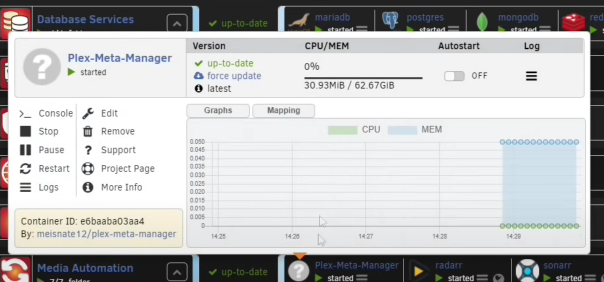
I am pretty new with Unraid and while setting up Plex-Metadata-manager, I saw docker context menu can have CPU/Memory usage history. Does anyone know which plugin to use? Original Video -