




.jpg.dcdbfe44f7fb67d1f4cf34e2eba22049.jpg)
Zar
Members
-
Joined
-
Last visited
-
Zar changed their profile photo
-
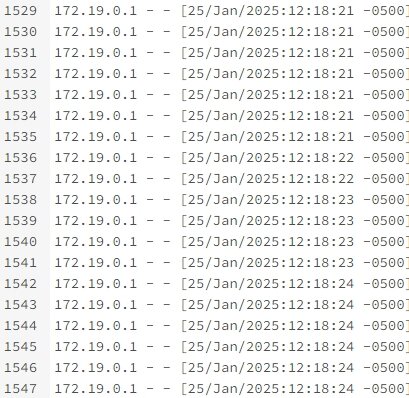
*READ* if you followed this guide but can still access your services after adding a ban decision. 1) Check your swag access log at: /mnt/user/appdata/swag/log/nginx For me, these were the IP addresses in the log. Obviously, this is incorrect since I'm connecting from my phone. 2) Navigate to: /mnt/user/appdata/swag/nginx 3) Add these lines to the nginx.conf file in the HTTP SECTION real_ip_header X-Forwarded-For; real_ip_recursive on; include /config/nginx/cf_real-ip.conf; 4) Also, ensure you have the Cloudflare real IP docker mod installed: linuxserver/mods:swag-cloudflare-real-ip 5) Restart SWAG and try connecting to your service. You can also confirm the IP by checking the access log again. Source: swag-cloudflare-real-ip
.thumb.jpg.af9c8d4e44dd0fd02b71db810f846748.jpg)
