Peezpipe
Members
-
Joined
-
Last visited
-
Thanks! I figured something had changed It doesn't seem to move stuff from the appdata or system folder but I'm guessing those shares are special considering what they are for! I'll look into it unless you have a solution off the top of your head!
-
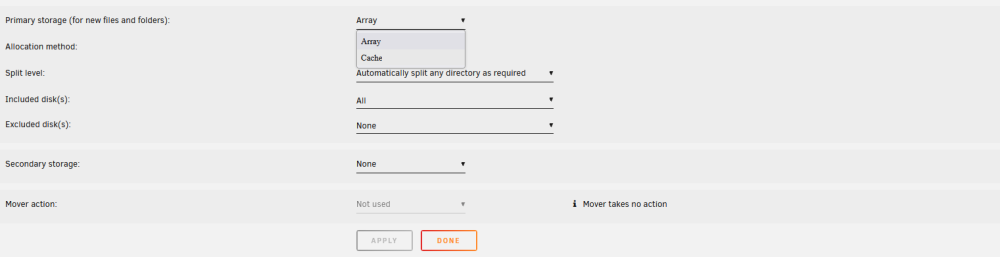
Hello All! This issue is driving me crazy and I've googled and searched a lot but the same solution keeps coming up. Either the info is outdated or I'm missing something super obvious. Hopefully that's the case!! I'm on 6.12.2 Basically the mover isn't moving while on set to no cache. From what I understand this is expected behavior. I see the solution is to choose between "cache preferred" "array" and "cache yes". I no longer have these options in the drop down. I have "cache" and "array" under primary storage and thats all. I can't find a setting for cache "yes" or "preferred" anywhere under shares and I SWEAR I remember it existing in the past! I did find mover settings under Settings-scheduler-mover settings and even a button that says move now but it seems to do nothing if I have it on "cache" or "array" and I see no options to distinguish between "preferred" or "yes" Ive realized my HDDs run at around 230 megabytes per second and my network isn't near that fast anyways so why bother with an SSD cache that isn't protected?