DKKeller
Members
-
Joined
-
Last visited
-
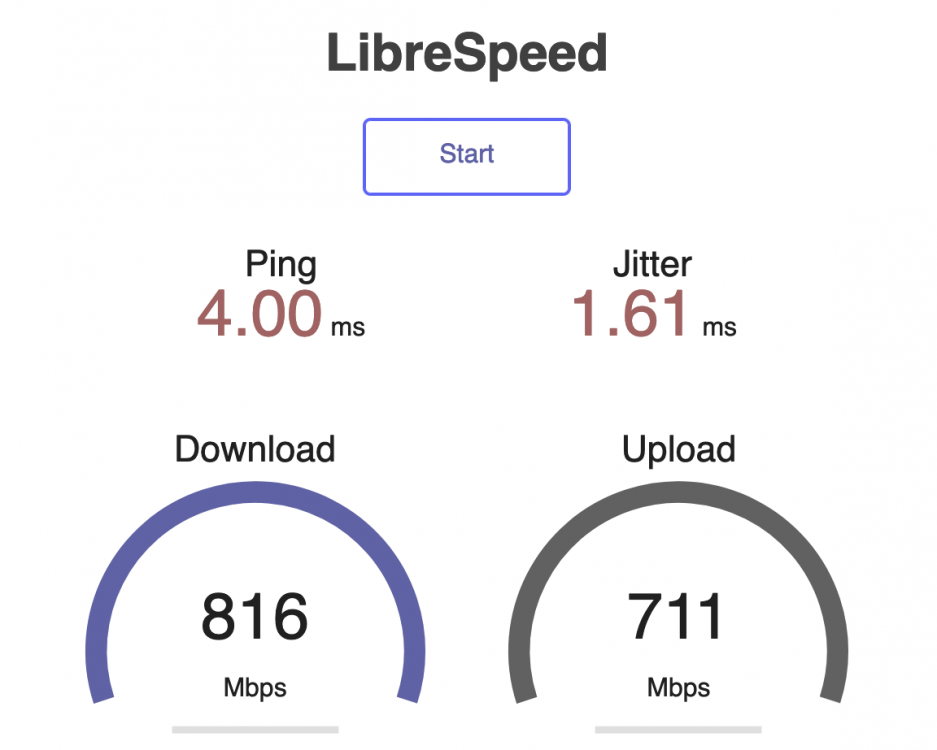
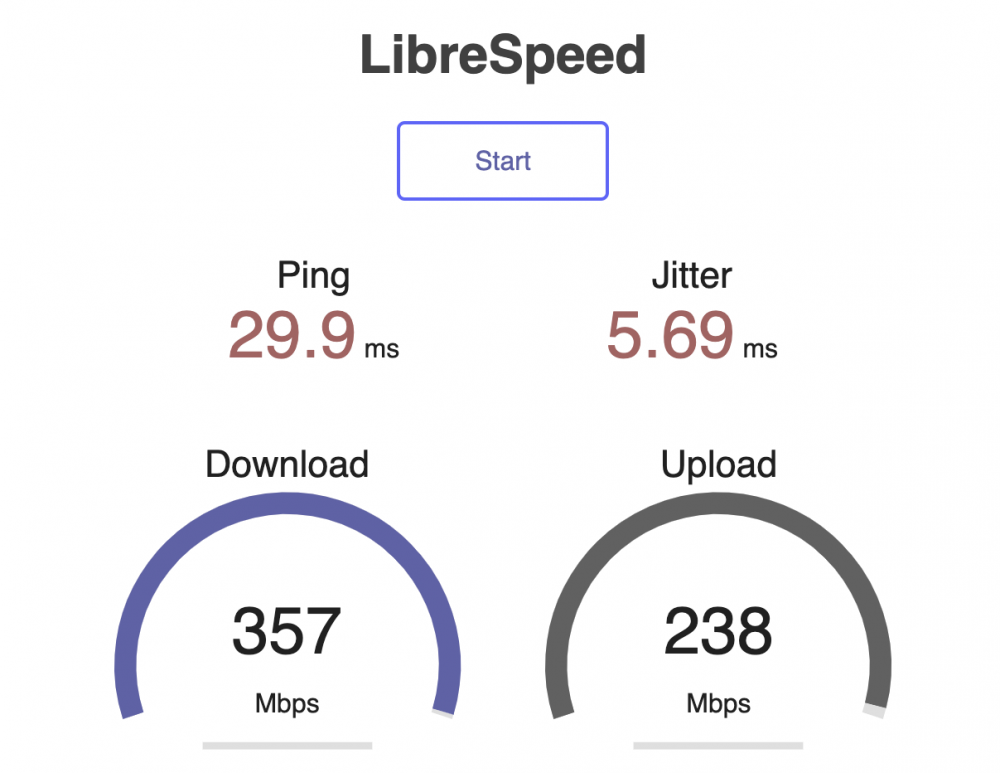
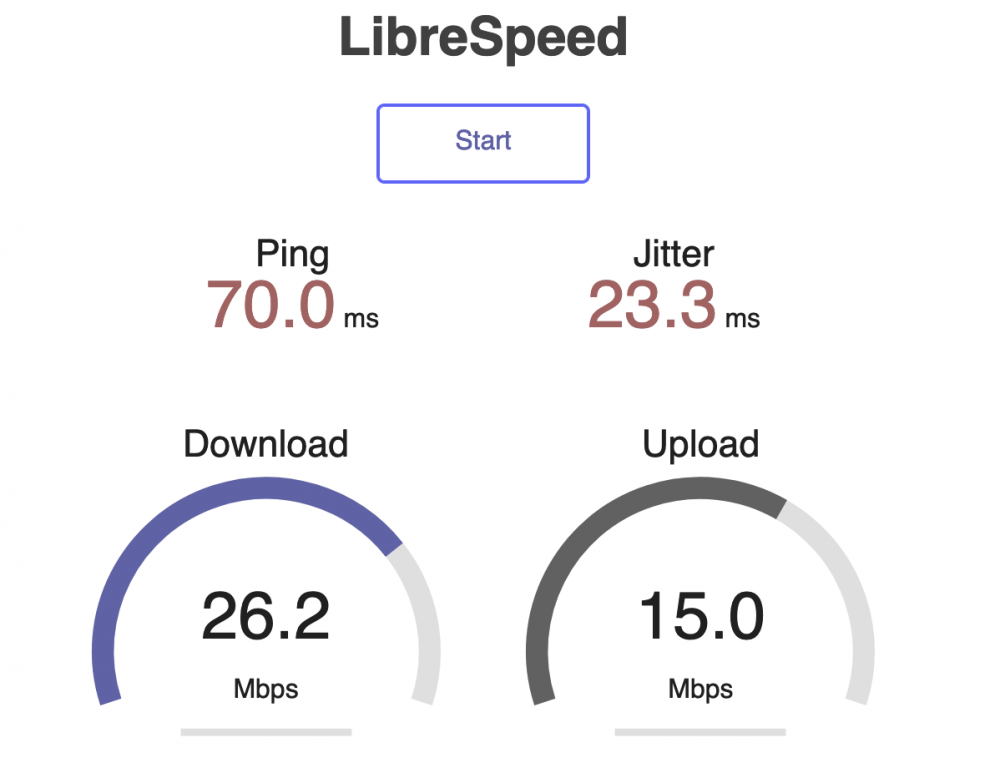
Hi everyone, first time poster and unraid user here. I'm setting up an unraid server for the first time and I've got all my containers routing through a reverse proxy to my domain name from cloudflare. Everything works but I'm not happy with my upload/download speeds. To debug the bottleneck I installed a speedtest docker and ran 3 tests (all on 5Ghz wifi): going directly to the NAS IP and port from the local network going through my cloudflare domain but bypassing the reverse proxy (I opened the port specified by my speedtest container on my router) going through my cloudflare domain and SWAG reverse proxy The first 2 test results are as expected given the my home internet speeds but the final test is 10x slower going through the nginx reverse proxy. These tests were run using SWAG but I also tried Traefik and got similar results. I expected a reverse proxy to result in some cost but I wasn't expect this much. To install SWAG I followed Ibracorp's tutorial but didn't enable Authelia https://ibracorp.gitbook.io/swag-2/ Traffic to the speed test is encrypted through SWAG's Letsencrypt cert. Below is the speed test results going directly to the NAS IP address and port on the local network. Below is the speed test results going to my domain through cloudflare. This is what I expect since my home fiber is ~300 Mbps up/down. And here is the speed test results going to my domain through cloudflare then through my unRAID reverse proxy. I'm expecting closer to ~300Mbps up/down.