spamlogic
Members
-
Joined
-
Last visited
Everything posted by spamlogic
-
I definitely did - and Idid it again to check. :) However, I rebooted after assigning the data disks and the New Config was picked up. Thanks for the help!
-
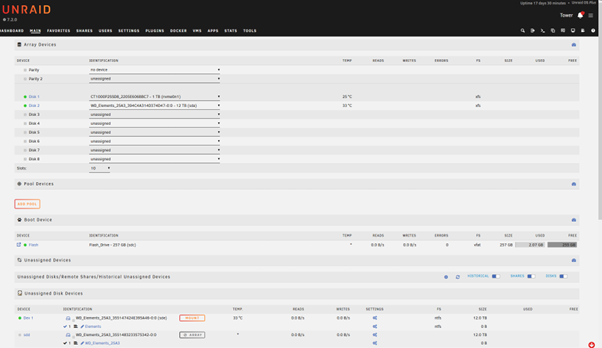
Hi trurl, thanks for the input. However, this hasn't solved the issue. I've run the Tools->New Config assigned the new data drive and started/stopped the array, but that doesn't seem to have reset the status of the parity drive, so I still can't assign it to the Parity drop down slot. This is what it's looking like at the moment. Any more insight is appreciated.
-
Hi UNRAID gurus - I have the following problem and I'm nervous that I'm going to lose my data if I'm not careful so I would appreciate the help. I had 2 12tb USB drives, one was assigned as Parity, the other as the data drive in the Array. I added a new USB 12tb drive and this has had the effect of removing the Parity drive into UD as well as the new drive. My limited knowledge suggests that is about drive IDs/device IDs (sda, sdb etc.). I can add the new drive into the Disk 3 Array position, but I can't reassign the parity drive back to the Parity position and spin the array back up. I'm pretty sure the drive now at sdd is the original Parity drive as it's not showing that it has a file system. How can I reenable the Parity drive (safely) PS I am aware that using USB storage is not "ideal" - but needs must at the moment.