joz
Members
-
Joined
-
Last visited
-
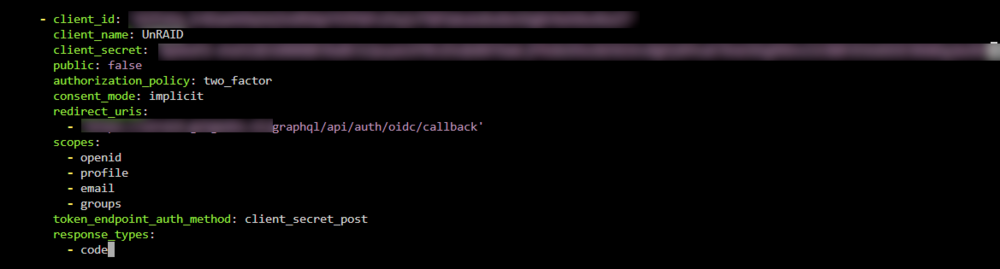
Allright, based on other Authelia client configurations I have, I started trial and erroring with Authelia's config for unraid. I was missing this bit claims_policy: 'default' Which is essential getting it going. For other people running into this, this is my working config in Authelia identity_providers: oidc: claims_policies: default: id_token: ['groups', 'email', 'email_verified', 'alt_emails', 'preferred_username', 'name'] clients: - client_id: 'someid' client_name: UnRAID client_secret: 'somesecret' public: false authorization_policy: two_factor consent_mode: implicit redirect_uris: - 'https://unraid/graphql/api/auth/oidc/callback' scopes: - openid - profile - email - groups token_endpoint_auth_method: client_secret_post claims_policy: 'default'
-
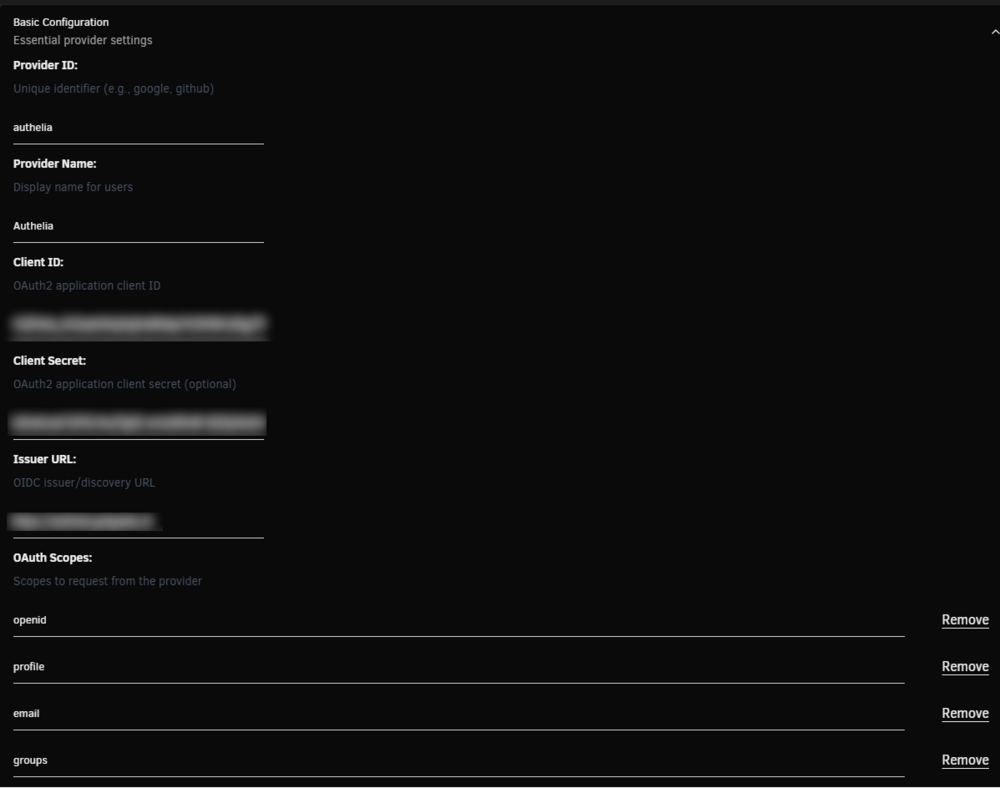
Hi all, I've been trying to setup Unraid Connect's OIDC with authelia. It works well with the builtin Unraid.Net provider but I can't get it to work with my selfhosted Authelia instance. I did find the documentation but it did not get me any further. I receive this error when trying to login using Authelia OIDC (sensitive stuff redacted) [07:09:25 INFO OidcValidationService]: Starting discovery for provider authelia {"apiVersion":"4.25.0+f4f3e3c","logger":"OidcValidationService","context":"OidcValidationService"} [07:09:25 INFO OidcValidationService]: Discovery URL: https://authelia/.well-known/openid-configuration {"apiVersion":"4.25.0+f4f3e3c","logger":"OidcValidationService","context":"OidcValidationService"} [07:09:25 INFO OidcValidationService]: Client ID: unraid {"apiVersion":"4.25.0+f4f3e3c","logger":"OidcValidationService","context":"OidcValidationService"} [07:09:25 INFO OidcValidationService]: Client secret configured: Yes {"apiVersion":"4.25.0+f4f3e3c","logger":"OidcValidationService","context":"OidcValidationService"} [07:09:25 INFO OidcValidationService]: Discovery successful for authelia {"apiVersion":"4.25.0+f4f3e3c","logger":"OidcValidationService","context":"OidcValidationService"} [07:09:25 INFO OidcValidationService]: Discovery response metadata: {"apiVersion":"4.25.0+f4f3e3c","logger":"OidcValidationService","context":"OidcValidationService"} [07:09:25 INFO OidcValidationService]: - issuer: https://authelia {"apiVersion":"4.25.0+f4f3e3c","logger":"OidcValidationService","context":"OidcValidationService"} [07:09:25 INFO OidcValidationService]: - authorization_endpoint: https://authelia/api/oidc/authorization {"apiVersion":"4.25.0+f4f3e3c","logger":"OidcValidationService","context":"OidcValidationService"} [07:09:25 INFO OidcValidationService]: - token_endpoint: https://authelia/api/oidc/token {"apiVersion":"4.25.0+f4f3e3c","logger":"OidcValidationService","context":"OidcValidationService"} [07:09:25 INFO OidcValidationService]: - userinfo_endpoint: https://authelia/api/oidc/userinfo {"apiVersion":"4.25.0+f4f3e3c","logger":"OidcValidationService","context":"OidcValidationService"} [07:09:25 INFO OidcValidationService]: - jwks_uri: https://authelia/jwks.json {"apiVersion":"4.25.0+f4f3e3c","logger":"OidcValidationService","context":"OidcValidationService"} [07:09:25 INFO OidcValidationService]: - response_types_supported: code, id_token, token, id_token token, code id_token, code token, code id_token token {"apiVersion":"4.25.0+f4f3e3c","logger":"OidcValidationService","context":"OidcValidationService"} [07:09:25 INFO OidcValidationService]: - scopes_supported: offline_access, openid, profile, email, address, phone, groups {"apiVersion":"4.25.0+f4f3e3c","logger":"OidcValidationService","context":"OidcValidationService"} [07:09:25 INFO OidcService]: Built authorization URL via discovery for provider authelia {"apiVersion":"4.25.0+f4f3e3c","logger":"OidcService","context":"OidcService"} [07:09:25 INFO OidcService]: Authorization parameters: {"redirect_uri":"https://unraid/graphql/api/auth/oidc/callback","scope":"openid profile email groups","state":"authelia:xxx","response_type":"code"} {"apiVersion":"4.25.0+f4f3e3c","logger":"OidcService","context":"OidcService"} [07:09:25 INFO OidcRestController]: Redirecting to OIDC provider: https://authelia/api/oidc/authorization?redirect_uri=https%3A%2F%2Funraid%2Fgraphql%2Fapi%2Fauth%2Foidc%2Fcallback&scope=openid+profile+email+groups&state=authelia%3Axxx&response_type=code&client_id=unraid {"apiVersion":"4.25.0+f4f3e3c","logger":"OidcRestController","context":"OidcRestController"} [07:09:25 WARN OidcAuthorizationService]: Authorization failed for provider Authelia, user xxx, available claim keys: [amr, at_hash, aud, auth_time, azp, exp, iat, iss, jti, sub] {"apiVersion":"4.25.0+f4f3e3c","logger":"OidcAuthorizationService","context":"OidcAuthorizationService"} [07:09:25 ERROR OidcService]: OAuth callback error: Access denied: Your account does not meet the authorization requirements for Authelia. {"apiVersion":"4.25.0+f4f3e3c","logger":"OidcService","context":"OidcService"} This is my setup on the unraid side. The Client ID and secret match what's in Authelia's configuration. Same for the scopes. The Authorization rule is matching the email claim to the email of the Authelia user. This is my authelia client configuration I'm out of ideas on how to troubleshoot this. Do you guys have any idea or tips on how to get this further? It seems like it either can't find the email claim or it doesn't match (which i'm confident it should, I use Authelia's OIDC all over my selfhosted container instances). Authelia's logs don't provide anything and Authelia seems to be happy, so I think things go wrong on the Unraid side.
-
Hi, I recently have issues waking up from S3. I'm not sure what's causing this, but I believe it might be related to recent UnRaid updates. Sometimes (not always, say 1 out of 3 times) the system doesn't wakeup from sleep properly. All my containers are running just fine and are accessible through the reverse proxy I run (traefik, also as a container). However UnRAID's webui and SSH are not responding. This morning it happened again, and I had setup syslog to write to my array to debug this and set the sleep plugin to debug log. Attached is the log run. I don't see anything out of the ordinary (I believe, no expert on this) except for this line; br0: carrier lost The docker containers I run do not use this bridge/network but once I created myself (which could explain why I can access my containers but maybe!? not unraids webui, although I'm unsure whether it uses this bridge to communicate). In the logs you find this line when I woke up the system; Jun 5 06:16:19 GotGeeks s3_sleep: Wake-up now At the end of the log you see I've shutdown the system in order to reboot it (could not restart, since I couldn't access SSH or the webgui) I'm not 100% confident that it's an UnRaid issue since I also recently updated my BIOS/UEFI (which is a piece of **** on this board, had many issues with it already). Any advice or help would be greatly appreciated. And if I missed out on some information that might help diagnose this issue, please tell me. Thanks in advance
-
The docker image however is on the 2X256GB SSD. Next step is probably removing those drives (that have smart errors) to see if this helps with stability. That is if you guys don't have any other recommendations to diagnose or try.
-
Ah didn't realize. See attached. The last log entry before it crashed and I rebooted it was at Jun 9 13:13:03 I do have SSDs that are throwing SMART errors. It might be the cause of the instability, not sure. The SSDs are used as cache and both of those (2x256GB and 2x1TB) are redundant. I thought I'd drive them into the ground (that is until they are fully dead) since they don't contain anything valuable that's not on the array (or otherwise backed up). I thought a bad cache drive like that couldn't bring the whole system down, but I might be wrong.
-
Crashed again today. At first glance I don't see anything relevant in the syslog, but maybe you guys can find something. See the diagnostics attached diagnostics-20240609-1446.zip
-
Thanks! I turned the syslog server on (pointing to the machine's ip) but so far no lockups. Sure it'll happen again, so we'll wait and see.
-
Hi all, Every so often (every once a day, maybe once every 2 days, depending) my system hangs. The system normally runs headless, but to diagnose the issues I've hooked up a monitor. When the problem occurs the screen will be black as well. The system is still powered on. I'm thinking it's a hardware issue, but I'm not very good with diagnosing these type of issues on Linux. I'm running a CWWk N305 NAS board. I've already ran memtest for 8 passes. It didn't find any errors. Just to be sure and rule out some software related stuff, I undid some of the powertop optimizations I had in place. The system is not running super cool, but I've not seen temperatures on the CPU die hitting more than 70 degrees (and even if this was an issue, it should throttle to very low clock speeds instead of crash outright). How do I go about diagnosing this issue? When the problem occurs the only way to get it started again is hard rebooting the machine. I believe from experience in other Linux environments, there should be logs of this (like for previous boots/runs) somewhere. That could be a starting point. Any suggestions debugging this would be very appreciated! If I'm missing out important details, please tell me, I'd be happy to provide them.