





Garretous
Members
-
Joined
-
Last visited
-
Of the drives correct? For my own knowledge, what in the diagnostics points that out? In the logs I just kept seeing disk errors
-
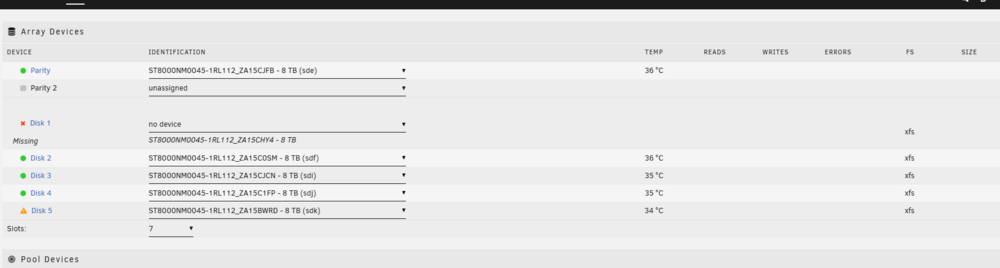
In the process of doing this, when I spin down my array disk1 throws a lot of errors and then isnt found by machine? I rebooted and it was back, but after starting and stopping the array it went away again gardenshire-diagnostics-20251024-1307.zip
-
No worries. Okay that just ran, I just want to clarify next steps. 1. Move anything off of the disk5 (right now, it only has my replicated ZFS snapshots from the cache) 2. Do I reformat it as XFS or ZFS? 3. Once reformatted, start checking array functionality?
-
I was able to start the array that way, when attempting to run that command I get the following output. Am I missing something, or should I use another command besides 'import'? root@Gardenshire:~# zfs import -o readony=on disk5 unrecognized command 'import' usage: zfs command args ... where 'command' is one of the following: version create [-Pnpuv] [-o property=value] ... <filesystem> create [-Pnpsv] [-b blocksize] [-o property=value] ... -V <size> <volume> destroy [-fnpRrv] <filesystem|volume> destroy [-dnpRrv] <filesystem|volume>@<snap>[%<snap>][,...] destroy <filesystem|volume>#<bookmark> snapshot [-r] [-o property=value] ... <filesystem|volume>@<snap> ... rollback [-rRf] <snapshot> clone [-p] [-o property=value] ... <snapshot> <filesystem|volume> promote <clone-filesystem> rename [-f] <filesystem|volume|snapshot> <filesystem|volume|snapshot> rename -p [-f] <filesystem|volume> <filesystem|volume> rename -u [-f] <filesystem> <filesystem> rename -r <snapshot> <snapshot> bookmark <snapshot|bookmark> <newbookmark> program [-jn] [-t <instruction limit>] [-m <memory limit (b)>] <pool> <program file> [lua args...] list [-Hp] [-r|-d max] [-o property[,...]] [-s property]... [-S property]... [-t type[,...]] [filesystem|volume|snapshot] ... set [-u] <property=value> ... <filesystem|volume|snapshot> ... get [-rHp] [-d max] [-o "all" | field[,...]] [-t type[,...]] [-s source[,...]] <"all" | property[,...]> [filesystem|volume|snapshot|bookmark] ... inherit [-rS] <property> <filesystem|volume|snapshot> ... upgrade [-v] upgrade [-r] [-V version] <-a | filesystem ...> userspace [-Hinp] [-o field[,...]] [-s field] ... [-S field] ... [-t type[,...]] <filesystem|snapshot|path> groupspace [-Hinp] [-o field[,...]] [-s field] ... [-S field] ... [-t type[,...]] <filesystem|snapshot|path> projectspace [-Hp] [-o field[,...]] [-s field] ... [-S field] ... <filesystem|snapshot|path> project [-d|-r] <directory|file ...> project -c [-0] [-d|-r] [-p id] <directory|file ...> project -C [-k] [-r] <directory ...> project [-p id] [-r] [-s] <directory ...> mount mount [-flvO] [-o opts] <-a|-R filesystem|filesystem> unmount [-fu] <-a | filesystem|mountpoint> share [-l] <-a [nfs|smb] | filesystem> unshare <-a [nfs|smb] | filesystem|mountpoint> send [-DLPbcehnpsVvw] [-i|-I snapshot] [-R [-X dataset[,dataset]...]] <snapshot> send [-DnVvPLecw] [-i snapshot|bookmark] <filesystem|volume|snapshot> send [-DnPpVvLec] [-i bookmark|snapshot] --redact <bookmark> <snapshot> send [-nVvPe] -t <receive_resume_token> send [-PnVv] --saved filesystem receive [-vMnsFhu] [-o <property>=<value>] ... [-x <property>] ... <filesystem|volume|snapshot> receive [-vMnsFhu] [-o <property>=<value>] ... [-x <property>] ... [-d | -e] <filesystem> receive -A <filesystem|volume> allow <filesystem|volume> allow [-ldug] <"everyone"|user|group>[,...] <perm|@setname>[,...] <filesystem|volume> allow [-ld] -e <perm|@setname>[,...] <filesystem|volume> allow -c <perm|@setname>[,...] <filesystem|volume> allow -s @setname <perm|@setname>[,...] <filesystem|volume> unallow [-rldug] <"everyone"|user|group>[,...] [<perm|@setname>[,...]] <filesystem|volume> unallow [-rld] -e [<perm|@setname>[,...]] <filesystem|volume> unallow [-r] -c [<perm|@setname>[,...]] <filesystem|volume> unallow [-r] -s @setname [<perm|@setname>[,...]] <filesystem|volume> hold [-r] <tag> <snapshot> ... holds [-rHp] <snapshot> ... release [-r] <tag> <snapshot> ... diff [-FHth] <snapshot> [snapshot|filesystem] load-key [-rn] [-L <keylocation>] <-a | filesystem|volume> unload-key [-r] <-a | filesystem|volume> change-key [-l] [-o keyformat=<value>] [-o keylocation=<value>] [-o pbkdf2iters=<value>] <filesystem|volume> change-key -i [-l] <filesystem|volume> redact <snapshot> <bookmark> <redaction_snapshot> ... wait [-t <activity>] <filesystem> zone <nsfile> <filesystem> unzone <nsfile> <filesystem> Each dataset is of the form: pool/[dataset/]*dataset[@name] For the property list, run: zfs set|get For the delegated permission list, run: zfs allow|unallow For further help on a command or topic, run: zfs help [<topic>]
-
My ZFS snapshots are stored on Disk 5
-
When I first encountered this issue last night, I tried starting the array with the slot for disk5 empty. It still showed stuck on "mounting" with nothing there, so I readded the disk, ever since then it has the emulation symbol next to it
-
Hello, I was having strange sporadic issues with some of my docker containers, after rebuilding my docker image they seemed to persist. After several reboots, I now cant seem to properly start my array (even if the docker and VM services are turned off). With my ZFS disk in the array I store my snapshots on being stuck in a mounting step My cache is two SSD ZFS drives in a pool, but I am not 100% sure how to cleanly scrub them while not losing my data. Since I can't start the array to move data off of them I am attaching my diagnostics from a point after I rebooting my machine, but before I attempt to start the array gardenshire-diagnostics-20251024-0804.zip
.thumb.png.6f589be89a4801d8c049f803e6f9d750.png)

.png.5bf754ac4124aab42e3026692f733d7c.png)