Justin H
Members
-
Joined
-
Last visited
-
The pool was created under nas4free several years ago before I migrated to unraid.
-
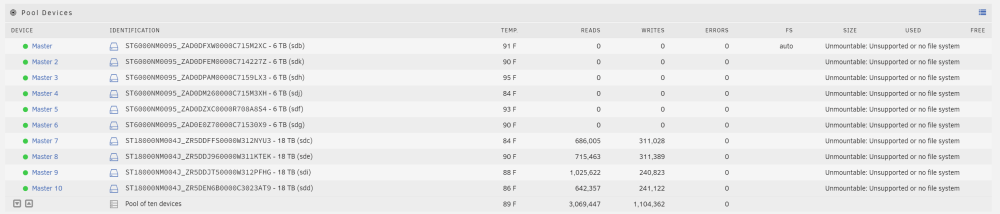
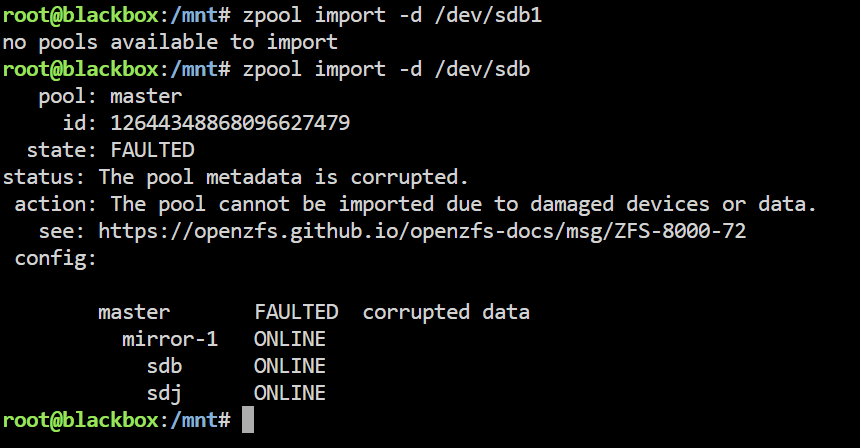
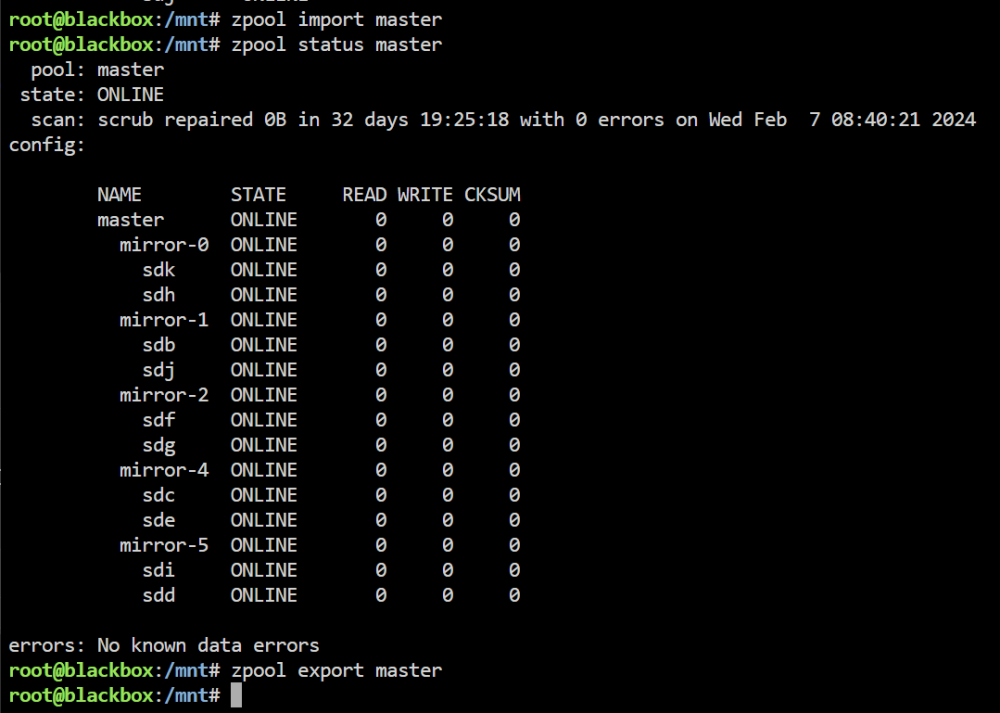
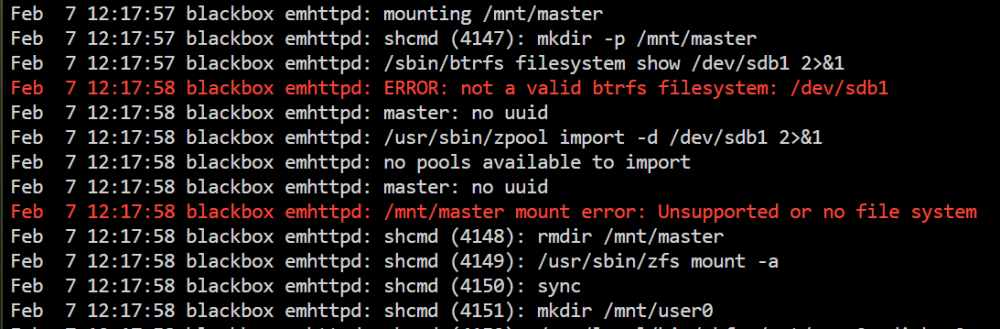
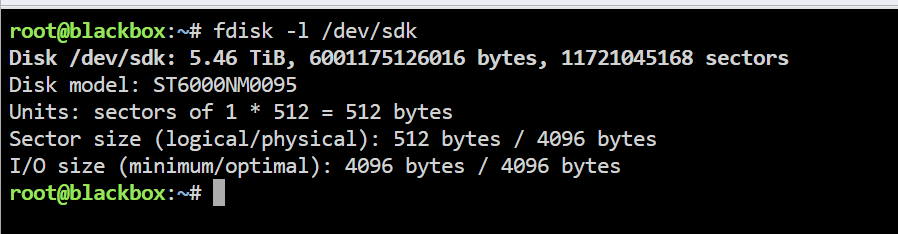
I can successfully import and export my zfs pool form the command line. The pool is scrubbed clean and work BUT I am attempting to get the UI to adopt the ZFS Pool. I have exported the zfs pool via the CLI then recreate the pool from the UI with all the drives that are a part of the array with the filesystem marked as auto. Then I attempt to start the array and I see that in the syslog an error about "no pools available to import" and "Unmountable: Unsupported or no file system" on the UI. The command in the syslog appear to import using... zpool import -d /dev/sdx1 where x is the first drive in the zfs pool. When I attempt to preform the same action from the CLI I get the error "no pools to available to import" (the same error listed in syslog) If I attempt to preform... zpool import -d /dev/sdx (where x is the first drive in the zfs pool) I get an error saying "the pool metadata is corrupted" BUT when I preform... zpool import "poolname" the pool is mounted as it should. The export command I am using is... zpool export "poolname" I have tried to go though all the applicable /dev/sdx1 but get similar issues. I am using unraid version 6.12.6 I have restarted and ensured the /mnt/master folder didn't exist after the pool was exported and before the UI had the array started. Here is the layout blackbox-diagnostics-20240207-1119.zip