Tetzel05
Members
-
Joined
-
Last visited
-
Thanks, Squid for the response. I went through every docker container with a magnifying glass and found the issue! Turns out, I had the Plex Appdata config path pointed to a cache drive that didn't exist. I renamed it to the correct cache pool and voila! All those errors I experienced disappeared and my Plex library is available after every reboot. Thank you for your assistance! ***Warning to new guys who are using Unraid for Plex*** Setting the Plex AppData config path to the cache (mnt/cache/appdata/PlexMediaServer) WITHOUT a designated cache drive on your server (or one that is named differently that doesn't contain your Plex appdata) will cause you to lose your Plex settings on every reboot and cause a host of other problems (rootfs maxed, webUI unresponsive, uninitialized csrf_token, etc.). Make sure your Plex AppData config path is named correctly if you're using a cache drive/pool. In my case, I had the path as : mnt/Cacheone/appdata/PlexMediaServer. After realizing the C is capitalized in that path, when my cache pool isn't, caused all my issues. I simply changed the WRONG path from: mnt/Cacheone/appdata/PlexMediaServer to the CORRECT path: mnt/cacheone/appdata/PlexMediaServer.
-
Tetzel05 changed their profile photo
-
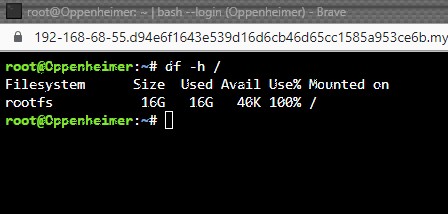
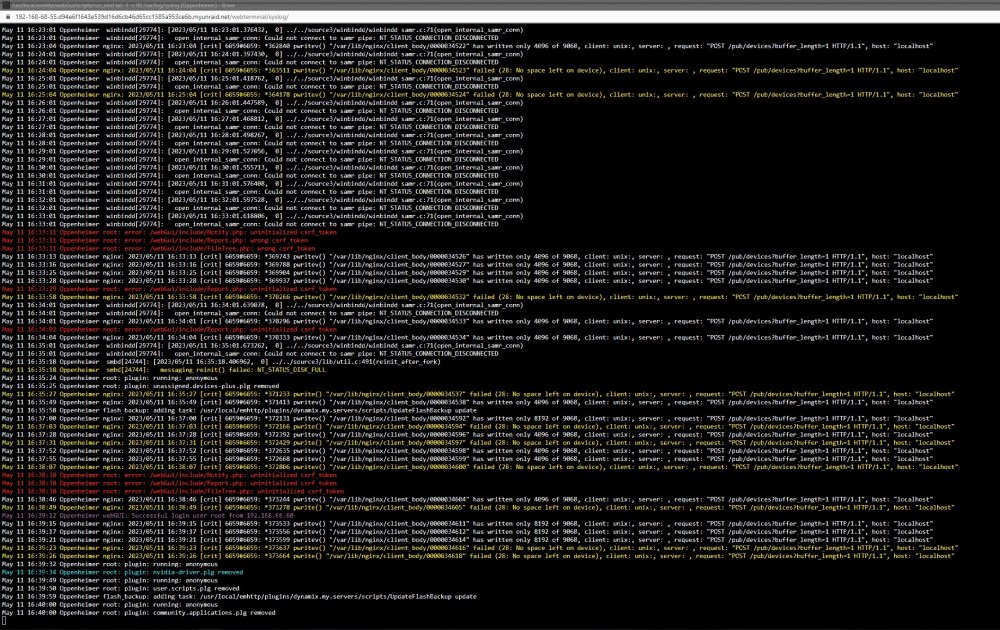
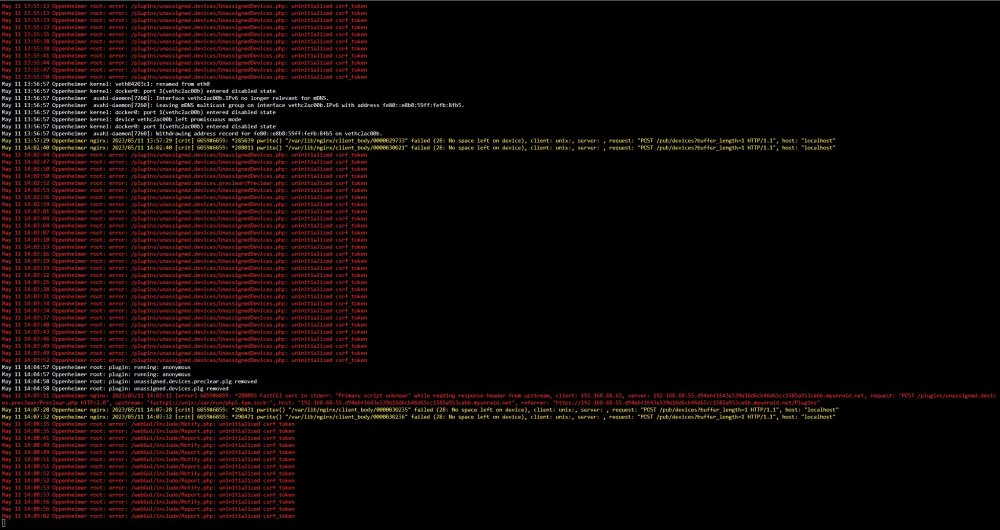
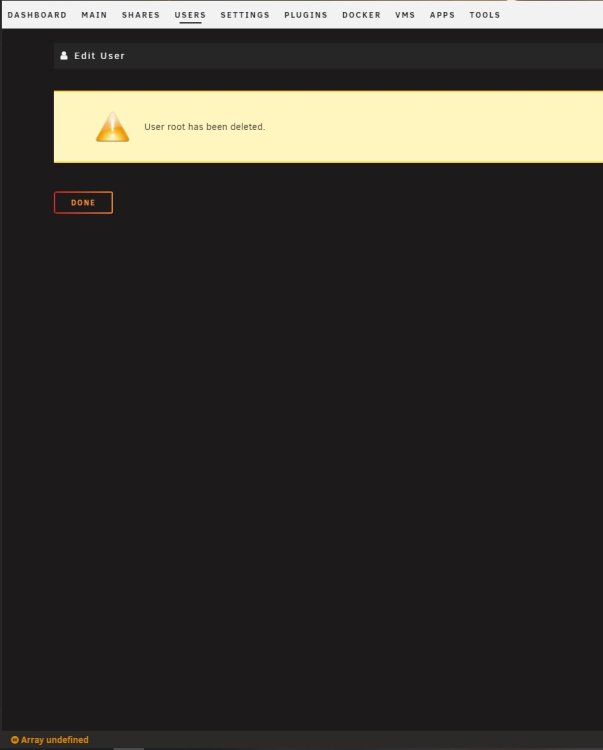
Greetings, my fellow Unraidians! Basic info: Unraid version: 6.11.5 Motherboard: Z790 CPU: Intel i-5 RAM: 32GB DDR5 Cache Pool: 2 M.2 drives Parity: 1 Parity drive Array: 8 HDDs of multiple sizes Where to begin? I suppose I should start with I'm an Unraid newbie. At first, my Unraid experience was great...until...I started experiencing the dreaded "Array undefined" issue. Along with a host of other issues. No idea if they're connected or independent issues. Grab some popcorn, it's going to be a fun ride: Array Undefined -More than likely caused by the rootfs issue? rootfs maxed out -Based on my research, it's suggested to increase RAM or check for a Share or Docker container that is pointing to that particular path. -My system has 32 GB of RAM....how can it be maxing out?? The only path I have pointed to the RAM is Plex for transcoding. It still fills up even when I'm NOT watching anything. -I checked my Shares and Docker containers but nothing jumps out at me. Is there a certain path I should look for that points to the "rootfs"? uninitialized csrf_token -From the rootfs issue? /var/lib/ngirx/client_body/0000029733 failed (28: No space left on device) -No idea. Plex Media Server (Official) never saves the setup. When I perform a reboot, poof! my entire library is gone and have to start all over. ALL of these issues only seem to happen when I have Plex running. Does anyone have any idea where I should even start? It's been extremely frustrating. Especially after transferring terabytes upon terabytes of data to a new file system. A very long process. At this point I just want a stable, reliable Plex Media Server. Any help or guidance is greatly appreciated. Please let me know if you need any logs.