0xcf80
Members
-
Joined
-
Last visited
-
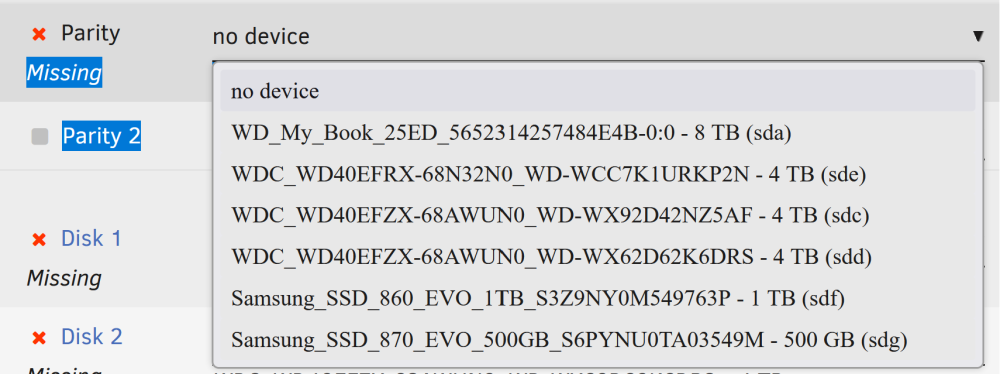
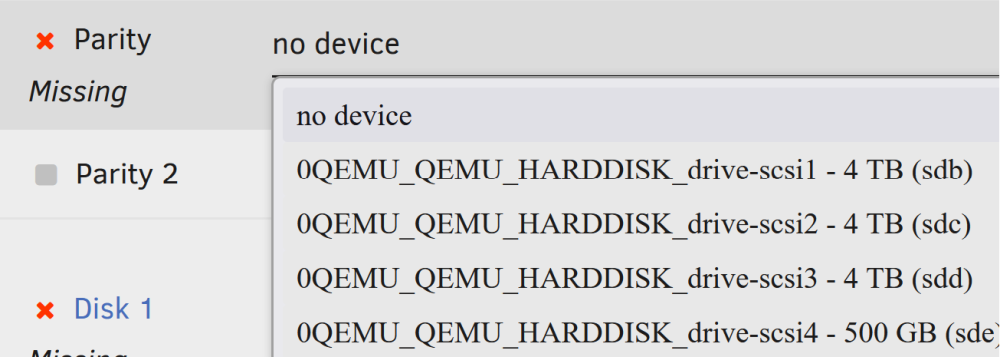
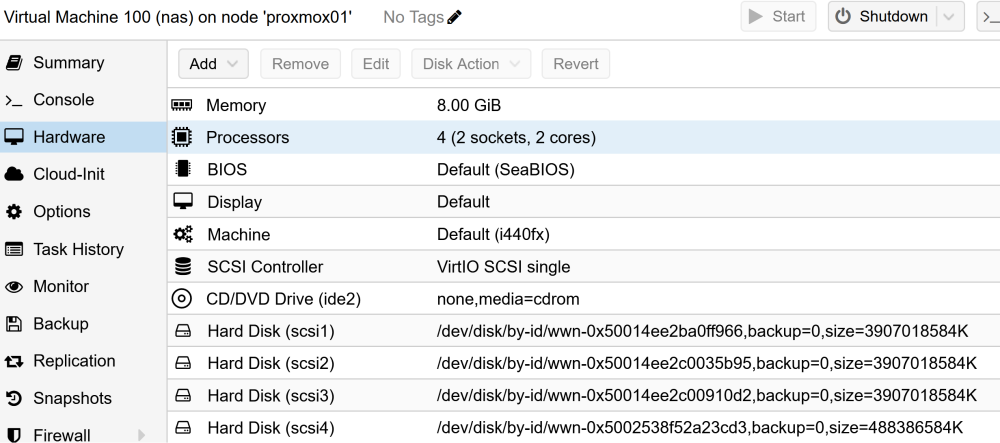
Hi everyone, due to a hardware failure, I need to migrate my Unraid installation into a VM (for context: The hardware that failed was not related to my NAS, but a hypervisor running VMs I use for testing and self education. The hypervisor installation (proxmox) will now need to run on my previous NAS hardware until I can buy new hardware without my wife noticing ). The issue I have is that, due to the change from bare metal hardware to a qemu VM, the device manufacturer has changed (from WD to Qemu), so unraid won't detect the disks as part of the array. The disks itself are fine, though (I can boot Unraid from the USB stick directly and start the array without the hypervisor inbetween). For passthrough, I followed this article: https://pve.proxmox.com/wiki/Passthrough_Physical_Disk_to_Virtual_Machine_(VM) So simple, and probably dump, question: Is there any way to re-create the array without nuking the disks? I created a backup to an external USB drive just to be sure (rsync), but would rather like to avoid having to use that Just in case it matters: I am using 3 WD Red HDDs (one of which is used for parity) a single SSD (for caching and container storage). I've attached a screenshots of the available disk names with unraid running on bare metal and within the virtualized environment. Cheers, Andre