jpar5
Members
-
Joined
-
Last visited
-
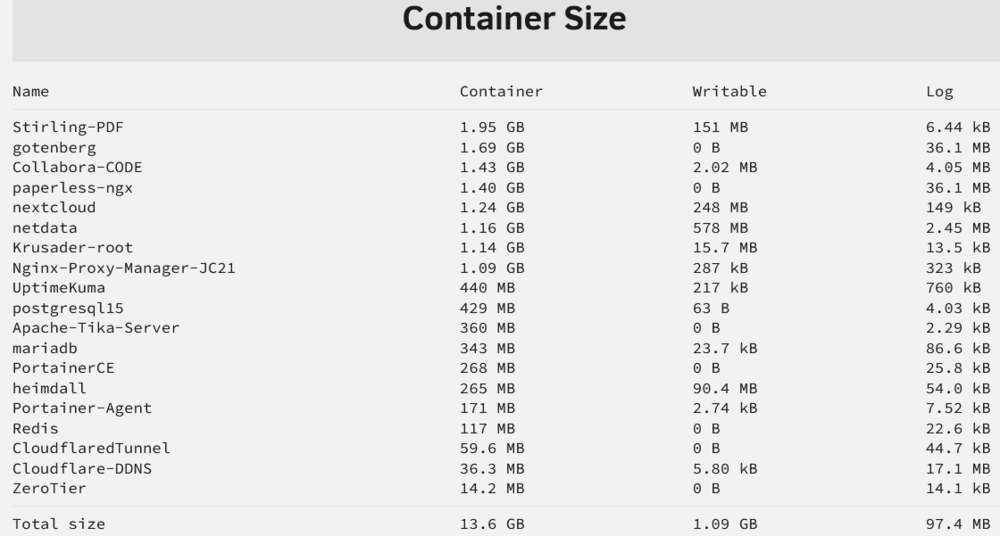
@Squid - thanks so much for the help. I was able to easily expand the vdisk, and was then able to update all of my docker containers, so, problem solved for now. That said, I didn't see anything that stood out as a container significantly larger than the others, though 8 of my containers are over 1GB in size, while the remainder are under 500MB. Does anything in the attached look off to you, or do I just have quite a few containers, and just needed a bigger vdisk to accommodate, so I am now ok? Thanks again.
-
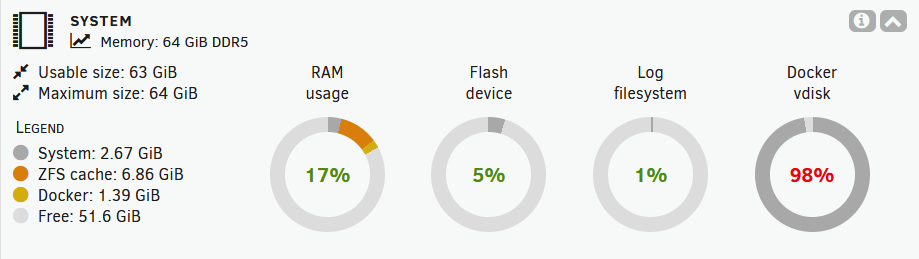
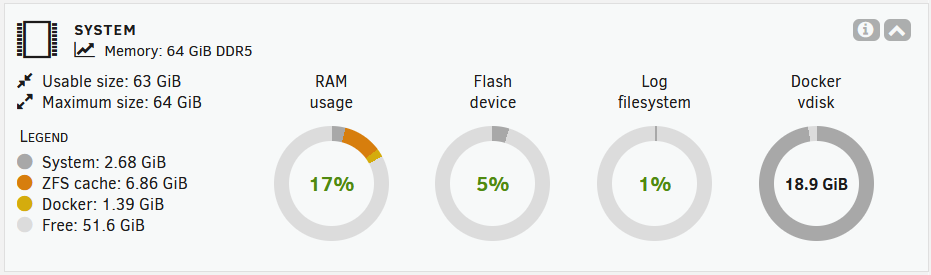
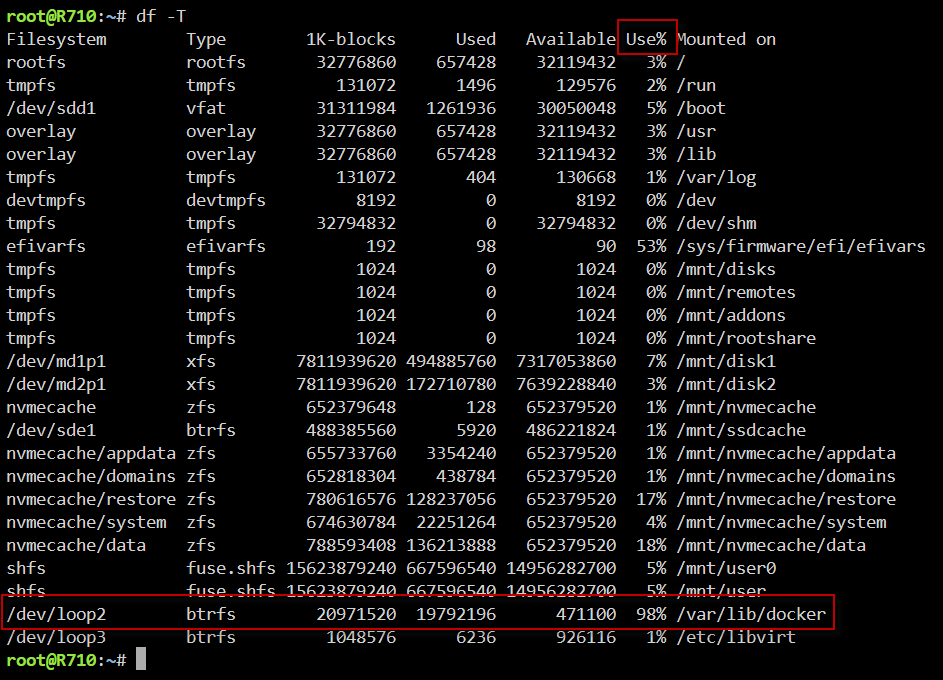
Hi all, I am just not solid enough on Linux to know how to handle what I am seeing, so please forgive the somewhat noob question. I appear to have a lot of space on all of my physical drives. That said, my docker containers will no longer update because I get an error that my docker volume is full. On my Dashboard I see a "Docker vdisk" that is red and at 98% capacity (see Pic1 attached), so that must be it. It is 20GB in size, and 18.9GB appears allocated (See Pic2 attached) when I hover my mouse over it. When I go into the unraid console and do a "df -T" I see that the "/dev/loop2" device is 98% full, so that's also it (See Pic3 attached) and that it is mounted to /var/lib/docker. My question is, what is this device, and how do I access it to either increase its size with gparted, or clean it up and delete stuff from it so I can continue to update my containers? Thanks so much for considering.