





Marsh_J
Members
-
Joined
-
Last visited
-
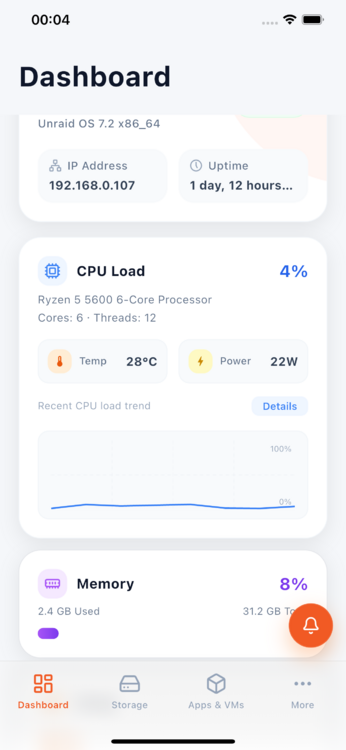
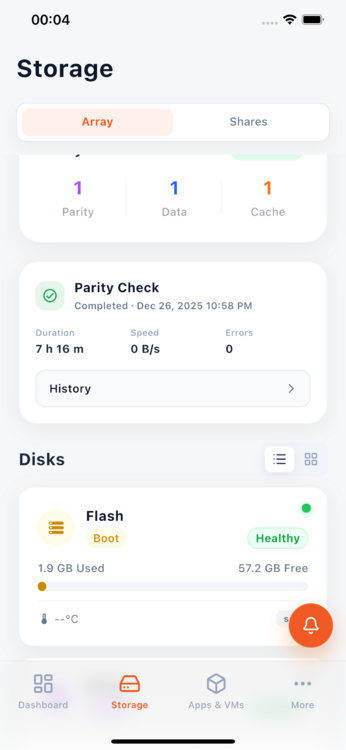
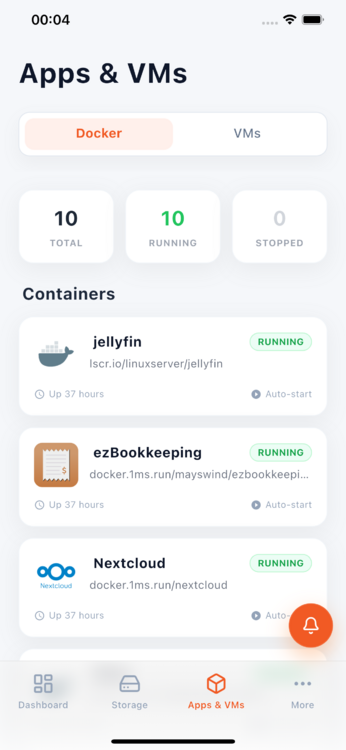
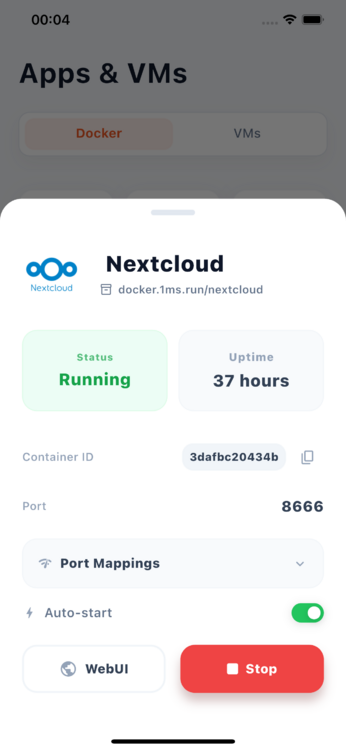
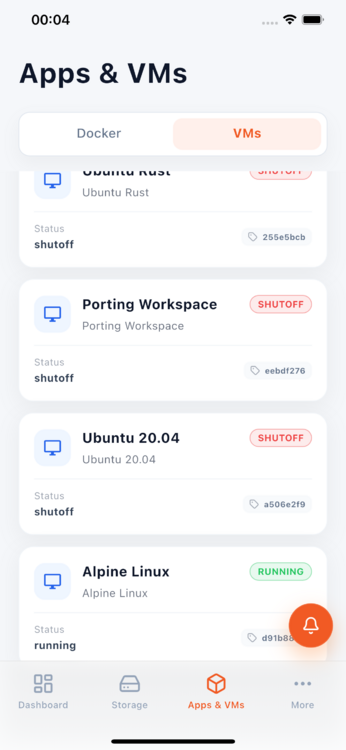
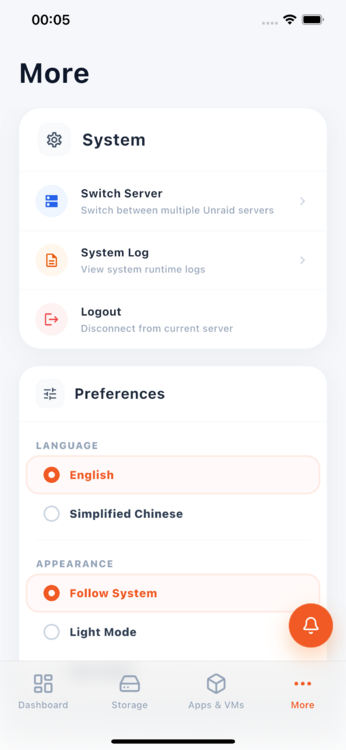
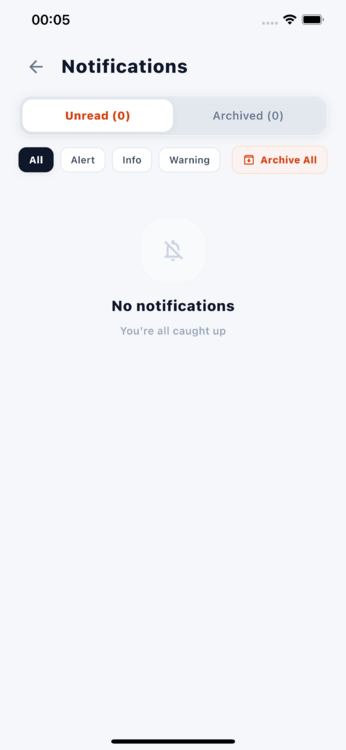
Hello everyone! Allow me to introduce Flap Unraid - a beautiful Unraid client built using Flutter. After merging into S3poo's project in December, I began developing my own Unraid app from scratch. This application is entirely built on Unraid 7.2+ internal APIs. Core Features: Real-time Dashboard: Instantly monitor CPU/memory usage, temperatures, and array health status. Multi-Server Management: Add and manage multiple servers. Docker Management: View running status, port mappings, and access WebUI with one tap. Virtual Machine (VM) Management: View running status with one-tap start/stop support. Storage & Sharing: Array Overview: Visualize disk temperatures, parity status, drive capacity, and health. Share Management: View available space in shared folders. System Tools: Notification Center: View Unraid system notifications. System Logs: Supports real-time viewing and monitoring of system log content. Security & Privacy: Data Security: All data is transmitted only within your local network (or VPN) and is never uploaded to the cloud. Multi-Language Support: Supports English, Chinese Requirements: Unraid OS v6.12 or higher (v7.2+ strongly recommended for full API support) Unraid API enabled on NAS Valid API key (note API key permissions) Ensure your iOS device is connected to a network with access to the Unraid server (LAN or VPN) Download Link: Flap Unraid If you have feature requests or suggestions, please let me know in the comments section.
-
Can I fork this project as a standalone project or contribute code to your project?


